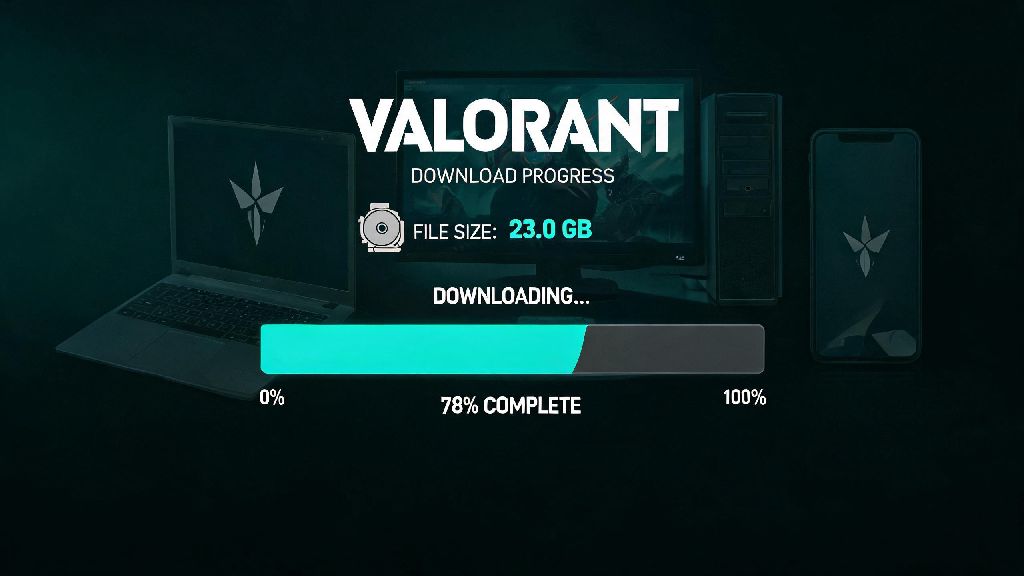
If you’re considering hopping into Valorant for the first time, or coming back after a long break, one of the first questions you’re probably asking is how big is Valorant download. After all, no one wants to start an install only to find out you don’t have enough storage left, or that it’ll eat through your entire monthly data cap before you even get to play your first unrated match. I’ve installed Valorant on three different devices over the last three years, from a budget laptop to a high-end gaming PC, and I’ve dealt with every quirk of its file size, from unexpected patch bloat to slow downloads on metered connections. This guide breaks down exactly what size you can expect, what affects that size, and how to make the install as small as possible if you’re tight on space.
How Big Is Valorant Download for Base Game Installs
As of the latest game patch, the compressed download size for Valorant sits right around 23GB for Windows PC users. That’s the total amount of data you’ll actually pull from Riot’s servers when you start your first install, so if you’re on a metered internet connection or have slow download speeds, this is the number you want to pay attention to. Once the download finishes, the installer will unpack those compressed files, leading to a full installed size of roughly 29 to 31GB, depending on your region and default language settings.
That’s surprisingly small compared to most other competitive first-person shooters on the market right now. For context, CS2 requires a minimum of 70GB of storage, and Call of Duty: Warzone 2 clocks in at over 100GB even without all the extra campaign content. Riot’s team has put a lot of work into optimizing the game’s file size over the years, trimming unused assets and compressing texture files without losing visual quality for most players.
You’ll also see a small extra download for Riot Vanguard, the game’s anti-cheat system, but that only adds around 200MB to the total download size, so it’s barely noticeable for most users. Vanguard runs in the background whenever your PC is on by default, but you can disable it on startup if you don’t play Valorant every day, though it won’t take up extra storage space either way.
How Patch Updates Affect Valorant's Total Storage Size
The base download size only tells half the story, because Valorant gets regular updates every two weeks, plus larger act updates every two months. Most of these are incremental patch downloads, meaning you only download the changed files instead of the entire game every time, which saves a lot of data and time for regular players. Small balance patches or bug fix updates usually range from 500MB to 2GB, while major act updates that add new agents, maps, or game modes can be anywhere from 3GB to 7GB in size.
Over time, though, these patches can lead to unexpected bloat in your install folder. Riot’s installer doesn’t always clear out old, unused files after patches finish, so it’s common for long-time players to have an install size of 40GB or more, even if they never added any custom content themselves. If you haven’t played Valorant in six months or more, it’s often faster to uninstall the game entirely and redownload the latest base version, instead of waiting for 10+ old patches to install one after another.
There are a few other common factors that can make your Valorant install far bigger than the advertised base size:
I found this out the hard way last year, when my Valorant install ballooned to 47GB without me noticing. Turns out I had over 80 old replay files saved from ranked matches I played a year prior, plus three extra language packs I’d downloaded when testing out voice lines for different agents. Clearing those out cut my install size almost in half.
Tips to Reduce Valorant's Download and Install Size
If you’re tight on storage or have a limited data cap, there are a few simple steps you can take to shrink Valorant’s download and install size without breaking the game or losing any core functionality. The first and easiest step is to delete any old replay files and highlights you don’t need anymore. You can find these in your Documents > Valorant > Live folder by default, and deleting unused files can free up 5 to 10GB of space in just a few clicks.
Next, you can remove any unused language packs from your install. Open the Riot Client, go to Valorant’s settings, select the General tab, and scroll down to the Language section. You can remove any languages you don’t use regularly, which will usually free up 2 to 4GB of space. You can always redownload these later if you want to switch languages, so there’s no risk of breaking anything by removing them.
Another great trick is to use the Riot Client repair tool to clear out leftover patch files. To run it, open the Riot Client, click on your profile icon in the top right, select Settings, then go to the Valorant tab and click the Repair button. The tool will scan your install for corrupted or unused files, delete them, and make sure your game is running the latest version. I run this once every act, and it usually frees up 3 to 5GB of space every time.
For users with slow internet connections, you can also limit your download speed in the Riot Client settings so the download doesn’t eat up all your bandwidth while you’re working or streaming other content. You can also schedule downloads for off-peak hours, when your internet speed is faster and you don’t need to use your connection for other things. Just make sure you don’t shut down your PC mid-download, as that can corrupt the install files and force you to start over.
What Storage Specs Do You Need for Smooth Valorant Performance?
The size of the download is only one part of the equation – you also need to make sure you’re installing Valorant on the right type of storage to get the best performance. The game will run on a traditional Hard Disk Drive (HDD), but you’ll notice much longer load times, and you might experience stuttering when loading into maps or when new agent abilities are used for the first time in a match. For the best experience, I strongly recommend installing Valorant on a Solid State Drive (SSD), which cuts load times in half or more and eliminates almost all in-game stuttering related to storage.
You also need to make sure you have at least 10GB of free space on the drive you install Valorant on, even after the game is installed. Patches need extra space to unpack new files before they replace the old ones, and if you don’t have enough free space, you’ll get download errors or even corrupted game files that force you to redownload the entire game. I learned this the hard way a few months ago, when I tried to install a new act update with only 3GB of free space on my SSD, and ended up having to redownload the whole game because the patch corrupted my install.
If you’re playing on a laptop with limited internal storage, you can install Valorant on an external SSD, but make sure it’s a USB 3.0 or faster drive. Older USB 2.0 drives are too slow to run the game smoothly, and you’ll experience long load times and frequent disconnects during matches. You can also use an external HDD for storage if you really don’t have space on your internal drive, but expect load times to be 3 to 4 times longer than on an internal SSD.
At the end of the day, if you were wondering how big is Valorant download, you can expect around 23GB of data used for the initial download, and roughly 30GB of storage space required for the full install, plus extra space for patches and saved content over time. It’s one of the most accessible competitive FPS games on the market when it comes to storage requirements, so most players won’t have to jump through hoops to fit it on their PC. If you do run into space issues, the small tweaks I outlined above will usually free up more than enough space to keep the game running smoothly for months to come. Just remember to leave extra space for patches, run the repair tool every few months, and delete old replays you don’t need, and you’ll never have to worry about storage issues with Valorant again.