I was 1v3 on Ascent last week, clutching a ranked match that would have pushed me to Immortal, when my screen froze for half a second. I came to laying on the ground, my Vandal unused, and my team spamming "lag diff" in chat. If you've ever had a round ruined by rubber-banding, missed shots that should have hit, or inputs that register half a second late, you know how frustrating high ping is in Valorant. The good news is that most ping issues are easy to fix, no expensive hardware or technical degree required. This guide walks you through how to improve ping in Valorant with simple, tested steps that work for both PC and console players.
First: Diagnose the Root of Your High Ping Issue
Before you start messing with settings or calling your ISP, take two minutes to figure out if your high ping is specific to Valorant, or a problem with your entire internet connection. Always test your base internet speed before adjusting any Valorant settings to rule out widespread issues. Run a speed test on your phone or PC while no other devices are using the network, and check for packet loss as well as download/upload speed.
If your speed test shows packet loss above 2% or ping above 50ms even when no other apps are running, the issue is with your internet connection, not Valorant. If your base ping is low but you see spikes only when you open Valorant, the problem is specific to the game or how your system is routing traffic to Riot's servers. Ping above 70ms will usually cause noticeable input delay that makes it harder to hit flick shots or react fast to peeks, so that's the threshold you want to stay below.
You should also check if other players in your match are complaining about ping too. If everyone on your team has high ping at the same time, it's almost always a Riot server issue, not something on your end. You don't need to waste time tweaking settings if the problem is on their side, just wait a few minutes or switch to a different server region temporarily.
How to Improve Ping in Valorant With In-Game and Network Tweaks
Once you've ruled out widespread internet or server issues, these simple, no-cost tweaks will cut your ping and reduce lag spikes almost immediately. Most of these take less than two minutes to implement, and you don't need to download any third-party tools to use them.
- Switch to a wired ethernet connection first: Wi-Fi is 2-3x more likely to drop packets, even if you have a fast new router. If you can't run a cable to your PC or console, sit within 10 feet of your router with no thick walls or appliances between you and the device to cut interference.
- Close all background apps that use internet: This includes streaming services like Netflix or Twitch, cloud backup tools, voice chat apps you aren't using for the match, and even browser tabs with video content running. These apps siphon bandwidth that Valorant needs to run smoothly.
- Set Valorant to high priority in your task manager: Right click the taskbar, open Task Manager, find Valorant under Processes, right click, go to Priority, and select High. Don't select Real Time, as that can cause system instability and crash your game mid-match.
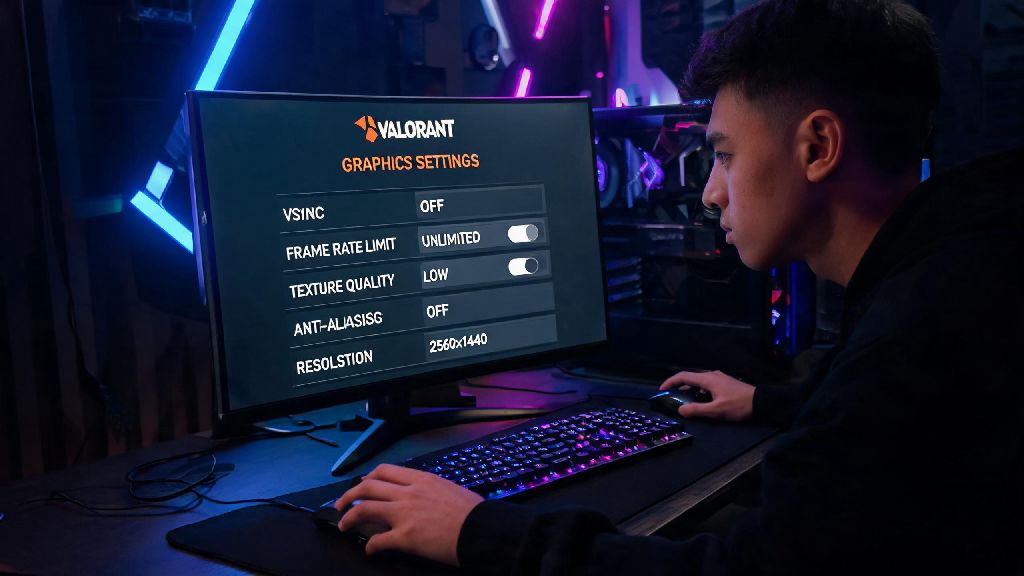
- Enable "Limit Background FPS" in Valorant's video settings and set it to 30: This cuts down on unnecessary system and network usage when you're tabbed out of the game between matches, so you won't get random ping spikes when you load back in for the next round.
Wired connections cut average ping by 20-40ms for most users, so that's the first change you should make if you're still on Wi-Fi. I switched to a $10 ethernet cable last year and dropped my average ping from 75ms to 32ms overnight, with zero more lag spikes in ranked. Never download files or run system updates while you're playing ranked, even if you think you have fast enough internet to handle it. Even small updates can cause sudden ping spikes that cost you rounds.
Advanced Fixes for Persistently High Ping in Valorant
If the basic tweaks didn't cut your ping enough, these more advanced steps will help you fix lingering network issues that most players miss. None of these are complicated, but they do take a little more time to set up correctly.
First, change your DNS server to a faster, more reliable option like Cloudflare's 1.1.1.1 or Google's 8.8.8.8. Most default ISP DNS servers are slow and outdated, and switching can cut your routing time to Riot's servers by 10-15ms. You can find step-by-step guides to changing your DNS for both PC and console online, and it only takes a minute to set up.
Next, double check that you're connected to the closest Valorant server region in the game's settings. Playing on a server more than 500 miles from your location will always result in higher ping, no matter what tweaks you make. A lot of players accidentally leave their server set to a region they played in while traveling, and wonder why their ping is so high when they get home. You can check your ping to each available server in the Valorant settings menu, under the Network tab.
If you're still seeing packet loss after all these tweaks, contact your ISP to ask them to check for line issues. A lot of old lines have small damages that cause consistent packet loss, and most ISPs will send a technician to fix it for free if you report the issue. You should also make sure your router is less than 5 years old, as old routers can't handle modern gaming traffic properly.
Common Mistakes That Make Your Ping Worse (And How to Avoid Them)
A lot of players accidentally make their ping worse by following bad advice they see on TikTok or Reddit, so it's important to know what changes to avoid. These mistakes can add 30ms or more to your ping without you even realizing it.
The most common mistake is using a free VPN to play Valorant. A lot of players use VPNs to access different server regions or avoid ISP throttling, but free VPNs are rarely optimized for gaming. Most free VPNs will add 50ms or more to your ping, even if they claim to be gaming-friendly. If you really need to use a VPN for Valorant, invest in a paid gaming-specific VPN that has dedicated servers for Riot's regions.
Another common mistake is having too many devices connected to your network at once. Smart TVs, security cameras, smart speakers, and even phones running background updates all siphon bandwidth that Valorant needs to run smoothly. If you live in a shared household, ask other people to hold off on streaming 4K content or downloading large files while you're playing ranked. It's a small ask that can cut your ping by 20ms or more.
You should also avoid using old or damaged ethernet cables. Even small kinks or tears in the cable can cause packet loss and higher ping, and most people use the same cheap cable they got with their router for years without replacing it. A new, high-quality ethernet cable costs less than $15, and it's one of the best investments you can make for consistent low ping.
You don't need to spend hundreds of dollars on a new router or gaming PC to get lower ping in Valorant. Most fixes are free, take less than 10 minutes to implement, and will make a noticeable difference in your gameplay. If you start with diagnosing the root of the issue, run through the basic tweaks first, and avoid the common mistakes that cause higher ping, you'll be able to get consistent low ping for every match. The next time you're in a clutch, you won't have to worry about lag ruining your shot, you can focus on playing your best and climbing the ranks. Now that you know how to improve ping in Valorant, go test these tweaks in your next match and see the difference for yourself.