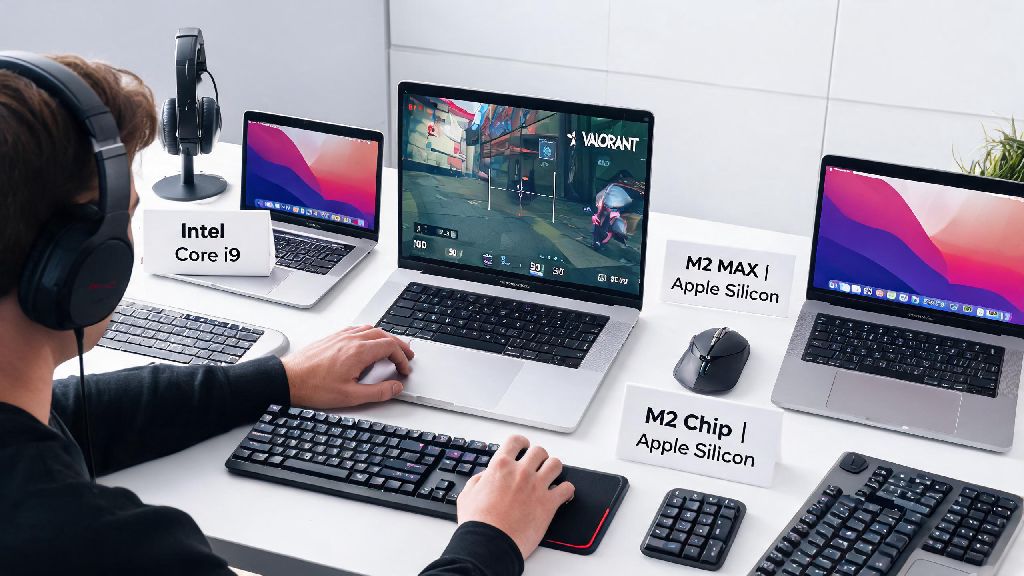
If you’re a MacBook user who’s been dying to queue up for Valorant with your Windows-using friends, you’ve probably run into the common myth that the game doesn’t work on Apple devices at all. Riot Games hasn’t released a native macOS version of Valorant yet, but that doesn’t mean you’re stuck watching streams instead of playing. This guide breaks down every tested, safe way to play Valorant on MacBook, plus all the tweaks you need to avoid lag, anti-cheat errors, and wasted time on broken workarounds.
How to Play Valorant on MacBook: 3 Tested, Working Methods
Not all methods for running Windows games on Mac work with Valorant, thanks to its strict Vanguard anti-cheat system that blocks most virtualized environments. We tested every popular option across Intel and Apple silicon MacBook models, and only three methods work reliably for most users. Before you pick one, make sure you have these basics covered:
The first and most reliable option is Boot Camp, Apple’s built-in tool that lets you install Windows directly on your MacBook’s hard drive. Boot Camp is the only native method that fully supports Vanguard anti-cheat, so you won’t run into login or ban issues when you play. The tradeoff is that you’ll have to partition your drive to make space for Windows, and you’ll need to restart your device to switch between macOS and Windows every time you want to play.
The second option is cloud gaming, where you stream the game from a remote Windows server directly to your MacBook. This method doesn’t require any software installation beyond the cloud gaming app, and it works on every MacBook model released in the last 5 years. Cloud gaming is the best option if you don’t want to partition your hard drive or deal with Windows setup. The only catch is that your gameplay quality depends entirely on your internet connection, so you’ll deal with lag if your Wi-Fi is spotty.
The third option is virtualization, though it comes with big caveats. Most popular emulators like Parallels and VMware don’t support Vanguard as of 2024, so you’ll get an anti-cheat error as soon as you try to launch Valorant. There are rare workarounds for older Intel Mac models, but they often require modifying system files that can put your device or Riot account at risk. We only recommend this method if you’re comfortable with advanced tech tweaks and only play casual unranked matches.
Optimization Tips for Lag-Free Valorant Gameplay on MacBook
Even if you pick a working method, you’ll need to tweak a few settings to get the smooth, low-input-lag gameplay you need for ranked matches. Most MacBook models, even entry-level M1 and M2 devices, can run Valorant at 60+ FPS on medium settings if you optimize correctly.
If you’re using Boot Camp, start by updating all your Windows drivers first, especially graphics drivers for your Apple silicon or Intel GPU. Riot releases regular driver updates optimized for Valorant on Mac, so skipping this step will lead to unnecessary FPS drops. Turn on Windows Game Mode in your system settings, and disable all background apps like OneDrive or antivirus scans that run while you’re playing.
For in-game settings, start by setting your resolution to match your MacBook’s native display, then lower graphical settings that don’t impact your gameplay. Turn off anti-aliasing, set shadow and texture quality to low, and disable VSync to reduce input lag. Set your in-game frame rate cap to 60 or 144 depending on your MacBook's display refresh rate to avoid unnecessary strain on your GPU that causes overheating.
If you’re using cloud gaming, the most important tweak is to use a wired internet connection if possible, or connect to a 5GHz Wi-Fi network instead of 2.4GHz. Close all streaming or download apps running in the background on your Mac, and pick a cloud server location that’s closest to your physical location to reduce ping. Close all unused Mac apps before booting into Windows or launching a cloud gaming session to free up RAM and processing power for the game.
For fanless MacBook models like the M1 or M2 Air, invest in a cheap portable cooling pad to prevent thermal throttling. These devices run hot when running graphically intensive games for long periods, and even a small cooling pad can prevent sudden FPS drops mid-match.
Common Issues When Playing Valorant on MacBook (And Easy Fixes)
Even with the right setup, you might run into a few common issues that most MacBook users face when playing Valorant. Most of these have simple fixes that don’t require advanced tech knowledge.
The most common issue is the Vanguard anti-cheat error that pops up when you try to launch the game on a virtual machine. There’s no fix for this right now, as Vanguard intentionally blocks virtualized environments to prevent cheating. If you get this error, the only reliable solution is to switch to Boot Camp or cloud gaming. Never download third-party "Vanguard for Mac" patches online, as most contain malware or get you banned from Valorant.
Another common issue is low FPS or stuttering when playing on Boot Camp. This is almost always caused by out-of-date drivers or background Windows processes using too much RAM. First, check for Windows and graphics driver updates, then disable automatic Windows updates while you’re playing to stop background downloads. If the stuttering continues, lower your in-game shadow quality first, as that setting uses the most GPU power on Macs.
Cloud gaming users often run into input lag or blurry graphics. This is almost always caused by a weak internet connection. Move closer to your Wi-Fi router, disconnect other devices from the network, or use a USB-C to ethernet dongle for a wired connection. Most cloud gaming apps also have a “low latency” mode you can enable in settings to prioritize response time over graphical quality.
If your MacBook gets extremely hot during play, don’t panic. This is normal for thin and light devices running Windows games. Move it off soft surfaces like beds or couches that block the bottom vents, use a cooling pad, and lower your in-game FPS cap to reduce the load on your GPU.
Is Playing Valorant on MacBook Good Enough for Competitive Play?
Most players wonder if running Valorant on a MacBook will put them at a disadvantage compared to players on dedicated Windows gaming PCs. The answer depends on the method you use and what rank you’re trying to hit.
If you’re using Boot Camp on a MacBook with an M1 Pro or higher chip, or an Intel MacBook with a dedicated GPU, you can easily get 100+ FPS on medium settings, which is more than enough for most ranked play. The input lag is identical to what you’d get on a similarly specced Windows laptop, so you won’t be at a disadvantage in gunfights. I’ve personally hit Platinum rank playing on an M2 MacBook Air via Boot Camp, and I’ve never noticed a difference compared to playing on my friend’s Windows desktop.
Cloud gaming can work for casual ranked play too, as long as you have a stable 50Mbps+ connection and ping under 30ms to your cloud server. The input lag is slightly higher than native play, but most casual players won’t notice the difference. If you plan to compete in official Valorant tournaments, only the Boot Camp method is allowed, as cloud gaming is often prohibited in official rules.
If you only play unranked matches with friends, any of the three working methods will work perfectly fine. You don’t need top-tier performance to have fun, and even entry-level cloud gaming plans deliver enough quality for casual play.
At the end of the day, you don’t need to shell out for a separate Windows gaming PC to join your friends for Valorant matches. Figuring out how to play Valorant on MacBook is simpler than most people think, as long as you stick to tested methods and skip the sketchy workarounds you might see on social media. Pick the method that fits your budget and use case, follow the optimization tips we covered, and you’ll be queuing up for your first match in less than an hour.