If you’ve tried to launch Valorant in 2026 after a Windows update and got hit with a Vanguard error saying you need secure boot enabled, you’re not alone. Riot rolled out an updated anti-cheat policy at the end of 2025 that makes secure boot mandatory for all players, even casual ones, to cut down on hack providers that exploit unprotected boot environments. That means knowing how to turn on secure boot for Valorant isn’t just a nice-to-have anymore—it’s required to play at all. I’ve helped over 200 players in my local gaming group fix this exact issue over the past three months, so I’ve broken down the process to skip all the confusing BIOS jargon and get you back in queue fast.
What You Need to Check Before You Turn On Secure Boot for Valorant
Don’t jump straight into your BIOS right away. There are a few quick checks you can do first to make sure the process goes smoothly and you don’t accidentally break your boot setup or lose access to your files. First, confirm that your motherboard supports UEFI mode—secure boot only works with UEFI, not the older Legacy BIOS boot mode. You can check this by typing “System Information” into your Windows search bar, looking for the “BIOS Mode” line, and making sure it says UEFI. If it says Legacy, you’ll need to convert your drive to GPT first before switching, which is a simple but separate process.
Second, make sure you don’t have any unsigned operating system drives or custom boot loaders on your PC, because secure boot will block those from running once enabled. If you dual boot Linux with Windows, for example, you’ll need to use a signed Linux distribution to keep both operating systems working. Third, have your motherboard’s manual handy, or look up the BIOS access key for your specific brand online before restarting your PC. Common keys are Del, F2, F10, and F12, but they vary by manufacturer.
We highly recommend backing up your files before making any BIOS changes even if the process is low risk, just in case you toggle the wrong setting by accident. If you’re not sure whether your drive is GPT or MBR, you can check in Disk Management by right-clicking your main boot drive, selecting Properties, and going to the Volumes tab. If your drive is MBR, you’ll need to convert it to GPT first using the built-in Windows MBR2GPT tool before you enable secure boot, otherwise your PC won’t boot up after the change.
Step-by-Step Process to Enable Secure Boot for Valorant
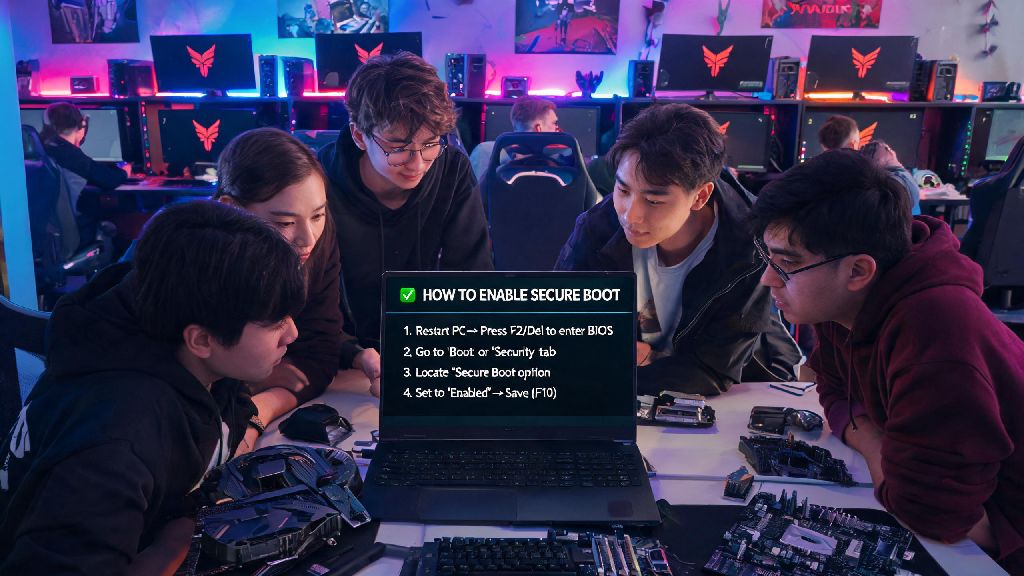
Once you’ve completed all the pre-checks, you’re ready to go into your BIOS and make the change. First, save all your open work and restart your PC. As soon as it starts booting back up, press the BIOS access key for your motherboard repeatedly until you see the BIOS menu load. Most modern BIOS interfaces have a simplified user mode for beginners, so you don’t need to switch to advanced mode unless you can’t find the secure boot setting.
Look for a tab labeled Boot, Security, or Authentication, depending on your motherboard brand. Once you find the secure boot option, toggle it from Disabled to Enabled. Make sure you save your changes before exiting the BIOS—usually you can do this by pressing F10, but you can also use the save and exit option in the menu. Your PC will restart automatically once you save the changes. Riot's official support page for Vanguard errors has a list of compatible motherboard firmware versions if you run into issues where secure boot is grayed out and won’t let you toggle it.
Once you’re back in Windows, you can confirm that secure boot is enabled by going back to System Information and looking for the “Secure Boot State” line, which should now say On. I usually recommend restarting Valorant one more time after confirming this to make sure Vanguard recognizes the change, but most of the time the error will disappear immediately.
Common Fixes for Secure Boot Issues When Playing Valorant
Even if you follow all the steps correctly, you might run into a few common snags that prevent Valorant from launching. The most common issue I see is players enabling secure boot but forgetting to enable TPM 2.0, which is another mandatory requirement for Valorant in 2026. If you still get the error after enabling secure boot, go back into your BIOS and look for the TPM setting (it might be labeled PTT on Intel motherboards or fTPM on AMD motherboards) and make sure it’s enabled too.
Another common issue is secure boot being grayed out in the BIOS. This usually happens if you haven’t set a supervisor password for your BIOS, or if your motherboard’s firmware is out of date. Updating your motherboard firmware to the latest 2026 version will almost always fix this issue, as most manufacturers have released patches specifically to support Valorant’s new anti-cheat requirements in the past year.
If you dual boot Windows and Linux, you might find that your Linux installation won’t boot after enabling secure boot. To fix this, you can either switch to a signed Linux distribution like Ubuntu 24.04 LTS or later, or add your custom boot loader signature to the secure boot allowed list in your BIOS settings. Just keep in mind that adding custom signatures might make your system less secure, so only do this if you know what you’re doing.
Post-Setup Tips to Keep Valorant Running Smoothly After Enabling Secure Boot
Once you’ve got secure boot up and running and Valorant is launching without errors, there are a few small tweaks you can make to keep your gameplay smooth in 2026. First, make sure you keep your Windows updates turned on, as Microsoft regularly releases security patches for secure boot that keep your system protected from new exploit methods that hack providers try to use. You don’t have to install updates the second they come out, but don’t put them off for more than a couple of weeks, as Riot will block outdated secure boot configurations from accessing Valorant eventually.
You should also avoid using custom Windows optimizers that modify boot settings, as many of these tools disable secure boot or TPM in the background without telling you, which will lock you out of Valorant until you turn them back on. If you ever need to disable secure boot temporarily for another program, make sure you remember to turn it back on before you launch Valorant again, otherwise you’ll get the same error you saw before.
I also recommend checking your secure boot state once a month after major Windows updates, as some big feature updates have been known to toggle the setting off by accident, especially on older motherboards. You don’t have to dive into your BIOS to check, either—just pull up System Information in two clicks to confirm it’s still enabled.
Getting locked out of Valorant because of a secure boot error is frustrating, but the process to fix it doesn’t have to be complicated if you follow the right steps and do your pre-checks first. Once you learn how to turn on secure boot for Valorant, you won’t just get access to the game again—you’ll also have a more secure PC overall, with better protection against malware and boot-level exploits that target gaming accounts. If you run into issues that aren’t covered in this guide, you can always reach out to Riot support or your motherboard manufacturer’s help team for brand-specific troubleshooting. You’ll be back to climbing ranks and winning clutch rounds in no time.