Maybe you’re burnt out from a brutal string of ranked losses, need to free up 30+ GB of storage for a new AAA release, or are dealing with persistent Valorant launch errors that won’t go away with a simple repair. Whatever your reason for removing the game, doing it the wrong way can cause a ton of unnecessary headaches. I’ve seen far too many players rush to delete the Valorant folder directly from their Program Files, only to end up with Vanguard errors when they try to launch League of Legends the next day. This guide walks you through how to uninstall Valorant from Riot Client the right way, with no leftover files, no broken anti-cheat services, and no risk to other Riot games you have installed.
How to Uninstall Valorant From Riot Client Without Breaking Other Riot Games
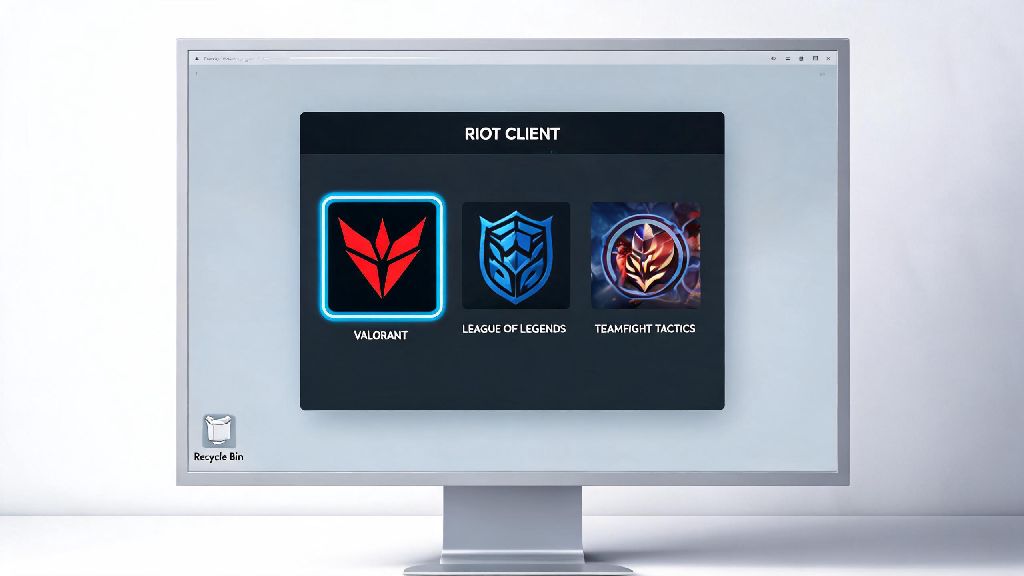
This official uninstall method is the safest option if you have multiple Riot games on your device, as it only targets Valorant and leaves your League of Legends, Teamfight Tactics, or Legends of Runeterra files completely untouched. Don’t delete game folders manually before trying this process, as that can corrupt your Riot Client settings and make it impossible to uninstall the game through the official tool. The entire process takes less than 10 minutes for most users, and you don’t need any special software to complete it.
If you get a permission error during the uninstall process, that just means the Riot Client doesn’t have access to modify the files on your device. Right-click the Riot Client shortcut on your desktop and select Run as administrator before repeating the steps above, and that will almost always fix the issue immediately. You don’t need to uninstall the Riot Client itself unless you plan to stop playing all Riot games entirely.
What to Do If Valorant Doesn’t Show Up in Your Riot Client Uninstall Menu
It’s not uncommon for Valorant to be missing from the Riot Client’s uninstall menu, especially if you first installed the game before the unified Riot Client launched in 2021, or if you moved the Valorant game folder to a different drive manually without updating the client’s file path settings. This issue also pops up if your Riot Client cache is corrupted from a failed update or unexpected shutdown mid-patch.
First, try running the Riot Client repair tool, which you can access by clicking the Settings icon on the client’s main homepage and selecting "Repair" from the general settings menu. This will scan your client for corrupted files and mismatched paths, and it usually takes 2-3 minutes to complete. If Valorant still doesn’t show up after the repair, you can uninstall it directly through your Windows settings.
Open the Windows Settings app, go to Apps > Installed Apps, then search for Valorant in the list of programs. Click the three dots next to the Valorant listing and select Uninstall, then follow the prompts to remove the game. Always remove Vanguard along with Valorant by searching for "Riot Vanguard" in the same installed apps list and uninstalling it right after you remove Valorant. The anti-cheat runs at the system level even when you don’t have the game installed, and it can cause performance issues or conflicts with other games and software if left on your device unnecessarily.
How to Remove Leftover Valorant and Vanguard Files After Uninstall
Even if you use the official uninstall method, small leftover files like game logs, cache data, and temporary update files can stay on your device and take up several gigabytes of storage space. These leftover files can also cause errors if you decide to reinstall Valorant later, as the new install will try to reference the old corrupted files instead of creating new ones. You don’t need to pay for a fancy cleaning tool to remove these files, either.
First, open your File Explorer and navigate to the folder where you installed Riot Games, which is usually in C:\Program Files\Riot Games by default. If you see a Valorant folder still in that directory, delete it, then look for a Riot Vanguard folder and delete that too if it’s still present. Next, open the Windows Disk Cleanup tool, select your main drive, check the box next to "Temporary Files" and "Game User Files", then run the cleanup to remove any remaining cached data.
Don’t edit your Windows Registry manually unless you know exactly what you’re doing, as deleting the wrong entry can break your entire operating system. If you’re worried about leftover registry entries, you can use a trusted free third-party uninstaller tool that scans for leftover files and registry entries automatically, which is safe for most casual users. It’s also a good idea to restart your PC after you finish removing all leftover files, to make sure all remaining Vanguard background services are fully shut down and removed from your system.
Common Reasons to Uninstall Valorant (And When You Should Just Repair Instead)
A lot of players jump straight to uninstalling Valorant when they run into minor technical issues, but that’s usually unnecessary and wastes a ton of time re-downloading the 30+ GB game later. There are only a few scenarios where uninstalling is actually the best choice. You should uninstall if you haven’t played the game in six months or more and need the storage space, if you’re selling or giving away your PC and want to remove all personal game data, or if you’ve tried repairing the game multiple times and still can’t get it to launch without errors.
For almost all other issues, repairing the game is a faster and better option. You should run the Valorant repair tool if you’re getting in-game crashes only during specific matches, if your skin collections aren’t loading properly, if your crosshair settings keep resetting, or if the Riot Client runs slow only when you have the Valorant tab open. Repairing Valorant only takes 5-10 minutes for most users, and it won’t delete any of your in-game progress, skins, or custom settings, unlike uninstalling the game completely.
If you’re just taking a short break from the ranked grind, you don’t need to uninstall the game at all. You can turn off auto-updates for Valorant in the Riot Client settings to save bandwidth while you’re not playing, and you won’t have to re-download any new patches when you decide to come back. I’ve made the mistake of uninstalling before a two-week vacation before, and I ended up wasting three hours waiting for the game to re-download when I got home, so trust me on this one.
Whether you’re clearing space for a new game release, fixing persistent technical issues, or just stepping away from the Valorant grind for a while, following the steps we outlined will make the process smooth and hassle-free. Taking the extra time to learn how to uninstall Valorant from Riot Client the right way saves you from annoying errors, leftover files taking up precious storage, and issues with other Riot games you might still play. If you decide to come back later, you can reinstall the game in just a few clicks through the Riot Client, and all your progress and skins will be right where you left them.