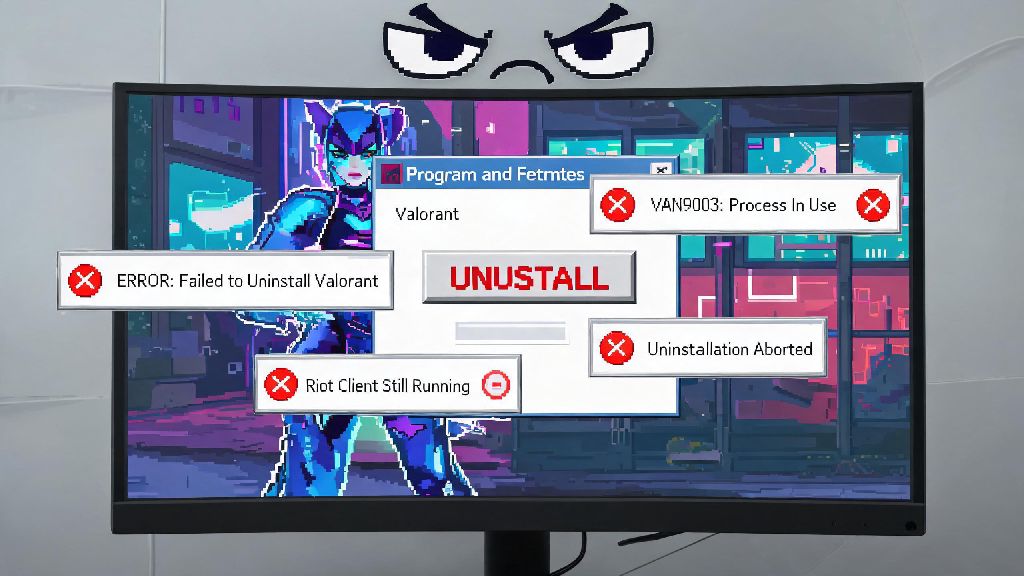
If you’ve stared at your screen for 20 minutes clicking uninstall only to get vague error popups, you’re far from alone. I’ve helped dozens of friends fix this exact issue over the years, so I can promise none of the fixes here require fancy tech knowledge or paid tools. One of the most common support questions Riot gets from players is why can’t I uninstall Valorant, even when they follow the standard Windows remove program steps. Most of the time, the issue ties back to Vanguard, Riot’s anti-cheat software that runs at the system level to stop hackers. It locks associated game files while active, so regular uninstall methods often fail.
Common Reasons Why You Can’t Uninstall Valorant
Before you jump into fixes, it helps to know what’s causing the block in the first place, so you don’t waste time on steps that don’t address your specific issue. Riot Vanguard runs at the kernel level of your operating system, which gives it deep access to your device to detect cheat software, but also means it can block modifications to its own files or associated Valorant files even when you don’t have the game open. That’s the root cause of 90% of uninstall failures.
Other common triggers include corrupted game files that break the built-in uninstaller, leftover Riot Client processes running in the background that lock game folders, restricted admin permissions on your Windows profile, or third-party antivirus software that flags Riot’s uninstall tool as suspicious. Corrupted game or client files will block standard uninstall commands, even if you have full admin access to your device, because the uninstaller can’t read all the files it needs to remove.
In rare cases, recent Windows updates can create permission conflicts that stop you from removing system-level software like Vanguard, but that’s far less common than the issues listed above. You don’t need to reset your entire PC to fix this, no matter what random forum comments might say.
Pre-Uninstall Checks to Run First
Most uninstall fails happen because people skip these simple pre-checks that clear common blocks before you even start the removal process. Spend 2 minutes running through these steps, and you’ll save yourself a lot of frustration later:
Never skip the restart step after disabling Vanguard, even if you think you closed all related processes. Vanguard leaves low-level drivers running in the background until you restart, and those drivers will still block file deletion even if you don’t see the Vanguard icon in your tray. I can’t tell you how many people I’ve seen skip this step and end up right back where they started, getting the same “file in use” error messages.
Proven Methods to Remove Valorant When Standard Uninstall Fails
If you ran through the pre-checks and still can’t remove Valorant via the standard Windows Apps & Features menu, try these methods in order, starting with the safest one first. Always use Riot’s official uninstall tool first before trying manual file deletion, as it’s designed to remove all associated files without risking damage to your operating system.
The official Riot uninstall tool is included with your Riot Client installation by default. You can find it in your Program Files > Riot Games > Riot Client folder, named “RiotClientUninstaller.exe”. Run it as admin, select Valorant and Vanguard from the list of installed Riot products, and follow the prompts to remove both. It will automatically clear all locked files and registry entries for you, with no extra work required.
If the official tool doesn’t work, you can try manual uninstall via Windows Apps & Features after ending all Riot processes via Task Manager. Open Task Manager, search for all processes with “Riot” or “Valorant” or “Vanguard” in the name, end them all, then go to Apps & Features, uninstall Vanguard first, then uninstall Valorant, then uninstall the Riot Client. If that still fails, you can manually delete the Valorant and Vanguard folders from Program Files, then clean related registry entries. Only edit your Windows registry if you’re comfortable making system changes, as incorrect edits can break your PC. If you’re not sure what you’re doing, stick to the official tool or ask a tech-savvy friend for help.
How to Remove All Leftover Valorant and Vanguard Files
Even after a successful uninstall, you might have leftover files taking up space on your hard drive, or leftover Vanguard drivers that cause performance issues with other games. It’s worth taking 5 extra minutes to clear these out, especially if you don’t plan to reinstall Valorant any time soon.
First, check your Program Files, Program Files (x86), and AppData > Local folders for any remaining Riot Games, Valorant, or Riot Vanguard folders, and delete them if they’re still there. Then run Windows Disk Cleanup to clear temporary files associated with the game, including old installation files and error logs. You can also check your Windows Services list to make sure the Vanguard service is no longer set to run on startup.
Leftover Vanguard kernel drivers can cause performance issues with other games even after you remove Valorant, so don’t skip this step if you play other online games with anti-cheat software. If you do plan to reinstall Valorant later, you can leave the saved settings folder in your Documents folder intact, so you don’t have to reconfigure your crosshair, keybinds, and video settings when you come back.
At the end of the day, most uninstall problems boil down to Vanguard’s strict system-level permissions that keep your matches fair while you play. If you’ve been asking why can’t I uninstall Valorant, the fixes above will resolve 99% of common errors, no advanced tech skills required. If you run into a rare error that isn’t covered here, you can submit a ticket to Riot’s support team with a screenshot of your error message for personalized help. And if you decide to come back to the game later, reinstalling takes just a few minutes, and all your account progress will be waiting for you.