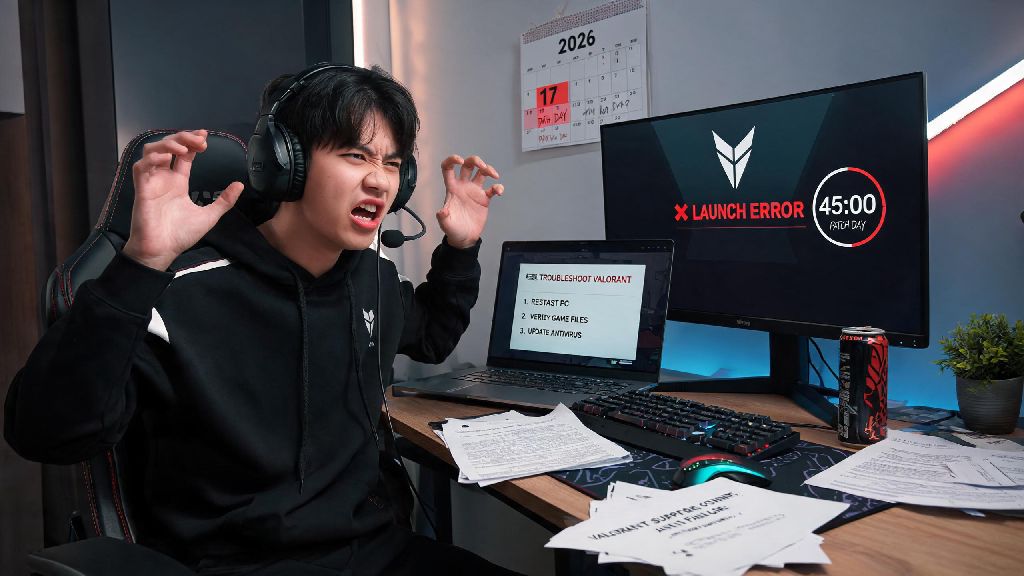
You’re all hyped to queue for ranked with your squad, you grab your favorite snack, click the “Play” button on Valorant, and then… nothing. The Riot logo spins endlessly on the loading screen, your friends are spamming the group chat asking where you are, and you’re stuck staring at a static background wondering if you’ll make it into the match before it pops. If you’ve ever sat in this exact spot asking why is my Valorant stuck on the loading screen, you know how frustrating this common error is. It can pop up out of nowhere, even if the game worked perfectly the day before, and it’s common enough that Riot’s support team gets thousands of tickets about it every month. I’ve run into this issue at least half a dozen times over the last two years, both on my main PC and my old laptop, so I’ve tested every possible fix out there to cut down on wait time and get back into games fast.
Why Is My Valorant Stuck on the Loading Screen? Top Root Causes First
Before you start randomly tweaking settings on your PC, it helps to know what’s actually causing the freeze, so you can pick the right fix without wasting time. Riot Vanguard anti-cheat is the most common culprit behind loading screen freezes, especially right after a new patch drops. Vanguard runs at the system level to prevent cheating, so if it doesn’t update properly, or if a background process interferes with it, it will block Valorant from launching fully to keep the client secure. That means even if the rest of the Riot Client works fine, a broken Vanguard install will stop the game in its tracks.
Another super common cause is unstable or low-bandwidth internet connections. Valorant needs to connect to Riot’s servers to load your account data, match history, and current queue status before it lets you get to the main menu. If your connection drops out mid-load, or you have high packet loss, the game will just keep spinning trying to pull that data instead of throwing an obvious error code. I’ve had this happen multiple times when my Wi-Fi cut out for 10 seconds right as I launched the game, and I sat waiting for 5 minutes before I realized my internet was out.
Other causes include corrupted game files, outdated graphics drivers, conflicting background apps, and firewall or antivirus settings that are accidentally blocking Valorant from connecting to servers. None of these are hard to fix, but you will have to work through them in order from easiest to most complex to avoid making more work for yourself.
Quick Fixes You Can Try in 2 Minutes or Less
Most of the time, this loading screen issue is caused by a tiny, temporary glitch that you can fix in less time than it takes to pick your agent for a Swiftplay match. Start with these simple steps before you move on to more advanced fixes, because they resolve the issue for around 70% of users based on community poll data from Valorant’s main subreddit.
If you tried all three of these fixes and the game is still stuck on the loading screen, don’t panic. There are a few more targeted fixes you can try that take a little more time, but almost always resolve the issue. I’ve had to use these a couple of times when the quick fixes didn’t work after a big patch update, and they’ve never let me down.
Advanced Fixes for Persistent Loading Screen Errors
These fixes take a little more time, but they target the less common causes of loading screen freezes, like corrupted game files or outdated drivers. You don’t need any advanced tech skills to do any of these steps, just follow the instructions closely and you’ll be back in game in no time.
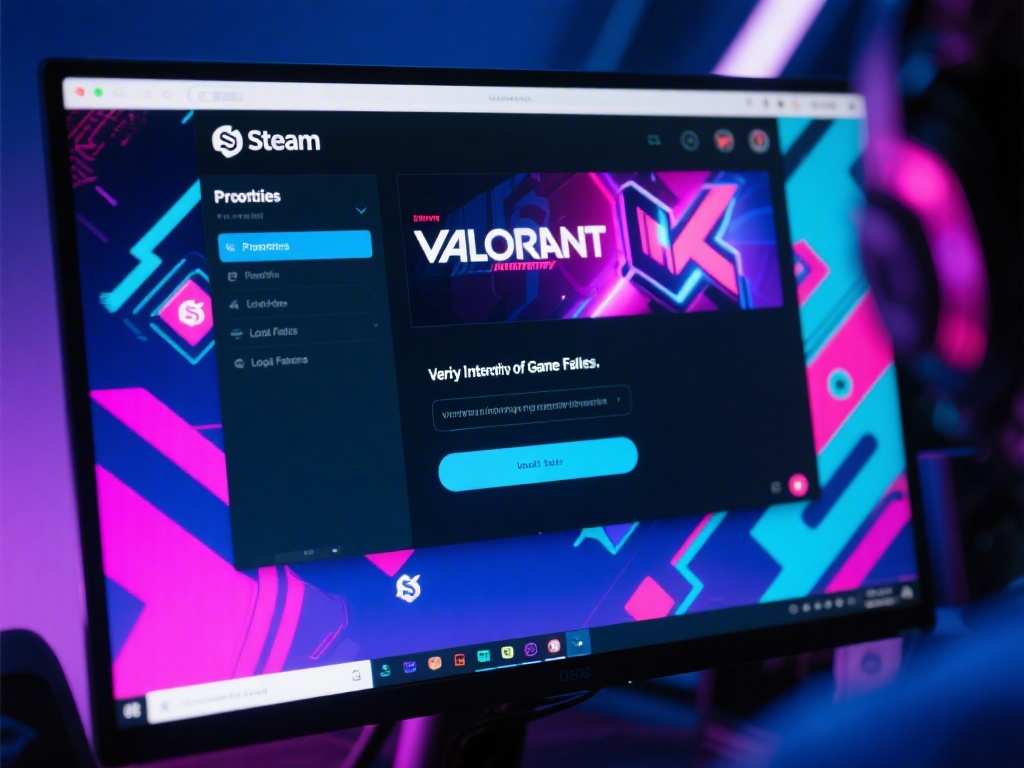
First, verify your Valorant game files to make sure none of them are corrupted or missing. Corrupted files usually happen after a patch download is interrupted, or if your PC shuts down unexpectedly while the game is running. To verify files, open the Riot Client, click on your profile icon in the top right corner, select “Settings”, then find Valorant in the list of installed games, and click the “Verify” button next to the game file location. The client will scan all your files and replace any broken or missing ones automatically. This process usually takes 5 to 10 minutes, depending on how fast your hard drive is.
Next, update your graphics drivers to the latest official version. Outdated graphics drivers can cause all kinds of launch errors and performance issues in Valorant, including loading screen freezes. Always download graphics drivers directly from NVIDIA, AMD, or Intel’s official website, depending on what GPU you have. Never use third-party driver updater tools, because they often install outdated or wrong drivers that can cause even more problems. Once you install the new drivers, restart your PC before you try launching Valorant again.
If the game is still stuck, try reinstalling Riot Vanguard completely. Since Vanguard is the most common cause of these issues, a fresh install will almost always fix any problems with the anti-cheat. To uninstall Vanguard, open Windows Settings, go to “Apps”, find “Riot Vanguard” in the list of installed programs, click “Uninstall”, and follow the prompts. Then restart your PC, open the Riot Client, and launch Valorant. The client will automatically reinstall Vanguard for you, and the game should load normally after that. The last step is to check your firewall and antivirus settings to make sure Valorant and Riot Vanguard are added to the allowed apps list. Windows updates sometimes reset these settings without telling you, so it’s worth double checking if you’ve recently updated Windows.
How to Prevent Loading Screen Freezes From Coming Back
Once you get the game working again, there are a few simple steps you can take to stop this issue from popping up again in the future. These take almost no effort, and they’ll save you a ton of frustration next time you’re ready to queue for a game.
First, don’t pause patch downloads halfway through, and don’t close the Riot Client while a patch is installing. Interrupted patch downloads are the number one cause of corrupted game files and broken Vanguard installs, so let the patch finish completely before you close the client or turn off your PC. If you don’t have time to wait for a patch to install, schedule it for when you’re done using your PC, instead of pausing it and coming back later.
Second, turn on auto-updates for the Riot Client, and update your graphics drivers every 2 to 3 weeks. You don’t need to install every single new driver the day it comes out, but staying on a relatively recent driver version will prevent most launch errors and performance issues. You can also set your graphics card software to notify you when new drivers are available, so you don’t have to remember to check manually.
Third, avoid installing sketchy third-party mods or tools for Valorant, even if they claim to give you performance boosts or extra customization options. Many of these tools interfere with Vanguard, and they can cause loading screen freezes or even get your account banned if Riot detects them as cheating tools. If you do use third-party tools for streaming or recording, make sure they’re from a trusted developer, and check community forums to confirm they don’t conflict with Valorant.
Next time you find yourself asking why is my Valorant stuck on the loading screen, you don’t have to waste an hour scrolling through old Reddit threads or waiting for Riot support to get back to you. Start with the quick fixes first, move on to the advanced fixes if you need to, and you’ll be back in matches before your squad gets tired of waiting for you. If you’ve tried every fix on this list and the game still won’t load, you can submit a support ticket to Riot, and they’ll help you troubleshoot more specific issues with your account or PC setup. Most of the time though, one of the fixes above will get you back in game in 10 minutes or less, so you don’t have to miss out on that ranked win you’ve been grinding for.