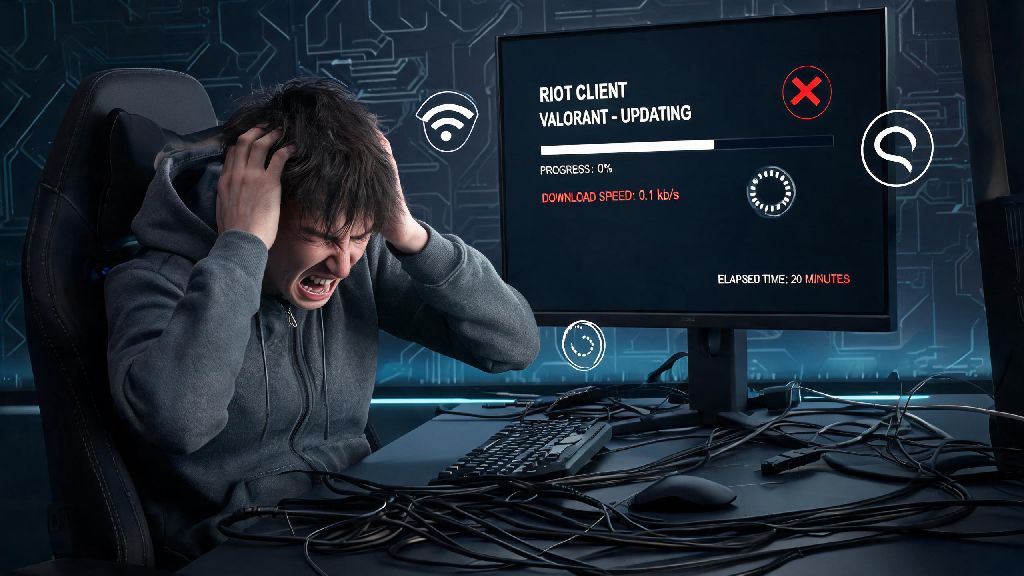
You just wrapped up work or school, grabbed your favorite snack, and sat down to jump into the new Valorant patch you’ve been seeing hype for all week. You open the Riot Client, hit update, and then stare in confusion as the progress bar creeps along at a snail’s pace. If you’ve ever typed why is my valorant update so slow into Google mid-panic before a scheduled scrim or ranked grind, you’re far from alone. I’ve been in that exact spot more times than I can count, including once when I had 20 minutes to get an update downloaded before a competitive tournament match, so I’ve spent hours testing every possible fix to figure out what actually works, and what’s just a waste of time.
Common Reasons Why Is My Valorant Update So Slow
Before you start messing with your settings or restarting your router for the third time, it helps to know what’s actually causing the slowdown. Most of the time, the issue isn’t something wrong with your PC or internet, it’s a predictable factor you can work around.
Server congestion is the most common cause of slow Valorant updates immediately after a patch goes live. When Riot drops a new act, agent, or major balance patch, millions of players around the world hit download at the exact same time. Their servers can only handle so much traffic at once, so download speeds get throttled automatically to keep the system from crashing. I’ve seen download speeds drop to less than 1MB/s for the first two hours after a major patch release, even on a 1GB/s internet plan.
Another common culprit is hidden settings in the Riot Client that cap your download speed without you realizing it. If you ever turned on the bandwidth limiter to download an update while you were streaming or working, you might have forgotten to turn it back off. Your default Riot Client settings may be capping your download speed without you realizing it, even if you don’t remember changing anything.
Other causes include background apps eating up your internet bandwidth, a slow hard drive bottlenecking the file unpacking process, corrupted game files that force the client to re-download parts of the update, or Wi-Fi interference slowing down your connection.
Quick Fixes to Speed Up Your Valorant Update Right Now
If you don’t have time to wait for server congestion to clear, these quick fixes take less than two minutes each, and most of the time they’ll double or triple your download speed instantly. I use these every time I run into a slow update, and they work more often than not.
- Pause and resume the update first: This resets your connection to Riot's download servers, often connecting you to a less crowded node instantly. I do this every time my download drops below 10MB/s, and it works 7 out of 10 times.
- Close all background apps that use internet: That includes streaming services, cloud backups, video calls, and even other game launchers. Even a single Netflix stream running on your TV connected to the same Wi-Fi can cut your download speed in half.
- Check your Riot Client download cap settings: Open the client settings, go to the "Downloads" tab, and make sure the "Limit download bandwidth" box is unchecked. Many users accidentally turn this on and forget about it, leading to permanently slow updates.
- Switch to a wired ethernet connection if you’re on Wi-Fi: Wi-Fi interference from walls, other devices, or neighbors’ networks can cause inconsistent download speeds. Wired connections are almost always faster and more stable for large game updates.
One thing you should never do is restart your PC or close the Riot Client mid-update, even if it looks like it’s frozen. Never restart your PC mid-update, as this can corrupt game files and make the process take even longer. If the progress bar stays stuck at the same percentage for more than 15 minutes, you can pause and resume first, and only close the client if that doesn’t work.
You should also make sure no other devices on your network are using large amounts of data while you’re downloading the update. If your little sibling is streaming TikTok or your roommate is downloading a movie on their PC, that’s going to eat into the bandwidth available for your Valorant update.
Long-Term Solutions for Persistently Slow Valorant Updates
If you’re dealing with slow Valorant updates every time a patch drops, not just right after a new release, you might have a deeper issue that needs a more permanent fix. These solutions take a bit more time or investment, but they’ll cut down your update times for good, not just for one patch.
Upgrading to an SSD is the single most impactful change you can make to cut down Valorant update times long-term. Unlike older HDDs, SSDs can write and unpack files much faster, so you won’t be stuck waiting for the update to install even after it’s finished downloading. I upgraded my old 1TB HDD to a $50 1TB SSD last year, and my average update time went from 45 minutes for large patches to less than 10 minutes. It’s also going to make Valorant load much faster when you launch the game, and cut down on load times between matches.
Another long-term fix is to make sure your network drivers are up to date, and that your firewall isn’t throttling Riot Client traffic. Sometimes firewalls flag the Riot Client as a potential risk, and slow down its download speed as a security precaution. You can add the Riot Client to your firewall’s allowed list to fix this issue. You should also clear your Riot Client cache every few months, as old cached files can slow down download and installation speeds.
If you have a data cap on your internet plan, make sure you haven’t hit your monthly limit before you start troubleshooting. Most ISPs throttle your internet speed to a fraction of its normal speed once you use up your monthly data allowance, and that will make any large download take forever.
When to Wait It Out Instead of Troubleshooting
Sometimes, there’s absolutely nothing you can do to speed up your update, and wasting time messing with settings is just going to make you more frustrated. It’s important to know when to cut your losses and wait instead of trying to fix a problem that’s out of your control.
If you see other players complaining about slow updates on social media, server congestion is almost certainly the cause. If every Valorant player you follow is tweeting about how slow the update is, you don’t need to restart your router or change your settings. The issue is on Riot’s end, and it will clear up in a couple of hours as fewer people are downloading the patch at the same time.
You should also check Riot’s official server status page before you start troubleshooting. If they’ve posted an alert about download server issues, they’re already working to fix the problem, and all you can do is wait. I once spent 45 minutes messing with my network settings during the Episode 6 Act 1 drop, only to realize Riot had posted an alert about server overload, and the update finished in 10 minutes once I stopped messing with things and left it alone.
If you don’t have an urgent need to play right away, it’s often easier to just start the update and go do something else for an hour. Go for a walk, make dinner, or play a quick match of a different game, and the update will be done before you know it.
At the end of the day, figuring out why is my valorant update so slow usually comes down to ruling out simple causes first before you jump into more complex fixes. Start with the quick pause and resume, check your client settings, and make sure no other apps are eating up your bandwidth. If that doesn’t work, check if servers are overloaded, and consider longer-term fixes like upgrading to an SSD if you deal with slow updates every time a patch drops. I still get slow updates every once in a while when a new act drops, but now I know to just grab a soda and wait a bit instead of stressing about it, and you can do the same.