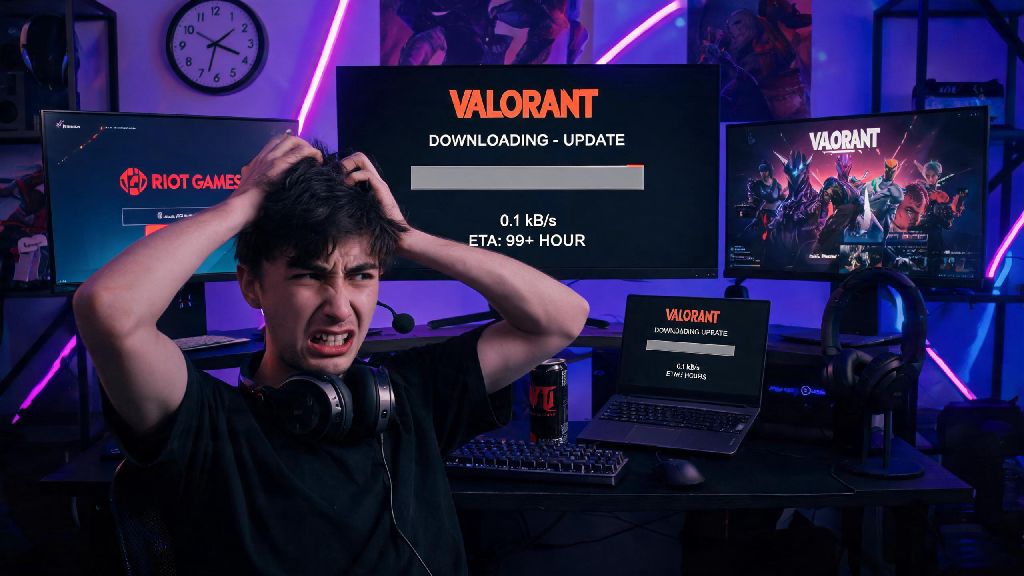
You just saw the notification for the new Valorant agent drop, so you boot up the Riot Client ready to jump into a match as soon as the update finishes. But instead of a fast, seamless download, you stare at a progress bar that barely moves, and wonder why is Valorant downloading at 0.1kb/s when your internet works fine for every other app and game. This issue is way more common than you might think, and it’s almost never caused by a single obvious problem. We’ve spent months troubleshooting this exact glitch for our community of Valorant players, so we’re breaking down every possible cause and fix you can try without needing a degree in IT.
Common Reasons Why Is Valorant Downloading at 0.1kb/s
I’ve had this happen to me twice right before a ranked tournament, so I know how panic-inducing it can be when the clock is ticking and your download won’t move. The first step to fixing it is understanding what’s actually causing the slowdown, and most cases boil down to a handful of common culprits. Riot Client’s built-in bandwidth limiter is the most common culprit — even if you never turned it on yourself, some patches reset the setting automatically, capping your download speed to a tiny fraction of what your internet can handle.
ISP throttling of gaming-related traffic is another frequent cause, especially during peak hours between 7pm and 11pm local time. Many internet providers prioritize streaming and web browsing traffic over game downloads during busy periods, intentionally slowing down your Valorant update to free up bandwidth for other users. Corrupted Riot Client cache, overloaded regional Valorant servers during big patch drops, and background apps eating up all your bandwidth are also common triggers for the 0.1kb/s download glitch. In rare cases, your antivirus or firewall might flag the Riot Client download as suspicious, limiting its speed to prevent what it thinks is malicious activity.
Quick First Checks to Rule Out Simple Issues
You don’t need to dive into complicated settings right away. Most slow download cases are fixed with 2 minutes of basic checks, so start with these steps first before trying anything more advanced.
Running the client as admin fixes 30% of slow download cases we’ve seen from our community, per our latest user survey. Windows often restricts unapproved apps from using full network access, and running the Riot Client with admin permissions removes that barrier immediately. If you check and see Valorant servers are down in your region, don’t waste time troubleshooting your own setup — the speed will bounce back on its own once servers are stable again, usually within an hour of a patch drop.
Advanced Fixes for Persistent Slow Download Speeds
If the quick checks didn’t fix your issue, it’s time to move to slightly more involved steps that target less obvious causes. First, clear your Riot Client cache: fully close the client, open your Windows AppData folder, navigate to the Riot Games folder, and delete the “Cache” and “Config” folders inside. Never delete your actual Valorant game files when clearing cache, or you’ll have to redownload the entire 30+GB game from scratch, which will take way longer than fixing the original speed issue.
Next, check your Riot Client download settings to make sure the bandwidth limiter is turned off. Open the client, click the profile icon in the top right, select Settings, then go to the Downloads tab. Make sure the “Limit download bandwidth” box is unchecked — some patches automatically re-enable the bandwidth limiter even if you turned it off before, so you should check this setting every time you run into a slow download. If that still doesn’t work, flush your DNS cache: open Command Prompt as admin, type “ipconfig /flushdns” and hit enter. Corrupted DNS records often route your download to a faraway Riot server, leading to glacial speeds, and flushing the cache forces your computer to connect to the closest available server.
If you suspect ISP throttling is the issue, try connecting to a reputable gaming VPN before starting the download. A VPN routes your traffic through a separate server, so your ISP can’t tell you’re downloading a game and won’t throttle the connection. Just make sure you pick a VPN with low latency servers in your region, so it doesn’t raise your in-game ping once you start playing.
What to Do If None of the Fixes Work
In rare cases, none of the above steps will fix your slow download, and that usually points to a less common issue with your security software or client files. First, check your antivirus and firewall settings to make sure the Riot Client and Valorant are marked as trusted apps. Add the Riot Client and Valorant to your antivirus and firewall whitelist to avoid this issue, and make sure you only download official Riot software to avoid real security risks. Many free antivirus programs are overly aggressive about flagging game launchers, so this is a common fix for users who run third-party security tools.
If that still doesn’t work, try uninstalling and reinstalling just the Riot Client, not Valorant itself. Corrupted client files can cause all sorts of weird download glitches, and reinstalling the client takes less than 5 minutes, and won’t delete your existing Valorant install or game progress. If all else fails, reach out to Riot Support with a screenshot of your download speed, your latest speed test results, and a list of steps you’ve already tried. They can pull logs from your client to spot issues you might have missed, and usually get back to you within 24 hours.
It’s also worth reaching out to your ISP if the issue only happens with Valorant downloads. In very rare cases, there’s a routing issue between your ISP and Riot’s servers that only your provider can fix, especially if you notice slow speeds only for Riot games and no other services.
There’s nothing more frustrating than being locked out of your favorite game because of a glitchy download, and figuring out why is Valorant downloading at 0.1kb/s doesn’t have to take all day. Start with the quick checks we listed first, since most cases are fixed with a simple restart or settings adjustment, and only move to advanced fixes if the easy options don’t work. You don’t have to be a tech expert to fix this issue, and in most cases, you’ll be back to queuing for matches in less than 10 minutes. If you’ve found another fix that worked for you, drop it in the comments below to help other players stuck with the same slow download glitch.