If you’ve hit a brutal losing streak, are running low on storage space, or just want to take a break from the ranked grind, you’ve probably wondered how do i uninstall valorant without leaving annoying leftover files on your PC. Most players run into issues with Riot’s Vanguard anti-cheat lingering even after they delete the game, which can cause conflicts with other software or take up unnecessary space. This guide walks you through every step of full removal, no technical expertise required, so you can get rid of the game entirely in just a few minutes.
How Do I Uninstall Valorant Correctly Without Breaking Other Software?
The biggest mistake most players make when removing Valorant is skipping pre-uninstall steps that prevent anti-cheat conflicts. Never just delete the Valorant desktop shortcut or game folder directly, as this will leave all of Vanguard’s kernel-level files running on your system. These files are designed to prevent cheating, so they’re intentionally hard to remove if you don’t follow the official process first. If you’ve been searching for how do i uninstall valorant without running into anti-cheat errors, these steps will work for every version of Windows 10 and 11.
If you only play Valorant, removing the Riot Client is safe and will free up an extra 200MB of space. But if you play other Riot titles, leave the client installed to avoid having to redownload it later. If you run into errors during this process, you can reference Riot’s official support guide for Valorant removal for additional troubleshooting steps specific to your operating system version. Most errors happen when you forget to close Vanguard first, so double check your task manager if you get stuck at any point.
How to Remove Leftover Vanguard and Valorant Files
Even after you run the official uninstaller, small leftover files often remain on your hard drive. These include temporary game cache, Vanguard configuration files, and crash logs that can take up anywhere from 100MB to 1GB of space, depending on how long you’ve played the game. Many guides that answer how do i uninstall valorant skip this step, but removing leftover files is critical if you want to fully wipe the game from your system.
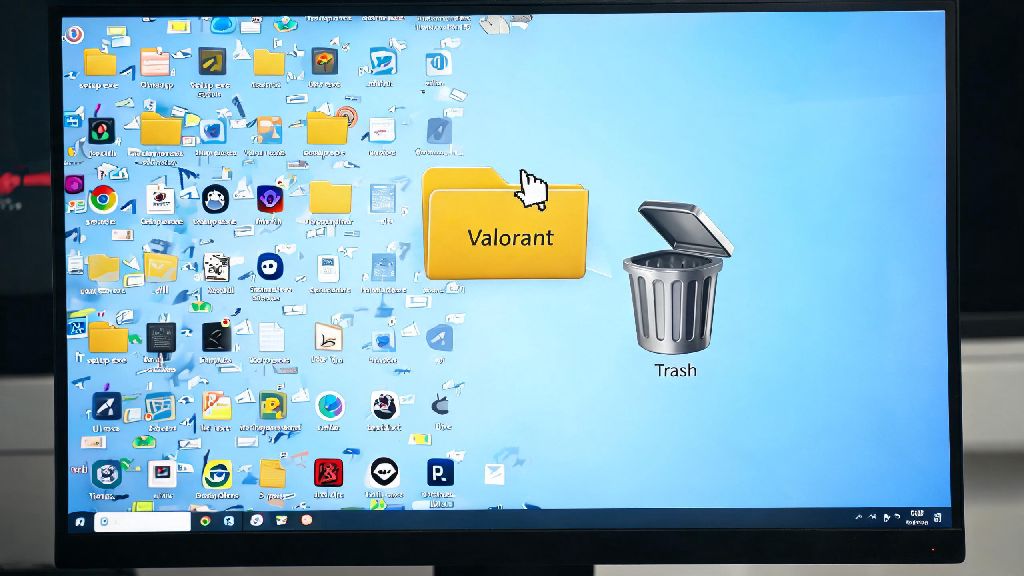
To clear leftover files, first open your File Explorer, go to your C: drive, then open the Riot Games folder. Delete the Valorant subfolder if it’s still present. Next, search for “Vanguard” in your C: drive search bar, and delete any remaining folders labeled Riot Vanguard. Make sure you only delete folders that are explicitly labeled Riot or Valorant to avoid accidentally removing important system files. You can also clear your registry if you’re comfortable with that, but only edit your Windows Registry if you know what you’re doing, as incorrect changes can break your operating system.
I’ve seen players leave 2GB of leftover Valorant files on their PC six months after uninstalling, so this step is worth taking if you’re tight on storage. For most users, deleting the leftover folders is more than enough to fully remove all traces of the game, so you don’t need to mess with the registry unless you’re specifically having anti-cheat conflicts with other games.
Common Uninstall Errors and How to Fix Them
If you’re running into errors when you follow steps for how do i uninstall valorant, these quick fixes will resolve 99% of common issues. The most frequent error people see is the “Vanguard is running” pop-up, which happens when you didn’t close all Vanguard processes before starting the uninstall. The fix is simple: Restart your PC, then go directly to the Apps list to uninstall before opening any Riot programs. That will stop all background Vanguard processes automatically.
Another common error is the “uninstall failed” notification, which usually happens if your game files are corrupted, either from a bad update or an incomplete download. The fix here is to redownload the Valorant installer first, run the repair tool, then try uninstalling again. The repair tool will fix any broken files that are preventing the uninstaller from running properly.
The third most common issue is the “can’t delete Vanguard folder” error. Because Vanguard runs at kernel level, it sometimes stays locked even after you end the process. The easiest fix for this is to disable Vanguard on system startup first, restart your PC, then delete the folder once it’s no longer running in the background. If you’re still having trouble, you can boot your PC in Safe Mode, which will stop all non-essential processes including Vanguard, so you can delete the files without any locks.
What to Do If You Want to Reinstall Valorant Later
You don’t have to worry about losing your account progress if you uninstall Valorant, since all your rank, skin unlocks, and agent purchases are stored on Riot’s cloud servers, not your local PC. So if you decide to come back later, you just need to redownload the Riot Client, log into your account, and install the game again. Even if you’re just looking for how do i uninstall valorant temporarily to fix bugs, these steps will ensure your reinstall goes smoothly.
If you’re uninstalling to fix game crashes or performance issues, make sure you fully remove all leftover files before reinstalling, otherwise the same corrupted files that caused the problem will still be present. I’ve uninstalled Valorant twice to fix stuttering issues in ranked, and doing a full clean reinstall every 6 months or so can actually improve game performance by clearing out corrupted cache files that build up over time.
If you’re taking a break instead of leaving for good, you don’t have to remove your Riot Client, just uninstall Valorant itself so you can redownload it quickly when you’re ready to come back. You can also disable Vanguard on startup instead of uninstalling it entirely if you only plan to take a short break, that way you don’t have to go through the full installation process again when you return.
Whether you’re taking a break from the ranked grind, freeing up space for a new game, or fixing persistent performance issues, knowing how do i uninstall valorant correctly will save you from dealing with lingering anti-cheat files and unnecessary storage bloat. You don’t need any special tools to do a full removal, just follow the steps we outlined, double check for leftover files, and you’ll be done in less than 10 minutes. If you ever decide to come back, all your progress will be waiting for you, so there’s no downside to doing a clean uninstall when you need to.