If you’ve ever sat down ready to queue for a ranked Valorant match only to get hit with an unexpected storage error mid-patch, you know how frustrating it is to miss out on playtime because you didn’t plan for file size. I’ve been playing Valorant since the closed beta, and I’ve lost count of how many times my friend group has had to delay our weekly unrated queues because one of us ran out of space for a last-minute episode patch. Lots of new players reach out asking how much gigabytes is Valorant, and the answer isn’t as static as you might think. Riot Games rolls out regular content drops, agent updates, and map changes that all add to the game’s total storage footprint over time. In this guide, we’ll break down exactly how much space you need to set aside, what contributes to growing file sizes, and how to clear extra clutter if you’re running low on drive space.
How Much Gigabytes Is Valorant for Base Installation?
As of the latest episode rollout, a fresh Valorant installation sits between 31 and 35 GB for Windows PC, the only supported platform for the game right now. That number assumes you’re downloading the full game from Riot’s official client, no pre-existing files or leftover patches from old installations. You might see slightly smaller numbers if you’re installing on a SSD with built-in compression, but don’t count on that to save more than 1 or 2 GB of space. It’s important to note that this base size doesn’t account for the mandatory day-one patch you’ll have to download right after installing the base client, so you’ll want extra space set aside before you start the download process. If you’re still unsure how much gigabytes is Valorant for your specific setup, you can check the official Riot Games support page for the latest update notes, which always list the exact patch size before you download.
What Contributes to Valorant’s Growing Storage Size?
Many players are surprised when their Valorant folder grows 2 to 4 GB every few months, even if they don’t download any extra content on purpose. Riot pushes regular updates that add permanent files to your game folder, and most of these can’t be deleted without breaking the game. The most common reasons for rising storage use include:
You don’t have to delete old patches manually, since the Riot client will automatically remove most unused files during updates. But leftover files from closed beta or very old episode versions can stick around if you’ve had the game installed for multiple years, so it’s worth checking your folder size every few months to make sure you’re not wasting space. I had a friend who had 12 GB of leftover beta files on his old laptop, and he didn’t notice until he got a storage error right before a tournament qualifier last year.
How Much Extra Storage Should You Allocate for Valorant?
Even if the base installation is only 35 GB right now, you should never allocate exactly that much space for the game. Riot pushes patches as large as 4 GB every few weeks, and you’ll need extra free space for the client to unpack and install those updates without errors. For casual players who only log in a few times a week, we recommend setting aside at least 50 GB of free space on your drive for Valorant and all future updates for at least a year. That buffer will give you more than enough room for episode drops, balance patches, and small bug fixes without forcing you to delete other files last minute.
If you’re a competitive player who uses recording software to capture gameplay, you’ll want even more space, since 10 minutes of 1080p 60fps gameplay can take up 1 to 2 GB of storage on its own. If you only have space on a hard drive right now, that works, but you’ll get much faster load times and fewer patch installation errors if you install Valorant on an SSD. The game doesn’t require an SSD to run, but the difference in boot time and map load speed is noticeable enough that most regular players make the switch eventually. I switched from a hard drive to an SSD last year, and my patch install times dropped from 20 minutes to less than 3 minutes for the same size update.
How to Reduce Valorant’s Storage Footprint If You’re Running Low on Space
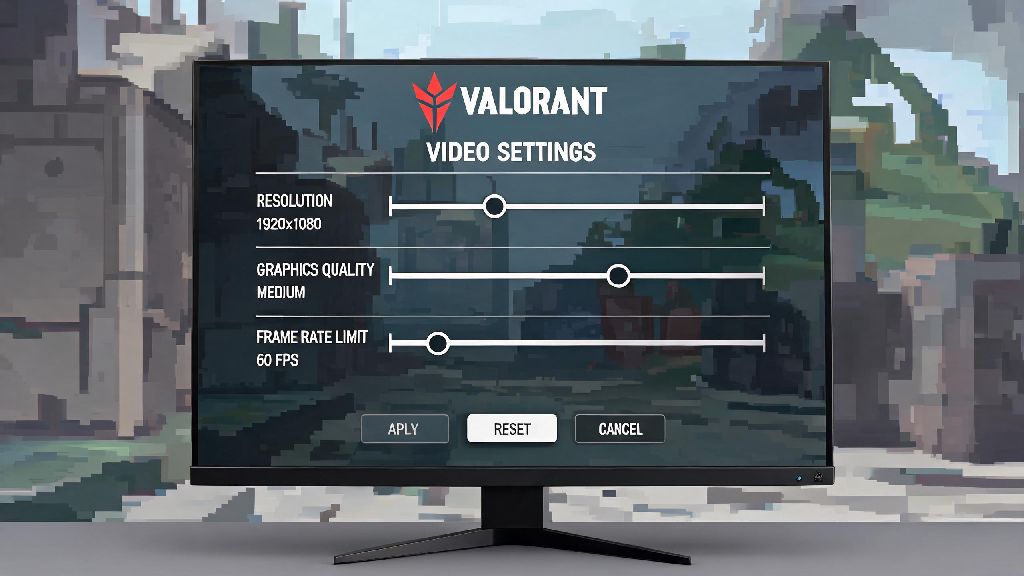
If you get a storage error mid-patch and don’t have time to upgrade your drive right away, there are a few simple fixes to cut down on Valorant’s file size without breaking the game. First, go to your game settings and check if you have the high-resolution texture pack enabled. If you play on a 1080p or lower monitor, you won’t notice any difference in visual quality with the pack turned off, and you’ll free up 5 to 7 GB of space instantly. Next, back up your settings and crosshair config before you do any major changes to your installation, so you don’t lose your preferences if you have to reinstall.
You can also run a clean reinstall of the game to remove any leftover old patch files that the Riot client didn’t delete automatically. Just make sure you uninstall the game through the Riot Client or Windows Add/Remove Programs tool, not by deleting the folder directly. You can also delete old gameplay recordings you don’t need anymore, since those are often stored in the same folder as your Valorant installation by default.
Never delete individual files from your Valorant folder manually. You might accidentally delete critical game files, which will force you to reinstall the entire game anyway, or trigger a Vanguard anti-cheat flag if the system detects modified or missing core files. If you’re not sure what a file is for, leave it alone and stick to the official Riot client tools for managing your installation. Another quick tip: if you have the Riot Client installed for multiple games like League of Legends or Teamfight Tactics, you can delete unused game clients from the launcher to free up extra space across all your Riot titles. Just make sure you don’t delete the core Riot Client files, which are shared across all games.
At the end of the day, the exact answer to how much gigabytes is Valorant depends on how long you’ve had the game installed and what optional content you’ve turned on, but 31 to 35 GB for a fresh install is a safe baseline. Planning for extra space for future updates will save you the frustration of missing playtime because of failed patches or storage errors, and taking a few minutes to clean up old files every few months will keep your installation running smoothly. If you’re still running into installation issues after freeing up space, you can reach out to Riot’s support team for help troubleshooting specific errors tied to your account or device.