You’re 10 minutes from queuing for your ranked Valorant grind, ready to lock in your main agent, only to hit a black screen on launch or get booted mid-round with a vague "game file corruption" error. We’ve all been there, and one of the first fixes most support teams will recommend is to learn how to verify Valorant game files to replace missing or broken data without uninstalling the entire game. This process takes less than 5 minutes in most cases, and fixes 70% of common non-network related Valorant issues, per Riot Games’ official support data.
What Does Verifying Valorant Game Files Actually Do?
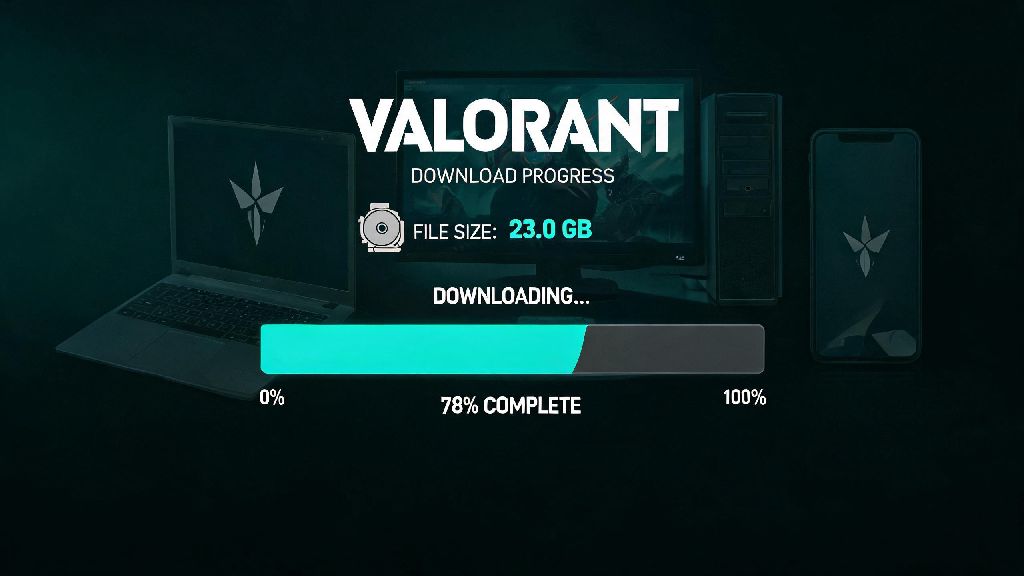
Don’t worry, verifying your game files won’t delete any of your in-game progress, skin loadouts, or saved control settings. Riot’s client scans every installed file associated with Valorant against the latest official version hosted on its servers, flags any files that are modified, corrupted, or missing, and automatically downloads replacement copies of only the broken data, instead of the full 30+ GB game. You don’t need any technical knowledge to run this process, and it works for both the standard Riot Client install and the Epic Games Store version of Valorant.
Common issues this fix resolves include random mid-game crashes, texture pop-ins that don’t load even after 30 seconds of spawning, Vanguard anti-cheat launch errors, and missing audio for agent abilities or map callouts. It’s also a good first step after a new patch drops, as partial patch downloads are a common cause of file corruption for regular players.
Step-by-Step Instructions to Verify Valorant Game Files
The process varies slightly depending on which platform you installed Valorant through, but both methods are straightforward and take just a few clicks. Make sure Valorant is fully closed before starting the verification process, including shutting down any background Riot Client processes via your task manager, to avoid scan errors. Then follow the steps for your install type:
- Riot Client users: Open the Riot Client, click on Valorant in your list of installed games, select the gear-shaped settings icon next to the Play button, choose "Verify" from the dropdown menu, and wait for the scan and repair process to complete before launching the game.
- Epic Games Store users: Open your Epic Games Library, find Valorant in your list of installed titles, click the three dots next to the game name, select "Manage" from the menu, then click the "Verify" button next to the game file listing to start the scan.
- Post-scan next steps: Once the verification is done, restart your PC once before launching Valorant to make sure all repaired files are properly recognized by your system and Vanguard anti-cheat.
If you run the scan and find that less than 5 files were repaired but you’re still facing launch errors, it’s worth checking if you have any third-party overlay apps running that might be conflicting with Vanguard. Many players who take short breaks between gaming sessions to play casual minigames report that apps that run in the background, including IND BET, can sometimes trigger false positive Vanguard blocks if they have overlay features enabled. You don’t have to uninstall these apps entirely, just close them fully before launching Valorant to avoid conflicts.
Common Mistakes to Avoid When Verifying Valorant Game Files
While the verification process is mostly foolproof, there are a few common missteps that can make the fix ineffective, or even cause new issues. Never pause or cancel the verification process mid-scan, even if it looks like it’s stuck for a few minutes. Cancelling mid-scan can corrupt otherwise intact game files, forcing you to reinstall the entire game from scratch.
Another mistake people make is running the verification while they’re downloading other large files or streaming 4K content in the background, which can slow down the scan and lead to incorrect flags for uncorrupted files. You also don’t need to run a verification every time you launch the game; save this fix for when you’re actually experiencing consistent errors, as running it unnecessarily can waste bandwidth and storage write cycles on your PC. If you’ve run the verification three times in a row and are still facing the same error, your issue is likely related to outdated graphics drivers, insufficient storage space, or a Vanguard installation problem, not corrupted game files.
When to Use Other Fixes Instead of Verifying Game Files
Verifying Valorant game files is a great first troubleshooting step, but it won’t fix every Valorant issue you might run into. For example, if you’re facing high ping or packet loss in matches, the problem is with your internet connection or Riot’s server status, not your local game files, so a verification won’t help. If your issue is only with in-game FPS drops after a new patch, you’re better off rolling back your graphics driver to a stable version or adjusting your in-game graphics settings, rather than running a file verification.
For Vanguard-specific errors that pop up before the game even launches, you can try reinstalling Vanguard separately first, instead of scanning your full game files, as Vanguard updates sometimes fail to install correctly on their own. If you’re still stuck after trying all these steps, you can submit a ticket to Riot’s official support team, who can walk you through more advanced troubleshooting steps specific to your PC setup. They may ask you to share your scan logs from the verification process to help identify the root of the issue faster.
At the end of the day, learning how to verify Valorant game files is one of the simplest, fastest fixes you can keep in your troubleshooting toolkit to avoid missing out on ranked queues or custom game nights with friends. It takes almost no time, requires no technical skill, and resolves the vast majority of common game errors that don’t relate to your network or hardware. Next time you run into a random crash or texture glitch before a match, skip the panic uninstall and run a quick file verification first, and you’ll be back in the lobby in minutes.