If you’re gearing up to download Valorant for the first time, or you’ve started getting low disk warnings right before a new act drops, you’ve probably asked yourself how much storage is Valorant actually going to take up on your PC. I’ve been playing the game since its closed beta, and I’ve watched its file size creep up slowly over the years as Riot adds new maps, agents, and quality of life features. It’s far smaller than most modern competitive shooters, but it’s still easy to get caught off guard by unexpected patch sizes or hidden files eating up your drive space. This guide breaks down exactly what you can expect for initial and long-term storage use, plus easy fixes if you’re running low on space.
Current Valorant Base Installation Storage Requirements
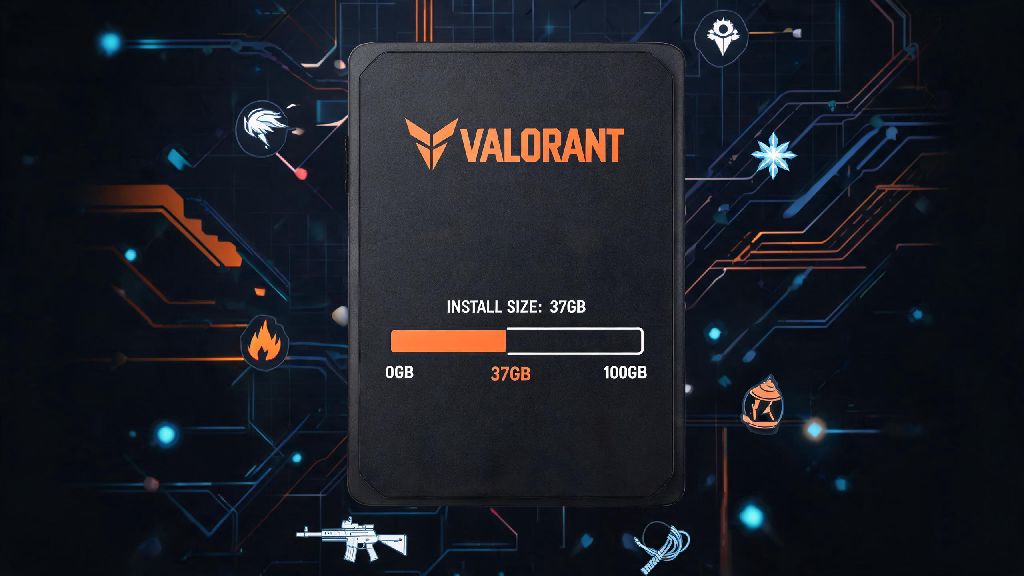
As of the latest act update, the base Valorant installation takes up between 34GB and 38GB of space on most PCs, including the Riot Client and Vanguard anti-cheat. Official minimum storage requirement from Riot is 35GB of free space, but that number only covers the initial install, not future patches or extra files you might accumulate over time. I made the mistake of trying to install it on an old secondary drive with exactly 35GB free a couple of years back, and the installation failed halfway through because the installer needs temporary space to unpack files before it can delete the installation packages.
The total size breaks down into a few clear categories:
If you only play Valorant and no other Riot games, you might see a slightly smaller total size, since you won’t have shared cross-game files taking up extra space. Most users will see a base install right around 36GB, which is extremely lightweight compared to other competitive shooters like Call of Duty or Apex Legends that regularly take up 100GB plus. If you’re trying to calculate exactly how much storage is Valorant using on your own PC, you can check the size of the Riot Games folder in your installation directory to get an exact number.
How Patch Updates Impact How Much Storage Valorant Uses
Patch sizes vary a lot depending on what Riot is adding or fixing, and they have a direct impact on how much storage Valorant takes up long-term. Small bug fix patches or balance updates are usually between 500MB and 2GB, and most of that space is recovered after the patch installs, since it replaces old files instead of just adding new ones. Big act updates that add new agents, maps, or game modes are much larger, usually between 5GB and 10GB for the initial download, and they add between 2GB and 4GB to the permanent total file size.
You should always leave at least 10GB of extra free space on your drive for upcoming patches to avoid installation errors right before a new act goes live. Last act, my roommate only had 4GB of free space left on his main drive when the new Sunset map update dropped, and he had to delete 20GB of old college project files just to install the patch in time for our ranked queue. You don’t want to be that person, so it’s worth checking your free space once a month or so, especially if you have auto updates enabled. It’s also worth noting that the Riot Client will usually warn you if you don’t have enough space for an upcoming patch, but that warning doesn’t always pop up until 24 hours before the patch goes live, which doesn’t give you much time to free up space.
Hidden Storage Uses You Might Not Account For
The base install size and patch updates are the biggest factors, but there are a few hidden storage uses that can make your total Valorant storage use much higher than the advertised 35GB. The biggest culprit is saved match replays. If you have automatic replay saving enabled in your settings, every match you play saves a file between 50MB and 200MB to your documents folder. I used to save every ranked win to review my plays later, and before I knew it I had 12GB of replays sitting on my drive that I’d only watched 10% of.
Screenshots and video clips are another hidden storage drain, especially if you use the in-game clipping tool or a third-party tool like GeForce Experience to capture highlights. High resolution screenshots can be 5MB to 10MB each, and 10 minute 1080p clips can be 1GB plus, so those add up fast if you don’t delete them regularly. The Riot Client also stores temporary cache and log files that don’t get deleted automatically after updates, and those can take up 2GB to 4GB of extra space over time.
You can delete old replay files and temporary Riot Client data without breaking your game installation, so those are the first places to look if you need to free up space fast. The only thing you shouldn’t delete are files in the main Valorant game folder, since that will force you to redownload the entire game to fix the missing files.
Easy Tips to Reduce Valorant Storage Use Without Breaking Performance
If you’re running low on drive space and don’t want to delete other games to make room for Valorant, there are a few simple steps you can take to cut down on its storage use without hurting your in-game performance. First, go through your saved replays every month and delete any you don’t plan to watch again. You can find them in your Documents folder under Valorant > Saved > Replays, and you can mass delete them in a few seconds. Deleting replays won’t affect your in-game progress or settings at all, so it’s completely risk-free.
Second, clear your Riot Client cache every few months to get rid of old log and temporary files. To do this, fully close the Riot Client and Vanguard, go to your main Riot Games installation folder, and delete the “Cache” and “Logs” folders. When you restart the client, it will rebuild new, smaller versions of these folders automatically, usually freeing up 2GB to 4GB of space. If you’re still wondering how much storage is Valorant taking up after trimming extra files, you can right click the game folder and select “Properties” to see the exact total size.
Third, if you have Valorant installed on your main SSD and you’re running low on space, you can move it to an HDD without reinstalling the entire game. Just copy the entire Valorant folder to your HDD, open the Riot Client settings, go to the Valorant tab, and update the installation path to the new folder. The client will verify the files in 2 to 3 minutes, and you’ll be ready to play. Moving Valorant to an HDD won’t hurt your in-game frame rate, only increase map load times by 10 to 20 seconds, so it’s a great tradeoff if you need to save SSD space for more demanding single-player games. Finally, if you don’t review your replays regularly, turn off automatic replay saving in your in-game settings. That will stop new replay files from accumulating in the first place, so you won’t have to delete them every month.
So when all is said and done, how much storage is Valorant going to take up on your PC long-term? For most players, you can expect a total of between 35GB and 50GB, depending on how many replays you save and how long you’ve had the game installed. That’s still way smaller than most other modern competitive shooters, so it’s a great option if you have limited drive space. Just make sure you leave at least 10GB of extra free space on the drive you install it on, so you don’t run into issues when new act updates drop. If you do end up running low on space, the steps we covered above will help you free up 5GB to 15GB in just a few minutes, no complicated tech skills required. At the end of the day, Valorant’s small file size is one of its most underrated features, especially for players who don’t have tons of extra storage to throw at their gaming PC.