If you’ve ever spent 20 minutes fumbling through game launcher menus just to get a new title running, you know how frustrating pre-game setup can be. Whether you’re a first-time player curious about Riot’s hit 5v5 tactical shooter, or a returning player reinstalling after a long break, learning how to install Valorant correctly saves you hours of troubleshooting down the line. I’ve installed the game on half a dozen different devices for friends and ranked teammates over the years, so I’ve compiled every step, check, and fix you need to get in your first match fast. No random error codes, no missing files, no anti-cheat issues holding you back from your first clutch.
Pre-Install Checks to Run Before You Install Valorant
Jumping straight to the download button might seem tempting, but skipping these quick checks is the number one reason people run into installation errors later on. First, confirm your device meets the minimum system requirements, because Valorant won’t run on any system that doesn’t hit these baselines. 64-bit Windows 10 or 11 is non-negotiable right now, there’s no native macOS or Linux support, though you can run it through emulators if you’re comfortable with extra setup steps. Minimum 4GB of RAM is required, but 8GB or more will make load times significantly faster. At least 30GB of free SSD space is another must — installing Valorant on a hard drive will lead to 10+ minute load times and frequent mid-game crashes.
Run through this quick checklist before you start downloading anything to avoid headaches later:
- Confirm you have a valid, verified Riot Games account (you can create one for free on Riot’s official site)
- Free up at least 35GB of space on an SSD to avoid slow load times and file corruption issues
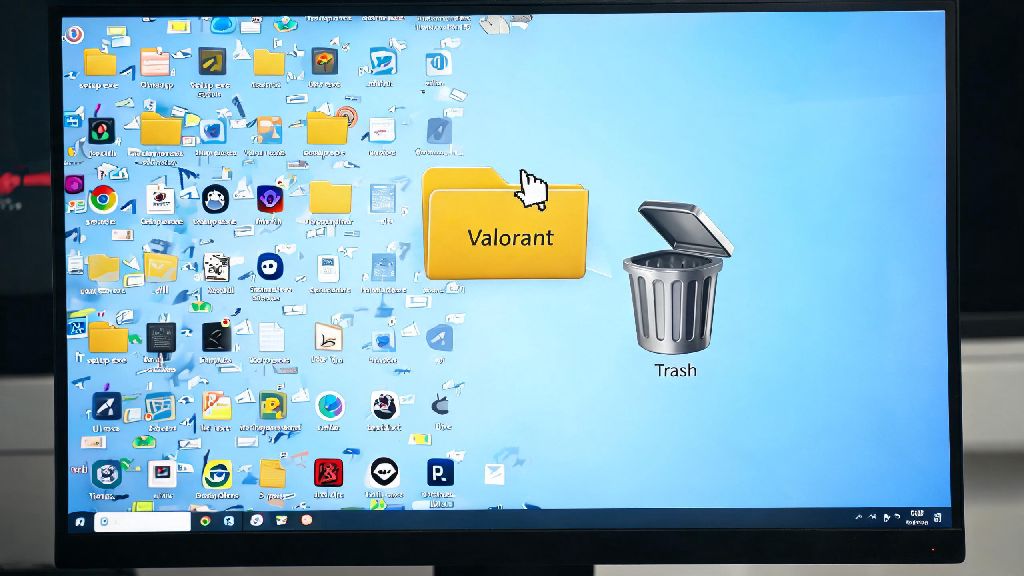
- Uninstall any old or test versions of Valorant or Riot Client you might have left on your device
- Close all background game launchers and third-party anti-cheat software to prevent installation conflicts
I once skipped the step of uninstalling an old beta version of Riot Client for a friend, and we spent 45 minutes trying to figure out why the installation kept failing mid-download. Don’t make that same mistake.
Step-by-Step Walkthrough of the Full Installation Process
Once you’ve run all your pre-install checks, the actual installation process only takes 5 to 15 minutes depending on your internet speed. Only download the installer from the official Valorant website — third-party download links often come with malware, corrupted files, or outdated versions that will require extra patches later. When you land on the download page, click the big download button, and save the installer to a location you can find easily, like your desktop.
Run the installer, and log in with your Riot Games account when prompted. You’ll see a menu of all available Riot games, so select Valorant from the list. Next, you’ll be asked to choose an install location — make sure you pick the SSD you cleared space on earlier, not a default HDD folder. The initial download is roughly 26GB, so it might take a while if you have slower internet. Don’t pause and resume the download repeatedly, that can cause file corruption that forces you to restart the whole process.
Once the game files finish downloading, the installer will prompt you to install Vanguard, Riot’s kernel-level anti-cheat software. You have to install Vanguard to play Valorant — there’s no way around this requirement. A lot of players worry about Vanguard’s kernel access, but Riot has published multiple public transparency reports confirming it doesn’t collect or store personal data when you’re not running the game. After Vanguard installs, you’ll be asked to restart your PC. I always recommend restarting even if the installer doesn’t prompt you to, it cuts down on 90% of common first-launch errors. When your PC turns back on, open the Riot Client, it will run a quick file check, and you’ll be ready to launch the game.
Common Installation Errors and How to Fix Them Fast
Even if you follow every step perfectly, you might run into one of these super common errors. I’ve dealt with all of these dozens of times, so these fixes work for 99% of cases. The first error most people see is “installation stuck at 0%”. This is almost always caused by your anti-virus blocking the Riot Client from downloading files, or a spotty internet connection. Pause the download, turn off your third-party anti-virus temporarily, and reset your router before resuming. If it still gets stuck, run the Riot Client as an administrator.
Another common error is the “Vanguard not initialized” pop-up when you try to launch the game for the first time. This happens if Vanguard didn’t turn on automatically when you restarted your PC. Make sure Vanguard is set to run on system startup — you can check this in the Startup tab of your Task Manager. If it’s disabled, enable it, restart your PC again, and the error will go away. If you get error code 0xC0000005, that means Vanguard is conflicting with another piece of software on your device, usually another anti-cheat like BattlEye or Easy Anti-Cheat for other games. Close all other games and their associated launchers, and restart your PC to fix this.
The last common error is an “insufficient storage” notification even if you have enough space on your drive. This happens because the installer needs extra temporary space to unpack and assemble game files during installation. If you only have 30GB free, add another 5 to 10GB of space by deleting unused files, and the installation will proceed normally. I ran into this exact issue last year when I tried to install the game on a secondary drive that only had 31GB free, so I can confirm this fix works.
Post-Install Tweaks to Optimize Your First Play Session
Once you get the game launched for the first time, there are a few quick tweaks you should make before you queue for your first match. First, take two minutes to adjust your video and control settings, instead of jumping straight into a game and fumbling with them mid-round. Set your display mode to fullscreen first — this gives you the highest possible FPS and lowest input lag, which is critical for a fast-paced tactical shooter like Valorant. If you’re on a lower-end PC, turn off shadow effects and reduce texture quality to boost FPS without impacting your ability to see enemies clearly.
Next, make sure your audio settings are adjusted correctly. Footstep audio is one of the most important sources of information in Valorant, so turn down music volume and boost sound effects volume slightly so you can hear enemies approaching from further away. Test your mouse sensitivity in the practice range to make sure it feels right for you, and adjust your crosshair to a design that’s easy to see against all map backgrounds.
Finally, enable two-factor authentication on your Riot account if you haven’t already. This keeps your account safe from hacks, especially if you plan on buying skins or climbing the ranked ladder later. You’ll even get a free cosmetic reward for enabling 2FA, so it’s worth the 30 seconds it takes to set up. If you’re a brand new player, the game will prompt you to run a short tutorial — you can skip it if you already know how to play, but it only takes a few minutes and gives you a small amount of in-game currency as a reward.
At the end of the day, setup doesn’t have to be the most stressful part of playing a new game. Taking 5 extra minutes to run pre-install checks and follow the official steps to install Valorant means you won’t be stuck fixing errors while your friends are already queuing for matches. If you run into an error I didn’t cover here, Riot’s official support site has a full database of error codes and fixes that’s updated every week. Once you’re in, take a few minutes to test your settings in the practice range, and you’ll be ready to lock in your first agent and start climbing the ranks in no time.