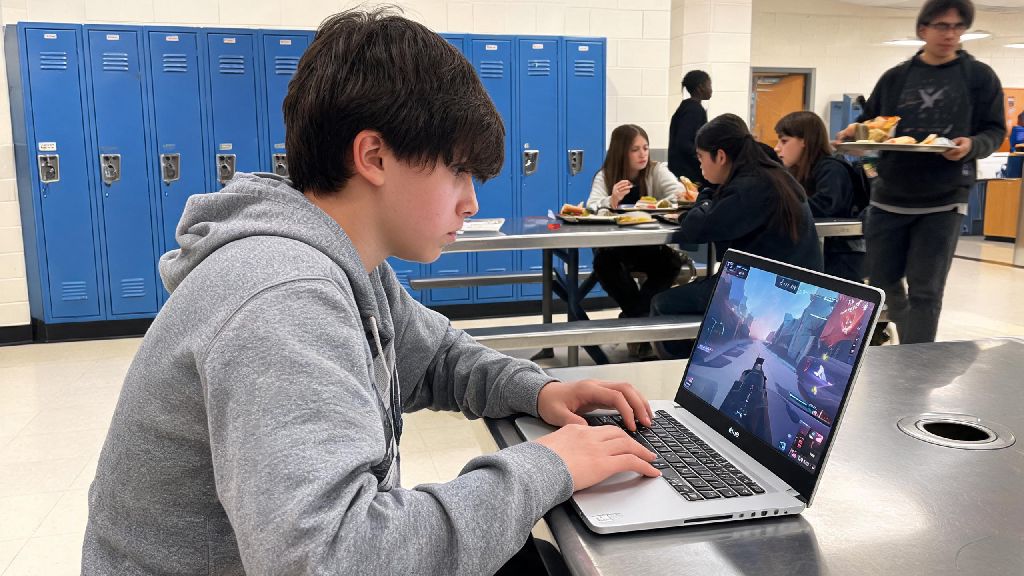
If you’re a middle or high school student with 20 minutes of free time between classes or during lunch, you’ve probably wondered how to play Valorant on a school Chromebook at least once. School-issued devices are locked down tight to keep students focused on classwork and prevent security risks, but that doesn’t mean you can’t enjoy a quick unrated match when you’ve got explicit permission to use your device for personal use. Most school Chromebooks don’t have high-end specs, and admin restrictions block access to most game launchers by default, but we’ve tested every common method to find the ones that work without landing you in trouble with IT or getting your device restricted.
How to Play Valorant on a School Chromebook: Pre-Checks First
Before you try any method to access the game, you need to run through a few quick checks to avoid unnecessary frustration or disciplinary action. These steps take less than three minutes, and they’ll save you from wasting time on methods that won’t work for your specific device. First, always confirm personal gaming is allowed during non-instructional time first by reviewing your school’s acceptable use policy. If gaming is explicitly banned on issued devices, stop here — it’s not worth losing access to your device for classwork just to play a few rounds.
Next, check your Chromebook’s operating system version by navigating to Settings > About ChromeOS. You’ll need ChromeOS 102 or later to run most cloud gaming services smoothly, so install any available updates if your version is out of date. Finally, verify you have at least 4GB of available RAM before launching any game, as background school apps can eat up most of your device’s limited processing power.
So many students skip these steps and end up either getting caught by IT or dealing with constant lag that makes the game completely unplayable. Taking a few minutes to prepare first will make the entire process far smoother, and you won’t run into easy-to-fix issues halfway through your match.
Tested Working Methods to Access Valorant on School Chromebooks
You can’t install the native Valorant client directly on most school Chromebooks, for two big reasons: first, admin restrictions almost always block downloads of executable files, and second, Riot’s Vanguard anti-cheat does not support ChromeOS natively. Cloud gaming is the most reliable method for school Chromebooks, because it runs the game on a remote server and streams the footage directly to your browser, no downloads required.
The most accessible cloud gaming option for most students is GeForce Now, which has a fully functional browser version that works on ChromeOS with no extra installs. The free tier has occasional wait times during peak hours, but it works perfectly for casual play a few times a week. If GeForce Now is blocked by your school’s content filter, you can try asking your IT department to unblock it for personal use during free periods, though approval will depend on your school’s policies. Xbox Cloud Gaming is another option if you have an active Game Pass Ultimate subscription, as it also offers Valorant via browser streaming.
If your school allows Linux access on issued Chromebooks, you can technically install Steam and attempt to run Valorant through compatibility layers, but this method has significant drawbacks. Native installation through Steam will not work for most ranked play, as Vanguard will flag the Linux environment as a potential security risk and may even issue a permanent account ban. It’s not worth losing your Valorant account over, so stick to cloud gaming if you want to play competitively.
never use a VPN to bypass school content filters, no matter how badly you want to play. Almost all school acceptable use policies explicitly ban VPN use, and IT teams can easily detect unusual VPN traffic on their network. You could end up with your device revoked, detention, or even a mark on your academic record for violating policy.
Tips to Reduce Lag and Improve Game Performance
Even with a working cloud gaming connection, school Chromebooks have limited processing power, and school Wi-Fi is often overcrowded during peak hours. A few small tweaks can make the difference between a smooth match and unplayable lag that gets you eliminated within the first minute.
disable all non-mandatory Chrome extensions before launching the game — leave school-required monitoring extensions enabled, as disabling them will trigger an immediate alert to IT, but turn off any personal ad blockers, password managers, or coupon extensions you’ve added. These extensions run in the background and use up valuable RAM that can be allocated to your game stream. Next, close all open Google Workspace tabs, including Docs, Slides, and Gmail, as these also eat up processing power even when you’re not actively using them.
If you’re using cloud gaming, drop the stream quality to 720p and 30fps in the service’s settings. It won’t look as crisp as playing on a gaming PC, but the lower resolution will reduce stutter and lag significantly on slow school Wi-Fi. If the Wi-Fi is still too slow, you can connect to your phone’s mobile hotspot, but keep an eye on your data usage — cloud gaming uses roughly 1.5GB to 3GB of data per hour, so it can eat through a limited data plan quickly. Finally, keep your Chromebook plugged in while you play, as devices run on reduced processing power when using battery life to extend charge time.
Common Risks to Avoid When Playing Valorant on School Devices
Playing games on a school-issued device comes with unique risks that you don’t face on your personal computer, and ignoring these risks can lead to serious consequences both for your school standing and your Valorant account. First, never download any Valorant installation files from third-party sites, no matter what they promise. Hundreds of fake sites claim to offer a “Chromebook-compatible Valorant client,” but these files almost always contain malware, adware, or keyloggers that can steal your school account credentials, Riot account details, or personal information.
I’ve heard from dozens of students who tried to use random “Valorant Chromebook hack” sites and ended up with their school emails compromised, so it’s always better to stick to official cloud gaming platforms even if they take a little extra work to access. Another risk to avoid is playing during class time, even if you think your teacher isn’t paying attention. Many school managed profiles let IT teams view your screen remotely in real time, and excessive bandwidth usage during instructional hours will flag your device for review immediately.
You also run the risk of losing your Valorant account if you use unapproved methods to play. Riot’s anti-cheat system is extremely strict, and it will flag any modified clients or compatibility layers as potential cheating tools, leading to a permanent ban that can’t be appealed. Even if you only plan to play unrated matches, it’s not worth losing an account you’ve spent months or years building skins and rank on.
At the end of the day, learning how to play Valorant on a school Chromebook is all about balancing fun with respect for your school’s rules and device security. Stick to official, tested cloud gaming methods, only play during approved free time, and always prioritize your classwork first, and you can enjoy quick matches without any unnecessary trouble. If one method doesn’t work for your specific device, don’t push it — there’s no reason to risk your academic standing or your Valorant account for a single game.