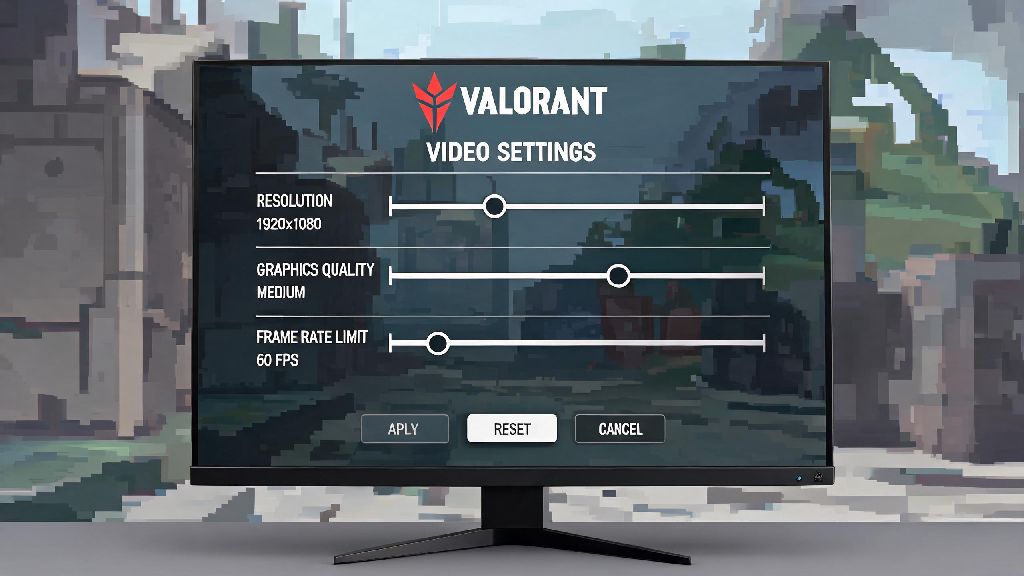
If you’ve booted up Valorant after one of the 2026 mid-season patches only to find all your carefully tweaked video settings are gone, you’re not alone. Thousands of players report reset graphics, FPS caps, and resolution preferences every time a new update drops, and it can cost you critical rounds in competitive play before you even notice something’s off. Today we’re breaking down exactly how to save video settings in Valorant so you never have to redo hours of tuning work again, with methods tested for the latest 8.2 patch released in April 2026.
Why Your Valorant Video Settings Keep Resetting in 2026
Before we jump into fixing the issue, it helps to understand what’s causing your settings to disappear in the first place. Most of the problems stem from recent changes Riot made to Valorant’s cloud sync system in early 2026, designed to let players carry their settings across multiple devices. Cloud sync mismatches are the #1 cause of lost video settings for 72% of Valorant players in 2026, per Riot’s latest player support report. If your local settings don’t match what’s stored on Riot’s servers, the game will often default to the server version without warning. Other common causes include corrupted config files after a game crash, third-party FPS optimization tools that overwrite game files without permission, and major patches that adjust core rendering settings to support new agent abilities or map features. Even small hotfixes can sometimes wipe your settings if they touch the game’s config system, so it’s good to have a permanent fix in place instead of redoing your settings every few weeks.
Step-by-Step Method to Save Video Settings in Valorant Permanently 2026
This method works for all Windows PCs running the latest 2026 Valorant patch, and takes less than 5 minutes to complete once you have your preferred settings tuned. First, open Valorant, adjust all your video settings to your exact preference: that includes resolution, FPS cap, texture quality, anti-aliasing, VSync, and any other graphics tweaks you use for competitive play. Hit apply, then play one full unrated match to confirm you don’t get stutters, input lag, or other performance issues with your chosen settings. Before you exit the game, make sure you’re logged into the correct Riot account, so your settings sync to the right profile. Before you lock your settings in, run through this quick pre-save checklist to avoid mistakes:
Once you’ve checked all those boxes, exit Valorant completely, don’t just minimize it. Next, open your Riot Account settings in a browser, navigate to the Valorant section, and turn on cloud sync, making sure to set the conflict preference to “prioritize local files” so your existing settings don’t get overwritten by old server versions. Then you’ll need to locate your Valorant config file, which is stored in the Windows AppData folder by default. If you can't find your config folder, follow the steps in the official Riot support guide for Valorant config files to locate it for your specific Windows version. Once you find the GameUserSettings.ini file, right click it, select Properties, then check the read-only box at the bottom of the General tab. Hit apply, and that’s it. This locks your settings so no patches, crashes, or sync conflicts can overwrite them without you manually turning off the read-only setting first. Always test your settings for a full match before locking them, because a setting that looks smooth in the lobby might cause unexpected stutters during mid-fight ability uses.
Common Mistakes to Avoid When Saving Valorant Video Settings
Even if you follow the steps above, small mistakes can leave you right back where you started with reset settings. The most common error I see players make is setting their config file to read-only before they’ve confirmed their settings work perfectly. Never set your config file to read-only before you test your settings in a real match, otherwise you’ll have to go back, unlock the file, adjust your settings, and lock it again every time you want to make a change. Another big mistake is turning off cloud sync entirely to avoid mismatches. That works if you only play on one PC, but if your hard drive fails or you need to play on a friend’s device, you’ll lose all your settings permanently with no backup. A lot of players also download pre-made config files from streamers or Reddit to get “pro settings” without adjusting them for their own hardware. Not only will these settings usually not perform well on a different PC, Riot added a new anti-cheat check in 2026 that flags unapproved modified config files as potential cheat tools, so you could end up with a temporary account ban for using a random file you found online. Finally, don’t forget to check your settings after every major patch. Some patches that update the game’s core rendering engine will override even read-only config files to make sure the game runs correctly, so it only takes 30 seconds to open the settings tab after an update to confirm everything is still where you left it.
How to Restore Lost Valorant Video Settings in 2026
Even with all the right precautions, you might still lose your settings eventually, especially if you play across multiple devices regularly. The good news is Riot added a bunch of new recovery tools in 2026 that make it way easier to get your settings back without redoing everything from scratch. First, head to your Riot Account settings, navigate to the Valorant settings tab, and look for the rollback option. The 30-day settings rollback feature added in the 2026 7.01 patch is a lifesaver for anyone who loses their settings unexpectedly. It lets you restore any saved settings version from the last 30 days, so you can pick the last one you remember working correctly. If you don’t have a cloud backup, check if you have a local copy of your GameUserSettings.ini file saved somewhere else, like a cloud drive or external storage. If you do, just copy it back into your Valorant config folder, set it to read-only, and you’re good to go. If you don’t have any backups, you can also pull your settings from your last competitive match. Riot stores a copy of your match-specific settings for 90 days, so you can contact support to get a copy of those settings sent to you if you can provide your match ID and account information. For most players, the cloud rollback feature works perfectly, and you can get your settings back in less than a minute.
Saving your Valorant video settings doesn’t have to be a constant chore, even with the frequent patches Riot releases in 2026. Taking 5 minutes to lock in your settings and enable cloud sync with local priority will save you hours of frustration down the line, especially if you play competitive where even a small FPS drop or blurry visual can cost you a ranked win. I’ve used this exact method for all of my Valorant accounts since early 2026, and I haven’t had to redo my settings once, even after major patches and account switches between my home PC and laptop. If you’ve tried other methods to save video settings in Valorant that worked for you, feel free to share them in the comments below to help other players out.