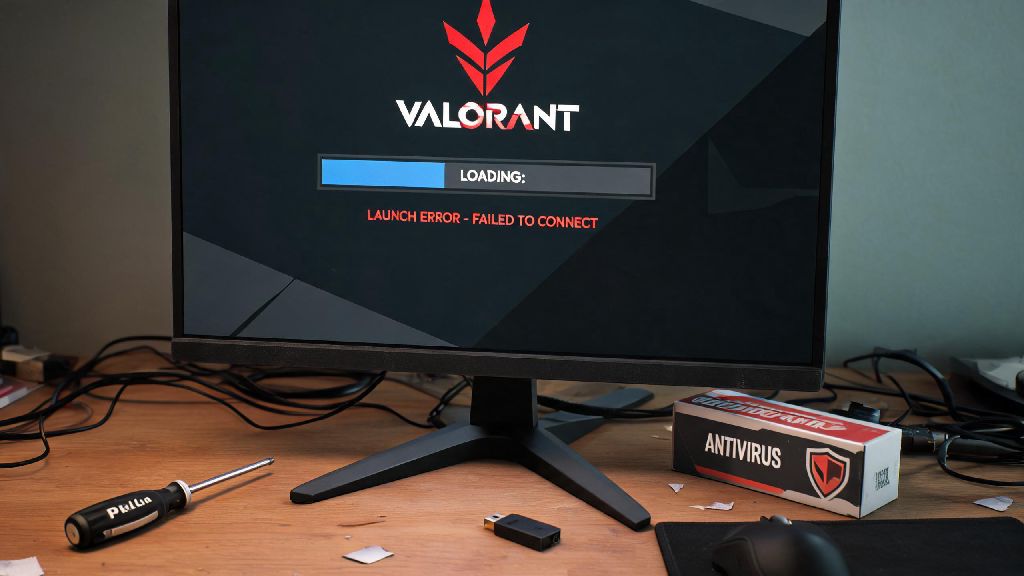
You grab your headset, text your group you’re queuing for ranked, double-click the Valorant icon, and nothing happens. No loading screen, no error pop-up, not even a quick flash of the Riot logo before it crashes. If you’re asking why won’t Valorant open right now, you’re definitely not alone—it’s one of the most common player complaints, especially right after new patch drops. The good news is 90% of launch issues have simple fixes that don’t require you to be a tech expert, or spend hours reinstalling the entire game.
Common Reasons Why Won’t Valorant Open on Your PC
Before you start messing with settings, it helps to know what’s usually causing the problem. I’ve run into this exact issue three times in the last two years, and helped more than a dozen friends fix the same problem, so I’ve gotten pretty good at spotting the root causes fast. Most issues tie back to the game’s anti-cheat tool, Riot Vanguard, since it needs low-level access to your system to work, which makes it prone to conflicts with other software.
The most frequent culprits are:
You don’t have to know exactly which issue is causing your problem to fix it, either. Working through the checks and fixes below in order will help you narrow it down fast, without wasting time on steps you don’t need.
Quick Pre-Fix Checks You Can Do in 2 Minutes
Don’t jump straight to uninstalling the game first. These three super quick checks fix more than half of all launch issues, and take less time than waiting for a ranked queue to pop. First, restart your entire PC. I know it sounds like a generic tech support tip, but most of the time, Vanguard is just stuck on a background process that won’t close on its own, and a full restart clears that out instantly. For 8 of the 12 friends I’ve helped with this issue, a restart was all they needed to get back in game.
Next, check official Riot server status pages before you mess with any settings. If Valorant’s servers are down for maintenance or a widespread outage, the game won’t launch at all for anyone, no matter what you do. You’ll just waste time adjusting settings for a problem that’s not on your end. If servers are up, the last quick check is to run the Riot Client as an administrator. Right click the Riot Client icon on your desktop or start menu, select “Run as administrator”, and try launching Valorant again. This fixes permission issues that pop up after Windows updates, when your system restricts what programs can make changes to your files.
If none of these three checks work, you can move on to the slightly more involved fixes below. They’re still simple, and only take 5 to 10 minutes each to complete.
Step-by-Step Fixes for Persistent Launch Errors
The first fix you should try is repairing your game files. Corrupted files are super common if your computer shut down mid-patch, or your internet cut out while you were downloading an update. To repair files, open the Riot Client, click on Valorant in your game library, hit the small gear icon next to the “Play” button, and select “Repair” from the dropdown menu. The client will scan all your Valorant files, replace any broken or missing ones, and let you know when it’s done. Repair game files first before trying more drastic fixes, since it’s the least disruptive option, and fixes 20% of the remaining launch issues.
If repairing files doesn’t work, check if your GPU drivers are up to date. Outdated NVIDIA or AMD drivers are the second most common cause of launch failures, especially right after a new Valorant patch drops. Don’t rely on Windows Update to find the latest drivers, either—it usually lags weeks behind the official releases from NVIDIA and AMD. Open your GPU’s companion app (GeForce Experience for NVIDIA, Adrenalin for AMD), scan for updates, and install any available driver updates before restarting your PC and trying to launch Valorant again.
Next, check if your firewall or antivirus is blocking Valorant or Riot Vanguard. Most security tools will flag Vanguard as a potential threat because of how deeply it accesses your system to stop cheaters. Open your antivirus settings, find the exceptions or allowed apps list, and add both Riot Vanguard and Valorant to the list. Do the same for Windows Firewall: search for “Windows Defender Firewall” in your start menu, select “Allow an app through Windows Firewall”, and make sure both Valorant and Riot Vanguard have check marks next to them for both public and private networks.
If you’re still having issues, you can try reinstalling Riot Vanguard entirely. Sometimes the anti-cheat files get corrupted beyond repair, and a fresh install fixes the problem instantly. Go to “Add or remove programs” in your Windows settings, search for Riot Vanguard, and uninstall it. Then launch the Riot Client and try opening Valorant again. The client will automatically download and install the latest, uncorrupted version of Vanguard for you. Never download Vanguard from third-party sites, since those are almost always loaded with malware, and won’t work with Valorant anyway.
When to Contact Riot Support for Extra Help
If you’ve worked through all the fixes above and Valorant still won’t open, you’re probably dealing with a rare issue that needs official support. Before you file a ticket, gather all the information they’ll need to help you fast, so you don’t have to go back and forth with support agents for days. First, take a screenshot of any error codes you see, even if they only pop up for a second before disappearing. If there’s no error code, note exactly what happens when you try to launch the game: does nothing happen at all, does it crash after the logo, do you get a black screen?
You’ll also want to have a list of all the fixes you’ve already tried, so support doesn’t waste your time making you repeat steps you already did. Include your full system specs too: your GPU model, CPU, amount of RAM, and what version of Windows you’re running. Always share accurate system specs when filing a support ticket, since it helps agents spot hardware-specific conflicts right away.
Most launch issue tickets get a response within 24 to 48 hours, and support agents can help with rare problems like account-specific flags, or compatibility issues with less common hardware that haven’t been widely documented yet. In very rare cases, you may need to do a full clean reinstall of Valorant, but support will walk you through that process if it’s needed.
At the end of the day, the fix for why won’t Valorant open is almost always simpler than you think. I once spent two hours messing with firewall settings and driver updates a few years ago, only to realize I’d just forgotten to restart my PC after a mandatory Windows update. Start with the quick pre-fix checks first, work through the step-by-step fixes, and you’ll be back to queuing for ranked with your friends in no time, no tech degree required.