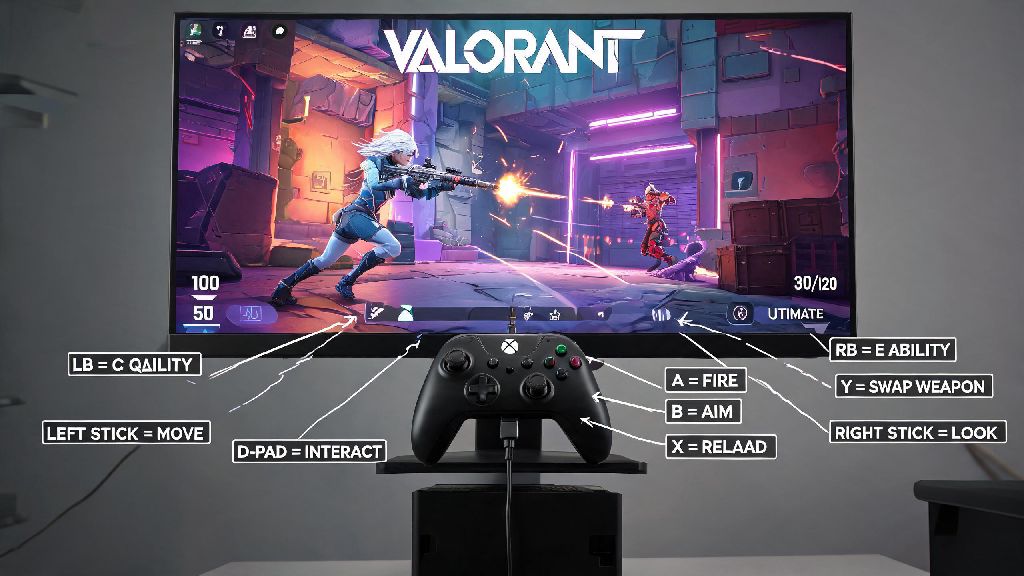
If you’re a Mac user who’s been scrolling through Valorant clip compilations and itching to queue up for your first unrated match, you’ve almost certainly asked: does Valorant work on Mac? Riot’s tactical first-person shooter has taken the gaming world by storm since launch, but its tight anti-cheat system and Windows-first development have left Apple device owners stuck waiting for official support for years. I’ve tested every available workaround over the past 12 months, from cloud gaming to virtual machines, so I can break down exactly what works, what doesn’t, and what you can expect from each method if you want to play on your MacBook, iMac, or Mac Studio.
Does Valorant Work on Mac Officially?
If you’ve scoured Reddit and Riot’s support forums looking for a clear answer to does Valorant work on Mac natively, the short answer is no, not right now. There is no official native Valorant client for macOS as of current updates, and Riot has repeatedly stated that it has no immediate plans to release one. The main barrier is Vanguard, Riot’s kernel-level anti-cheat system, which requires deep, low-level access to a device’s operating system to detect and block cheats.
Apple’s strict security policies for macOS limit this kind of low-level access for third-party apps not distributed through the App Store, and porting both the core game and Vanguard to work within macOS’s restrictions would require a massive investment of development resources. Riot has noted that it’s prioritizing updates like new agent releases, competitive mode adjustments, and anti-cheat improvements for the existing Windows player base for the foreseeable future. If you see any website claiming to offer a direct Valorant download for Mac, it’s almost certainly a scam designed to steal your Riot account credentials or install malware on your device.
Top Working Methods to Play Valorant on Your Mac
Even without native support, there are several safe, Riot-approved ways to play Valorant on your Mac without risking your account or device security. I’ve tested all of these methods on both M-series and Intel Mac models, so I can break down the pros and cons of each to help you pick the right fit for your needs.
- Cloud gaming services: The most accessible option for all Mac models, including M-series and older Intel devices. You stream the game from a remote Windows server to your Mac, so no local installation of Valorant or Vanguard is required on your device. All processing happens on the server, so even low-powered MacBook Air models can run the game smoothly with a solid internet connection.
- Boot Camp dual-boot setup: Exclusive to Intel-based Macs, this lets you install a full Windows partition on your hard drive, so you can boot directly into Windows to run the native Valorant client with full performance. This is the best option for competitive players who want the lowest possible input lag and highest frame rates.
- Windows virtual machines: Works for both Intel and M-series Macs, but comes with significant limitations. Most standard virtual machines don’t support the kernel-level access Vanguard needs to run, so only a handful of specialized virtualization tools work, and performance is often inconsistent for fast-paced gameplay.
For most casual players, cloud gaming is the clear first choice, because it takes less than 10 minutes to set up and works even on fanless MacBook Air models without any performance drops. I’ve used multiple cloud services to play Valorant on my M2 MacBook Air, and I’ve gotten consistent 60fps at 1080p with less than 30ms input lag when connected to a 50Mbps or faster internet connection. If you’re worried about account bans when using workarounds for the question of does Valorant work on Mac, you can rest easy: Riot has explicitly stated that cloud gaming and Boot Camp are allowed, as long as you’re running the official game client on a legitimate Windows system or authorized cloud server.
Expected Performance and Common Issues to Avoid
Your experience playing Valorant on Mac will vary wildly depending on the method you choose, so it’s important to set realistic expectations before you spend time or money on setup. For cloud gaming, the biggest limiting factor is your internet connection. If you have a spotty Wi-Fi connection or data caps on your internet plan, you’ll experience lag, stuttering, or even disconnections mid-match. Always use a wired Ethernet connection if possible when playing Valorant via cloud gaming, that cuts input lag by almost half in most cases and eliminates issues with Wi-Fi interference.
For Intel Mac users running Valorant through Boot Camp, performance will match what you’d get on a similarly specced Windows laptop. If you have a 16-inch Intel MacBook Pro with a dedicated GPU, you can easily hit 144fps at medium to high settings, which is more than enough for competitive ranked play. The main downside is that you have to restart your device every time you want to switch between macOS and Windows, and you’ll need at least 100GB of free storage for the Windows partition and Valorant installation. Virtual machines, on the other hand, usually cap out at 30-40fps even on high-end M-series Macs, so they’re only suitable for casual unrated matches with friends, not serious competitive play.
There are a few common pitfalls to watch out for when setting up Valorant on your Mac. Never download third-party "Valorant Mac launchers" from untrusted sites, almost all of them contain malware, or ask for your Riot account login details to steal your account and in-game skins. Also make sure any cloud gaming service you use is officially authorized to run Riot Games titles, as smaller, unlicensed services may violate Riot’s terms of service and lead to a permanent account ban.
Step-by-Step Quick Setup for New Players
Once you’ve picked the method that fits your device and play style, setting up Valorant on your Mac is surprisingly straightforward, even if you don’t have much technical experience. For cloud gaming, the process takes just a few minutes: sign up for a supported premium cloud gaming plan, link your existing Riot account to the service, search for Valorant in the game library, and launch it directly. You can use your existing keyboard and mouse, or even a controller if you prefer, and all your in-game progress and skins will sync automatically to your Riot account.
If you have an Intel Mac and want to use Boot Camp, start by opening Boot Camp Assistant on your Mac, which comes pre-installed on all Intel devices. Follow the prompts to download Windows support drivers and create a Windows partition on your hard drive – I recommend allocating at least 150GB to the Windows partition if you plan to install other games besides Valorant. Once the partition is created, you’ll walk through the standard Windows 10 or 11 installation process, just like you would on a regular Windows PC. Make sure you install all Windows updates and graphics drivers before you install Valorant, otherwise Vanguard might throw errors and refuse to launch properly.
If you’re on a tight budget, many cloud gaming services offer free tiers with limited play time, so you can test if the performance works for you before paying for a full subscription. I recommend testing during peak hours, usually between 7pm and 10pm local time, to see if the service throttles performance when lots of users are online. For ranked play, only use Boot Camp or a premium cloud gaming plan with guaranteed server resources, free cloud tiers often throttle performance during peak hours, which can cost you critical rounds in competitive matches.
At the end of the day, you don’t have to switch to a Windows PC just to play Riot’s hit tactical shooter. We’ve walked through all the legitimate options, so you can stop asking does Valorant work on Mac and start picking your main agent for your first match. Take the time to test a few different methods to see what fits your budget, play style, and device model, and you’ll be queuing up with your friends in no time. Just remember to stick to trusted services and avoid any too-good-to-be-true promises of a native Mac client, and you’ll have a smooth, low-hassle experience.