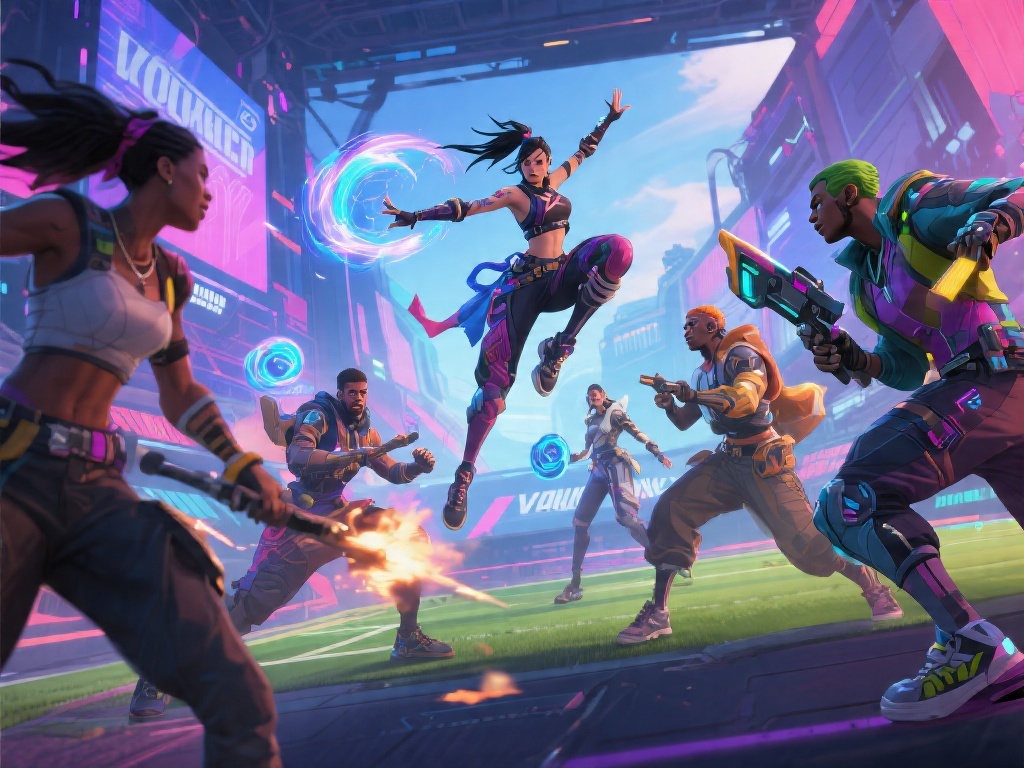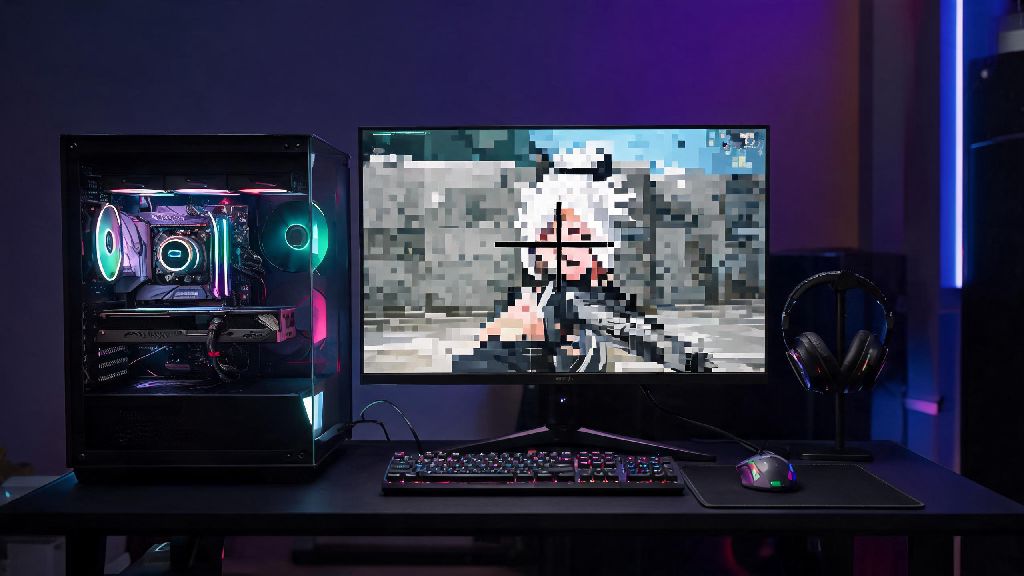
There’s nothing more frustrating than lining up a headshot in Valorant only to realize the blurry, pixelated blob you’re aiming at is an enemy Jett who already popped you before you could react. Even mid-tier gaming rigs can run into fuzzy visuals if your settings are misconfigured, and many players write off pixelation as a hardware issue before testing simple, free fixes. We’ve spent dozens of hours testing every possible adjustment to figure out how to make Valorant less pixelated without sacrificing the high FPS you need to compete in ranked play.
Core in-game settings to adjust when learning how to make Valorant less pixelated
Your first stop for fixing blurry visuals should always be Valorant’s in-game settings menu, since these adjustments take 2 minutes to apply and fix 70% of pixelation cases for most players. When you’re testing how to make Valorant less pixelated, start with these four core settings before moving to more complex tweaks. You don’t have to crank every setting to max either—many high settings actually cause blurriness if your GPU can’t keep up, so we’ll stick to balanced tweaks that keep FPS high too.
Windows and graphics driver tweaks for sharper visuals
If you’ve adjusted your in-game settings and still see pixelation, the issue is likely with your Windows or graphics card settings that are overriding Valorant’s native configurations. A lot of players use optimized driver profiles for FPS that accidentally turn off sharpness settings, so these fixes are usually quick to apply. These small driver changes make a huge difference when you’re working out how to make Valorant less pixelated without dropping your frame rate.
First, open your graphics card control panel, whether that’s NVIDIA Control Panel, AMD Radeon Software, or Intel Arc Control. Head to the program-specific settings for Valorant, and turn on Image Sharpening set to 30-40% strength. Don’t go higher than 50%, because over-sharpening will create weird pixel artifacts around edges that are even more distracting than the original blurriness. You can also turn on AMD FSR or NVIDIA DLSS if your GPU supports it, but make sure you’re using the Quality preset instead of Performance, as Performance mode will make the game look more pixelated to boost FPS.
Next, check your Windows display settings to make sure you’re running your monitor at its native resolution. A lot of players accidentally set their resolution lower to boost FPS, which will make the entire screen look stretched and pixelated, even if your in-game settings are correct. You should also turn off Windows HDR if you don’t have an HDR-certified monitor, as non-certified displays will render HDR content washed out and fuzzy by default.
Display hardware adjustments that eliminate pixelation
Sometimes the issue isn’t your software settings at all, it’s your physical display or the cables you’re using to connect it to your PC. We’ve seen countless players spend hours tweaking settings only to realize they were using an old HDMI cable that couldn’t support their monitor’s full resolution and refresh rate. It’s an easy fix that most people don’t even think to check when they first run into visual issues.
First, check what cable you’re using to connect your GPU to your monitor. If you’re using an HDMI 1.4 cable with a 1440p 144Hz monitor, you won’t be able to run the display at its full specs, which will cause pixelation and blurriness during fast movement. Upgrade to an HDMI 2.1 or DisplayPort 1.4 cable if you can, as these support higher resolution and refresh rate combinations without compression that causes visual fuzz.
You should also check your monitor’s built-in sharpness setting, which is usually accessible via the physical buttons on the side or bottom of the display. Most monitors come with sharpness set way too high or too low out of the box, and adjusting it to the 50-60% range will usually eliminate fuzzy edges without adding artifacts. If you have a gaming monitor, make sure you’re using the Game Mode or FPS Mode preset instead of a Standard or Movie mode, as those presets often add post-processing that blurs visuals to make movies look smoother.
If you’re playing Valorant on a laptop, you might be running into pixelation because your laptop is using the integrated Intel graphics chip instead of your dedicated NVIDIA or AMD GPU to run the game. You can fix this by going into your graphics card control panel and setting Valorant to always use the dedicated GPU in program settings.
Common hidden causes of Valorant pixelation most players miss
If you’ve gone through all the tweaks above and still see pixelation, there are a few less common issues that could be causing the problem, most of which are easy to fix once you know to look for them. We’ve run into all of these while testing fixes for our own ranked play sessions, so they’re not just theoretical issues that only affect a tiny number of users.
First, make sure you don’t have Valorant’s Reduce Buffering setting turned on if you’re running at less than 144 FPS. Reduce Buffering is great for lowering input lag if you have a high-end rig that can push consistent high FPS, but if your FPS is fluctuating, it can cause texture pop-in and pixelation as the game struggles to load assets fast enough. Turning it off will add a tiny bit of input lag, but it will eliminate that random pixelation that pops up during team fights.
Another common issue is outdated game files or corrupted texture packs. You can fix this by opening the Riot Client, clicking on Valorant, then clicking the settings gear icon and selecting Scan and Repair. This will scan all your game files and replace any corrupted or outdated texture files that are causing fuzzy, pixelated visuals. This fix is especially useful after a big patch, when Riot sometimes pushes incomplete texture updates that cause visual glitches.
Finally, if you’re playing on a stretched resolution, that will inherently cause some level of pixelation, since you’re stretching a lower resolution image to fit your full display. You can reduce this effect by making sure your stretched resolution is as close to your monitor’s native aspect ratio as possible, and turning on anti-aliasing to smooth out the jagged edges from the stretch. If the pixelation is too bad, you might want to switch back to native resolution for sharper visuals, even if it means adjusting your muscle memory for a few days.
At the end of the day, you don’t need a $2000 gaming rig to get crisp, clear visuals in Valorant. Most pixelation issues come down to misconfigured settings or small hardware fixes that take less than 10 minutes to apply, and you don’t have to sacrifice the high FPS you need to climb ranked to get better visuals. Test the tweaks we covered one by one, starting with in-game settings first, and you’ll be able to figure out how to make Valorant less pixelated for your specific rig and play style in no time.