If you’ve ever gotten a pop-up Vanguard error locking you out of matches, or noticed random stutters even with a high-end PC, you’ve probably seen HVCI mentioned as a required fix. A lot of players skip adjusting this setting because they assume it’s overly technical, but it’s actually a simple change that solves most common Valorant launch issues. This guide will walk you through exactly how to enable HVCI for Valorant, plus break down why it matters for both your account security and in-game smoothness.
What Is HVCI, and Why Does It Matter for Valorant?
HVCI, short for Hypervisor-protected Code Integrity, is a built-in Windows security feature that blocks untrusted code from accessing sensitive parts of your system memory. Riot’s Vanguard anti-cheat requires this feature to be enabled to make sure cheat software can’t tamper with Valorant’s game files mid-session. Without it, you’ll likely run into error codes like VAN 9001, or be completely locked out of competitive play queues.
HVCI doesn’t hurt performance on modern Windows 11 systems, contrary to outdated myths you might see on old forum threads. On up-to-date Windows 10 or 11 builds, the feature has a negligible impact on raw frame rates, and in many cases, it actually improves frame time consistency by stopping random background apps from messing with Valorant’s allocated memory. That means you won’t lose a clutch round to a random stutter caused by a hidden background update.
Even if you don’t get launch errors right now, enabling HVCI lowers your risk of false anti-cheat bans, since Vanguard marks systems with HVCI enabled as lower risk for cheat tampering. It also protects your personal data from malware that tries to sneak in through game launchers, so it’s a win for both your gameplay and overall system security.
Pre-requisites Before You Enable HVCI for Valorant
You can’t just toggle HVCI on out of the box on most systems, so take a minute to confirm you meet all these requirements first. Skipping these checks will either cause the toggle to be greyed out, or lead to system crashes after you turn the feature on.
Never skip checking Secure Boot status before you try to turn on HVCI, as that’s the number one reason players run into issues with the feature. If Secure Boot is disabled, you’ll need to restart your PC, enter your BIOS menu, and turn it on first before you proceed. The exact BIOS access key varies by motherboard, but it’s usually F2, F10, or Del pressed right as your PC turns on.
If you’re waiting for Valorant to update while you check these pre-requisites, you can pass the time with a quick casual game that doesn’t take much focus. Many players I know pull up RummyLudo for 10 minute breaks between tweaking system settings, since it’s light enough to run in the background without messing with your download or system scans.
Step-by-Step Process to Enable HVCI for Valorant
Once you’ve confirmed you meet all the pre-requisites, enabling HVCI only takes a couple of minutes. Follow these steps exactly to avoid errors:
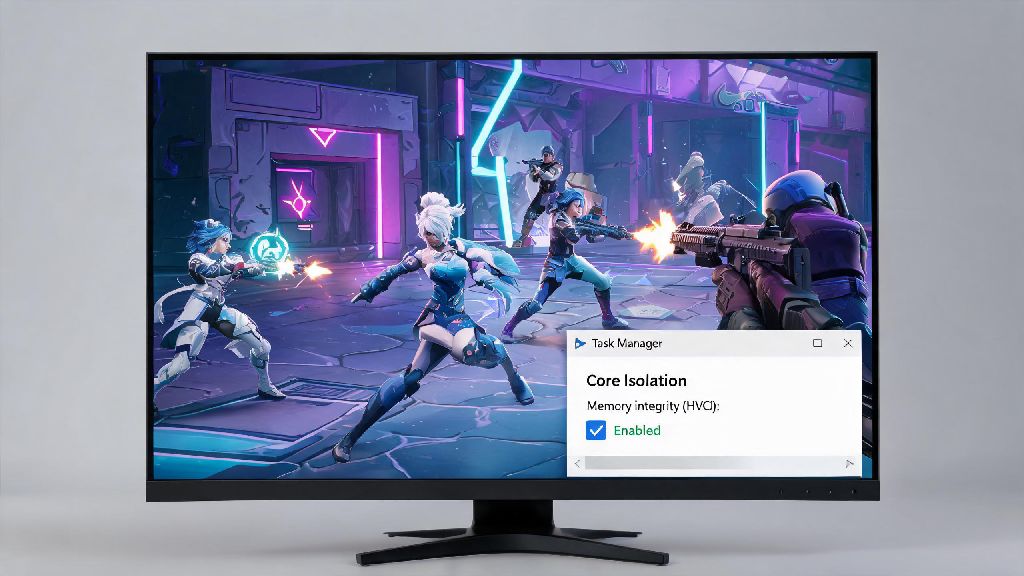
First, open your Windows Settings app, then navigate to the Privacy & Security tab. From there, select Windows Security, then click Device Security. Look for the “Core Isolation” option and click the “Core Isolation Details” link under that heading. You’ll see a toggle for “Memory Integrity” — that’s the consumer-facing name for HVCI. Toggle that switch to the On position.
Only use official Windows settings to enable HVCI, don’t download third-party tools that claim to turn it on for you, as those often come with malware or make unwanted changes to your system settings that are hard to reverse.
Windows will prompt you to restart your PC to apply the change. Save any open work, then hit restart. Once your PC boots back up, open Valorant once to let Vanguard scan your system and confirm HVCI is active. You shouldn’t see any VAN 9001 errors anymore if the process worked correctly.
If the Memory Integrity toggle is greyed out when you try to turn it on, that means you missed one of the pre-requisites. Go back and double check that Secure Boot is enabled, virtualization is turned on in your BIOS, and your Windows version is up to date. I’ve had friends who thought their PC didn’t support HVCI, but they just forgot to turn on Secure Boot after building their rig, so don’t panic if the toggle won’t move at first.
Common Issues to Fix After Enabling HVCI
Most players won’t run into any problems after enabling HVCI, but there are a few rare issues that pop up for people with older hardware or out of date drivers. Here’s how to fix them fast.
If you get a blue screen of death right after restarting your PC, that’s almost always caused by an old incompatible driver, usually for a peripheral like a gaming keyboard, mouse, or headset. Just boot your PC into safe mode, toggle HVCI off again, then update all your peripheral drivers from the manufacturer’s official website. Once drivers are up to date, you can turn HVCI back on without crashes.
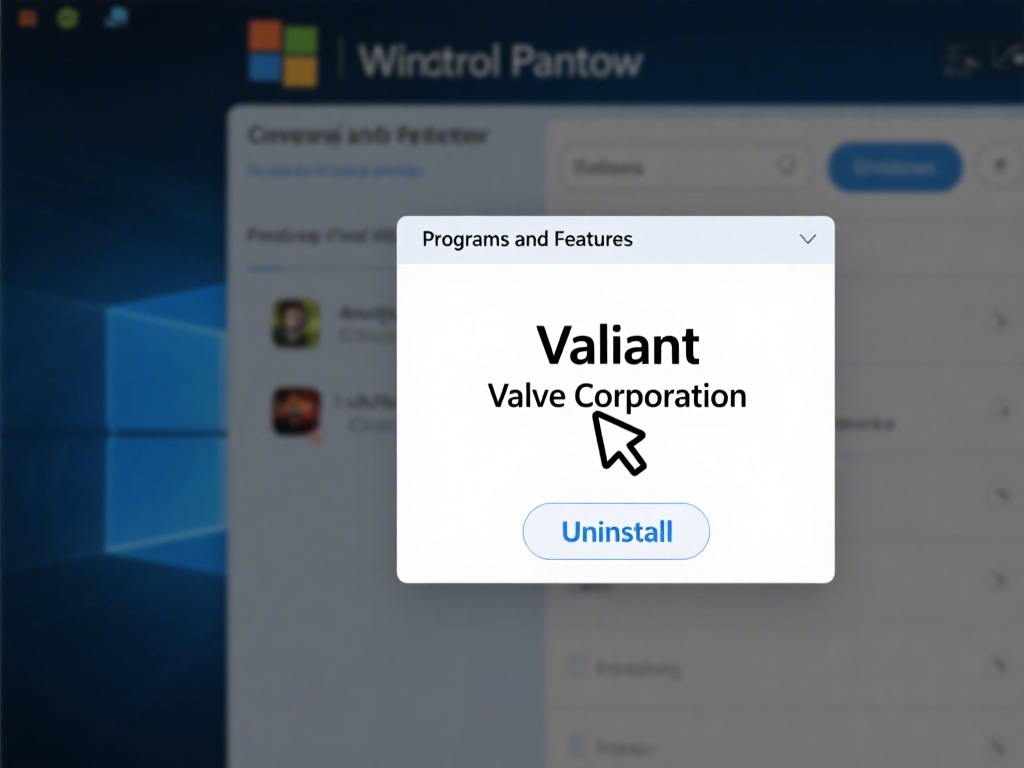
If you still see the VAN 9001 error after enabling HVCI, that means Vanguard didn’t register the system change. Just uninstall Vanguard through your Add/Remove Programs menu, then launch Valorant again to reinstall it fresh. That fix works 99% of the time for this specific error.
Close all unnecessary background apps before launching Valorant if you notice small frame drops after enabling HVCI. Some very old single-player game mod tools or legacy productivity apps don’t play nice with HVCI, so closing them while you play will get your frame rates back to normal. If the drops persist, check that your graphics drivers are fully up to date, as old GPU drivers often have HVCI compatibility issues.
Enabling HVCI doesn’t have to be a confusing, technical process, and the payoff is well worth the 5 minutes of work it takes. You’ll get fewer Vanguard errors, better account security, and more stable frame times while you play. Whether you’re a casual player queuing unrated with friends or a competitive player grinding to Immortal, knowing how to enable HVCI for Valorant is a key skill that will save you a lot of headache down the line. If you run into any rare issues that aren’t covered here, you can find additional troubleshooting steps on Riot’s official support site for Valorant.