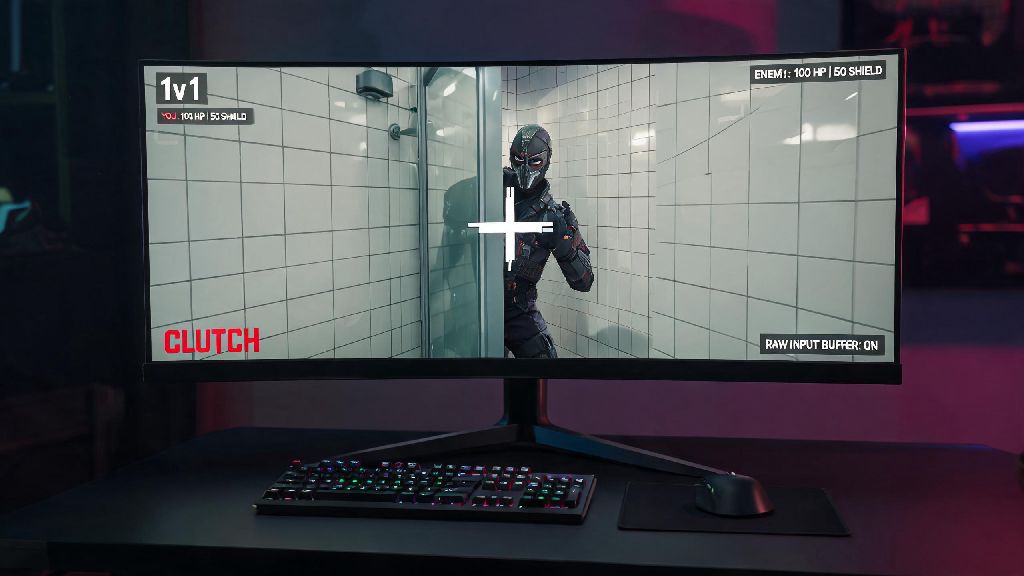
You’re in a 1v1 clutch on Bind, your crosshair is perfectly lined up on the enemy peeking around A shower, you click to shoot, but there’s a tiny delay that makes you miss, costing you the round. If that’s ever happened to you, you’ve probably dug through Valorant’s settings menu looking for fixes, and stumbled on the term you’re asking about: what is raw input buffer Valorant. Most players toggle it on or off without understanding what it actually does, or how it interacts with their mouse, PC specs, and in-game performance. This guide breaks down everything you need to know, from core functionality to real-world testing results, so you can decide if it’s right for your setup.
What Is Raw Input Buffer Valorant, And How Does It Work?
To understand this setting, you first need to know how mouse input travels from your hand to your in-game crosshair. When you move your physical mouse, the sensor sends data about that movement to your mouse driver, which then passes it to your operating system. By default, Windows adds a few layers of processing to that input: it can apply acceleration, which makes your cursor move further if you flick your mouse faster even if you move it the same physical distance. It can also apply smoothing to make cursor movement feel less jittery for everyday desktop use.
For competitive shooters like Valorant, that extra processing adds tiny amounts of input lag, and can make your aim feel inconsistent, because the movement you make with your hand isn’t exactly translated to the crosshair on screen. Raw input buffer skips all of that Windows processing entirely, pulling data directly from your mouse driver to Valorant’s own input processing thread. That means the movement you make with your hand is translated as accurately as possible to your in-game crosshair, with no extra changes or delays from your OS.
Raw input buffer only impacts mouse input, not keyboard or controller inputs, so players using controller don’t need to waste time toggling it. It’s also separate from the basic “Raw Input” toggle that’s been in Valorant for years. That older toggle just disables Windows acceleration, while the buffer adds an extra layer of direct input processing, especially designed for higher polling rate devices.
Key Benefits Of Enabling Raw Input Buffer
For players with compatible hardware, this setting can deliver small but meaningful improvements to in-game performance. First, independent tests have shown that enabling raw input buffer can cut input lag by 1-3ms for 1000Hz mice, and up to 7ms for 8000Hz mice. That might not sound like a lot, but in a game where gunfights are decided by milliseconds, that difference can be the line between winning a clutch and losing it.
It also eliminates inconsistent performance caused by Windows updates. How many times have you installed a Windows update and suddenly your aim feels off? That’s because Microsoft occasionally tweaks mouse processing settings in background updates, which can change how your input feels in game even if you didn’t change any settings yourself. Raw input buffer ignores all Windows mouse processing entirely, so your input feel stays consistent no matter what updates your OS installs.
Another big benefit is that you don’t have to mess with system settings to get accurate input. If you use your PC for work and gaming, you might not want to turn off Windows mouse acceleration for everyday use, because it makes moving your cursor around large monitors easier. With raw input buffer enabled, you can leave Windows’ default mouse settings on for desktop use, and still get accurate, unmodified input in Valorant.
You will almost certainly benefit from enabling this setting if any of the following apply to you:
If you use a mouse with a 4000Hz or 8000Hz polling rate, you will almost always see better performance with raw input buffer turned on. I tested this last month when I upgraded from a 1000Hz mouse to an 8000Hz model. I spent a week playing with raw input buffer off, and my flicks felt inconsistent, like I was overshooting targets even though I didn’t change my sensitivity. As soon as I turned the setting on, that inconsistency went away, and my aim felt far more predictable, especially when I was tracking fast moving opponents in Spike Rush.
Potential Drawbacks You Need To Watch For
Raw input buffer isn’t a one-size-fits-all setting, and it can cause more harm than good for some setups. The biggest downside is the extra CPU load it creates. Raw input buffer runs on its own processing thread, which means it uses a small amount of extra CPU resources while you’re playing. If your CPU is already maxed out while running Valorant – which is common for older budget laptops, or PCs running other background apps like streaming software, Discord, or browser tabs with 100 open pages – that extra load can cause small stutters, or even increase input lag overall, which defeats the whole purpose of the setting.
If you use a mouse with a polling rate lower than 1000Hz, you probably won’t see any benefit, and may even experience worse input consistency. If you’re using a basic office mouse with a 125Hz or 500Hz polling rate, the setting won’t do anything useful for you, because your mouse isn’t sending enough input data for the buffer to make a difference. In some cases, it can even make your input feel more jittery, because the buffer is built to handle higher rates of data.
You might also run into driver compatibility issues. Some older mouse drivers, especially for off-brand budget mice, aren’t built to support direct input access for games. If you enable raw input buffer with one of these mice, you might notice random cursor jumps, or your crosshair freezing for a split second when you move your mouse quickly. That’s a surefire sign the setting isn’t working for your hardware.
A friend of mine learned this the hard way last year. He plays on a 6 year old laptop with an old Intel i5 CPU, and he uses a basic $15 gaming mouse with 1000Hz polling rate. He saw a pro player talking about raw input buffer on TikTok, so he turned it on before his ranked placement games. He ended up losing 3 of his 5 placement matches because his game kept stuttering every time he flicked his mouse, and he had no idea why. When I told him to turn the setting off, the stutters went away immediately, and his aim went back to normal.
How To Test If Raw Input Buffer Works For Your Setup
You should never copy pro settings without testing them first, and this one is no exception. The best way to figure out if it works for you is to run a simple, controlled test on your own setup. First, prep your setup before testing. Make sure you’ve updated your mouse drivers to the latest version, and close all unnecessary background apps so you can get accurate results. Never change multiple input settings at the same time when testing, because you won’t be able to tell which change caused the difference in feel. Keep your sensitivity, crosshair, DPI, and polling rate exactly the same for the entire testing period.
Start with the setting off. Play 2 to 3 full Deathmatch matches, and focus on how your aim feels. Pay attention to small details: Do your flicks land where you expect them to? Do you notice a delay between moving your mouse and the crosshair moving? Do you have to adjust your aim a lot after flicking to a target? Take quick notes if you need to, so you don’t forget how it felt.
Then, turn the setting on. Don’t change anything else, and play another 2 to 3 Deathmatch matches. Ask yourself the same questions, and note any differences. If you notice your aim feels more consistent, and there’s less delay between your mouse movement and crosshair movement, then the setting is a good fit for you. If you notice stutters, or your aim feels more inconsistent, turn it off.
If you don't notice a clear positive difference after 30 minutes of testing, leave it off. You don’t get extra points for using “pro” settings if they don’t help you play better. If you do decide to keep it on, test it in a few unranked matches before using it in ranked, just to make sure you’re used to how it feels. Even a small change in input feel can throw off your aim for the first few games, so you don’t want to risk losing ranked RP while you adjust.
At the end of the day, what is raw input buffer Valorant players keep asking about is a specialized setting built to make high-end mouse input more accurate and consistent. It’s not a magic button that will suddenly make you a Radiant player, but it can give you a small edge if you have the right hardware to support it. Don’t just copy settings from your favorite pro player without testing them first. Take 30 minutes to test it on your own setup, and see if it works for you. The best settings for you are the ones that make you feel the most comfortable and confident in game, no matter what anyone else says. If you’re still unsure, try testing it again after you upgrade your mouse or CPU down the line – the setting might work for you later even if it doesn’t right now.