You’re 10 seconds away from clutching a 1v3 ranked round, the spike is ticking down, and you’ve got your crosshair lined up perfectly on the last enemy’s head. Then your screen locks up. Your audio cuts out. You alt-tab frantically, but nothing works, and by the time you force close the game and rejoin, you’ve lost the round and 20 RR. If you’ve ever screamed “why does my valorant keep freezing” at your monitor mid-match, you’re not alone. Most freezes aren’t caused by Riot’s server issues, and almost all of them are fixable with a few simple tweaks, no expensive hardware upgrades required for most cases.
Common Reasons Why Your Valorant Keeps Freezing
Before you start messing with settings or buying new parts, it helps to understand what’s actually causing the lockups. Valorant is a surprisingly lightweight game, but its anti-cheat system Vanguard is extremely strict, and it will often conflict with other software running on your PC. The most common culprits I’ve seen from troubleshooting for friends and community members include background apps eating up RAM and CPU resources, outdated or corrupted graphics drivers, misconfigured in-game graphics settings, overheating hardware, and Vanguard conflicting with antivirus software or third-party gaming tools. One of the most overlooked causes is simply having too many browser tabs open while playing – a single Chrome tab with a streaming service running can eat up 2GB of RAM, leaving almost nothing left for Valorant if you only have 4GB total.
Quick Pre-Fix Checks to Rule Out Simple Issues
You don’t need to dive into complicated system settings first. These quick checks take less than 5 minutes, and they’ll resolve around 30% of freeze cases immediately. I always run through these first when someone asks me for help with their game issues, because more often than not, the problem is something super simple.
- Close all unused browser tabs, streaming apps, and file downloaders before launching Valorant
- Verify your internet has less than 50ms ping and no packet loss using a free speed test tool
- Check Riot's official service status page to confirm there are no ongoing server outages in your region
- Make sure your Windows OS has all pending security and feature updates installed
So you’ve run through all these checks and your game is still freezing? That means you’ll need to move to slightly more targeted fixes. Don’t worry, none of these require advanced tech knowledge, and most take less than 10 minutes to complete.
Step-by-Step Fixes for Persistent Valorant Freezes
The first fix you should try is updating your graphics drivers. Outdated drivers are the number one cause of game crashes and freezes across almost all titles, not just Valorant. Always download drivers directly from your GPU manufacturer’s official site, not through third-party driver updater tools – those tools often install bloatware or beta drivers that can cause more issues than they fix. If you have an NVIDIA card, use GeForce Experience, and if you have an AMD card, use Radeon Software. Avoid beta driver releases entirely, as they’re not optimized for stable gaming.
Next, adjust your in-game graphics settings to match your hardware’s capabilities. A lot of people crank all settings to maximum even if their PC can’t handle it, and that leads to consistent freezes during busy team fights. Limit your FPS to 2-3 frames above your monitor’s refresh rate to reduce unnecessary load on your GPU, and turn off settings like shadow quality and anti-aliasing first if you’re on a lower-end PC – those two settings have the biggest impact on performance, and you barely notice a difference in visual quality when you turn them down. If you have a high refresh rate monitor, turn off VSync entirely, as it can cause input lag and freezing on some setups. If you adjust these settings and you’re still wondering why does my Valorant keep freezing, the next issue to check is Vanguard conflicts.
Vanguard is designed to block any software that could be used to cheat, so it will often flag legitimate programs like antivirus software, RGB control tools, or third-party FPS counters as potential risks. Don’t use third-party skin changers or FPS unlockers for Valorant under any circumstances – not only will they cause freezes, but they can also lead to a permanent account ban. Add both Valorant and the Vanguard program folder to your antivirus’s exception list, and make sure both are set to run as administrator to avoid permission conflicts.
The last fix to try is addressing overheating. If your CPU or GPU gets too hot while playing, your system will automatically throttle performance to prevent damage, which leads to stutters and freezes. If your hardware hits 90C or higher during play, that’s almost certainly the cause of your freezing issues. For laptop users, make sure your vents are not blocked by a blanket or pillow, and use a cooling pad if you play on a desk. For desktop users, clean out any dust from your fans and heatsinks every 6 months, and make sure your case has good airflow.
When to Consider Hardware Upgrades for Valorant
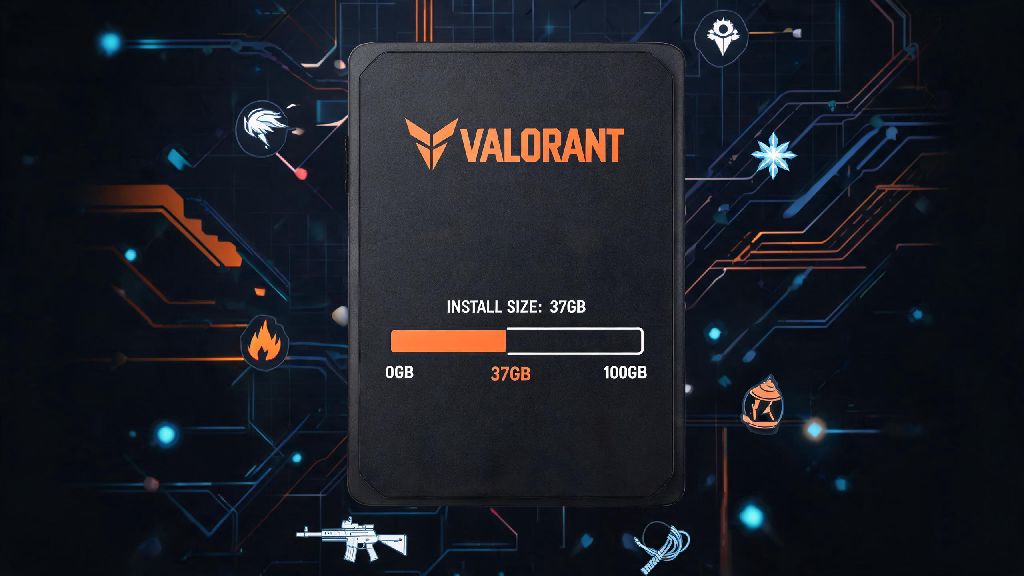
If you’ve tried all the fixes above and your game is still freezing regularly, your hardware might be below the recommended specifications for smooth play. Valorant’s minimum specs are very low, but they only guarantee that the game will run, not that it will run smoothly without freezing during busy matches. The official minimum specs are 4GB of RAM, an Intel i3-4150 processor, and a GTX 1050Ti graphics card, but I recommend at least 8GB of RAM, an Intel i5-9400F or equivalent AMD processor, and a GTX 1660 graphics card for consistent 144FPS play with no freezes.
You don’t need to replace your entire PC at once, either. The cheapest and most effective upgrade for most people is adding more RAM. I helped a friend who was playing on a 4GB RAM laptop last month, and after we added a 4GB stick to bring it up to 8GB total, his freezes completely stopped, no other changes needed. If you’re on a desktop with a dedicated GPU that’s older than 5 years, upgrading to a mid-range modern card will give you a huge performance boost for a relatively low cost.
But if you’re playing on a laptop with integrated graphics and no room for upgrades, you might need to lower all your settings to the minimum and limit your FPS to 60 to avoid freezes. It’s not ideal, but it’s better than losing RR every other match to a random lockup.
At the end of the day, most Valorant freezes are caused by simple software issues that you can fix in less than half an hour, no fancy tech skills required. Start with the quick pre-fix checks first, then work your way through the step-by-step fixes, and only consider upgrades if none of the software tweaks work. If you’ve been asking why does my Valorant keep freezing for weeks, these steps should get you back to smooth, crash-free ranked play in no time, so you can stop losing RR to technical issues and start climbing the ranks like you deserve.