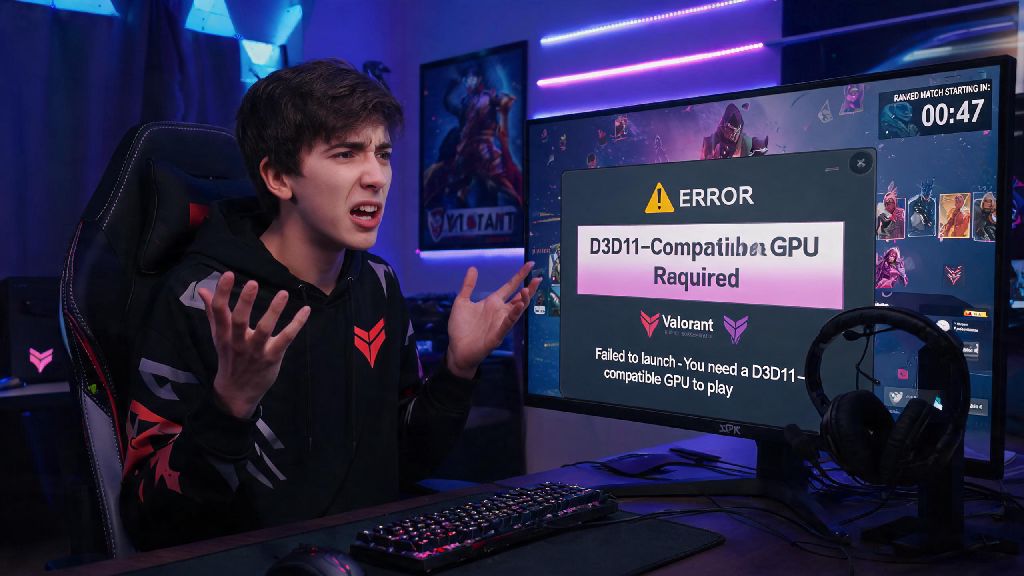
You’re logging into Valorant for a quick ranked grind with friends, and suddenly a pop-up slaps you in the face saying you need a d3d11-compatible gpu to run the game. It’s one of the most frustrating errors for Valorant players, especially if you know your rig is more than powerful enough to run the game smoothly. We’ve all been there, staring at the error screen while your team spams your Discord asking where you are, so we put together tested fixes that work for 90% of players facing this issue.
First Checks to Run When You See the D3D11-Compatible GPU Valorant Error
Before you dig into complicated software fixes, run a few quick basic checks to rule out obvious issues. First, confirm your GPU actually supports DirectX 11. Most GPUs made after 2010 do, including all NVIDIA GTX and RTX series cards, AMD RX series cards, and modern Intel Iris integrated graphics. If you’re running a GPU older than the NVIDIA GTX 400 or AMD HD 5000 series, you may actually need to upgrade your hardware, but that’s extremely rare for players who regularly run modern games.
Next, make sure your monitor is plugged into your dedicated GPU, not your motherboard’s HDMI port. So many players miss this, especially if they just built a new PC or moved their rig recently. If it’s plugged into the motherboard, Valorant will try to run on your integrated graphics, which often don’t support d3d11 properly. Also, double-check that you haven’t accidentally set Valorant to run on integrated graphics in your Windows graphics settings, a super common mistake for laptops with dual GPUs.
Update Your Graphics Drivers to Resolve Compatibility Issues
Outdated graphics drivers are the number one cause of the d3d11-compatible gpu Valorant error, according to Riot Games’ own support docs. You might think your drivers are up to date, but Windows often installs generic drivers that don’t work well with games like Valorant, especially after major Valorant patch drops that change graphical requirements. Always download drivers directly from your GPU manufacturer’s official site, whether that’s NVIDIA, AMD, or Intel. Don’t use third-party driver updaters, they often install bloatware or incorrect drivers that cause more problems than they fix.
If you’re waiting for drivers to download, you don’t have to sit around staring at the progress bar. Lots of players kill 5 to 10 minute wait times with quick, low-effort games that don’t demand much GPU power, and a popular pick for this is Spin Winner, since it runs entirely in your browser without any downloads required. It’s a nice way to pass the time without getting sucked into another long game that will make you forget to check if your drivers are done installing.
Once you’ve installed the latest drivers, restart your PC before launching Valorant again to make sure the changes take effect. Most players see the error disappear immediately after this step, so it’s always worth doing even if you updated your drivers less than a month ago.
Adjust DirectX and Game File Settings
If updating drivers didn’t fix the problem, the issue is likely with how Valorant or your operating system is configured, not your hardware. All of these settings fixes target the most common software triggers for the d3d11-compatible gpu Valorant error without requiring you to change any hardware.
Try these simple setting adjustments:
If you’re running a laptop, make sure your power profile is set to high performance, not power saver. Power saver mode often underclocks your GPU or switches to integrated graphics to save battery, which can trigger the d3d11 error even if your dedicated GPU is fully compatible. You can change this setting in your Windows control panel under power options.
Advanced Fixes for Persistent D3D11 Compatibility Errors
If none of the basic fixes worked, there are a couple more advanced steps you can try before contacting Riot support. First, check that your GPU isn’t overclocked too far. Unstable overclocks can cause compatibility issues with anti-cheat software like Vanguard, which often triggers false compatibility errors to prevent cheating tools from modifying game files. Reset your GPU to its factory clock speeds and test launching Valorant again to see if that fixes the problem.
You can also try uninstalling and reinstalling Vanguard entirely, since corrupted Vanguard files are a surprisingly common cause of hardware compatibility errors. To do this, search for "Add or remove programs" in Windows, find Riot Vanguard, uninstall it, then launch Valorant again to let it reinstall the latest version of the anti-cheat. This only takes a couple of minutes, and it fixes a lot of random launch errors that don’t have an obvious cause.
If you still get the error after all these steps, you can try updating your motherboard BIOS, but that’s only recommended if you’re comfortable doing so, as incorrect BIOS updates can cause serious system issues. For 99% of players, the steps we’ve already laid out will resolve the error without needing to touch BIOS settings.
At the end of the day, the d3d11-compatible gpu Valorant error is almost always caused by a simple software glitch or misconfiguration, not a broken GPU. Working through the steps we’ve laid out will get you back into your matches in 20 minutes or less in most cases, and you won’t need any advanced technical knowledge to follow along. If you still run into issues after trying all the fixes, you can reach out to Riot support with your DXDIAG file and they’ll be able to help you track down the root cause.