If you’ve spent any time watching competitive Valorant streams or pro play, you’ve probably noticed a lot of top players running a stretched, non-native resolution setup. The wider player models and smoother performance make it a popular pick for players looking to squeeze every possible advantage out of their settings. If you’re wondering how to get stretched resolution on Valorant without risking account penalties or broken settings, this guide breaks down everything you need to know, from step-by-step setup to pros and cons to help you decide if it’s right for you.
How to Get Stretched Resolution on Valorant Without Bans
First, it’s critical to confirm that stretched resolution is fully allowed by Riot Games, as a lot of new players worry they’ll get hit with a ban for adjusting their display settings. Riot Games’ official policy explicitly permits custom resolutions, as long as you don’t use third-party tools that modify game files or give you an unfair competitive edge. The process we’re outlining here is 100% safe and won’t trigger Vanguard anti-cheat flags. The entire process of setting up stretched resolution on Valorant takes less than 10 minutes if you follow the steps correctly.
Before you touch Valorant’s in-game settings, you’ll need to create the custom stretched resolution on your Windows system first. This works for both NVIDIA and AMD graphics cards, though the exact menu to create custom resolutions will vary slightly between GPU control panels. For most users, you can also create the custom resolution directly through Windows 10 or 11 display settings without opening your GPU software. Just make sure you save the resolution properly before launching the game, or it won’t show up in the in-game settings menu.
Follow these simple steps to complete the setup:
- First, open your Windows display settings and create a custom resolution with your desired aspect ratio (most players use 4:3, e.g. 1440x1080 for 1080p monitors)
- Save the custom resolution, then open Valorant and navigate to the Video settings tab
- Under the General section, find the Resolution dropdown and select your new custom stretched resolution
- Set the aspect ratio option to "Fill" to avoid black bars on the sides of your screen
- Save your settings, then enter a practice range match to test how the new resolution feels before jumping to competitive play
If you run into issues where the custom resolution doesn’t show up in Valorant’s settings menu, restart your game and make sure you saved the resolution correctly in your system settings. You also want to make sure your monitor supports the custom refresh rate you’re using, as some older monitors won’t run 144Hz on non-native resolutions. Most issues with stretched resolution on Valorant come from improper setup, not the setting itself, so double check your system settings if you run into bugs.
Key Benefits of Using Stretched Resolution for Valorant
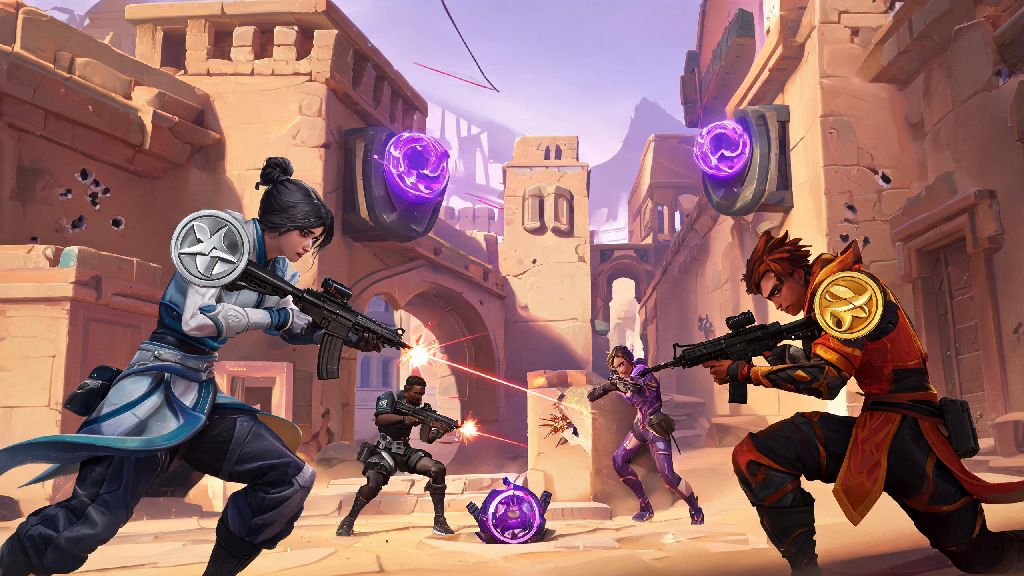
Most players switch to stretched res for one core reason: it makes enemy player models appear wider on your screen without changing their actual height. That means visual target size is roughly 30% larger for 4:3 stretched compared to native 16:9, which can make tracking moving targets and landing headshots feel much easier, especially for players who struggle with aim precision. Many players report that stretched resolution for Valorant has helped them climb 2-3 ranks in a month after switching, simply because their aim consistency improves.
Another huge perk is the performance boost you’ll get from running a lower resolution. Stretched res uses fewer pixels to render each frame, so even mid-tier PCs will see a noticeable jump in FPS, which can make movement and aim feel far more responsive. If you’re currently sitting at 80-100 FPS on native resolution, switching to stretched can easily push you over 144 FPS, which is the baseline for competitive play for most players. Even high-end PCs will benefit from the extra FPS headroom, especially in chaotic team fights where lots of abilities are being used at once.
Stretched resolution also cuts down on visual clutter on the sides of your screen. You won’t be distracted by small details on the edges of the map that don’t impact your gameplay, so you can focus more on the center of your screen where most gunfights happen. I’ve noticed a lot of players who switch to stretched report they react faster to enemies peeking from angles, simply because the wider model catches their eye quicker.
But it’s not for everyone, and you should never feel like you have to switch to stretched to be good at Valorant. Plenty of top pro players still use native 16:9 resolution, and it comes with its own set of benefits, like clearer UI and easier to read mini-maps. What works for a pro player might not work for you, so take the time to test both setups before you commit.
Common Pitfalls to Avoid When Setting Up Stretched Res
The biggest mistake new players make when setting up stretched resolution is using unauthorized third-party resolution tools to force the setting in Valorant. A lot of free tools online advertise one-click stretched res setup, but many of them modify core game files or run in the background while you play, which can trigger Vanguard anti-cheat and lead to a permanent account ban. It’s always safer to use the built-in Windows or GPU control panel settings to create your custom resolution, even if it takes a few extra minutes.
Another common issue is forgetting to adjust your sensitivity after switching to stretched. Even if you keep your in-game sensitivity number exactly the same, the wider field of view will make your aim feel faster than it did on native resolution. You’ll need to spend 10-15 minutes in the practice range adjusting your sensitivity until it feels natural, and don’t jump into ranked play for at least a few days until you’re fully adjusted to the new feel. Small adjustments of 0.1 or 0.2 in sensitivity can make a huge difference in how consistent your aim is on the new setup.
You also want to avoid picking a resolution that’s too low, as this can make text and UI elements so small you can’t read them properly. If you’re using a 1080p monitor, 1440x1080 is the sweet spot for 4:3 stretched, as it keeps UI elements large enough to read without sacrificing the wider player model benefit. If you go lower than 1280x960, you’ll probably struggle to read ability cooldowns and the mini-map, which will hurt your performance more than the stretched res helps.
Make sure you also test the resolution in unrated matches first before you take it to competitive. I’ve seen a lot of players switch to stretched right before a ranked grind and end up dropping two divisions because they haven’t adjusted to the new feel yet. Practice range testing is a good start, but real gunfights against real players will show you if the setup actually works for your playstyle. You might find that you love it in the practice range but hate it in high-pressure ranked matches, so give it time before you make the switch permanent.
Should You Stick to Stretched Resolution Long Term?
Whether stretched resolution works for you depends entirely on what you value most in your gameplay. If you prioritize aim precision and raw FPS above all else, and you don’t mind the slightly fuzzier visual quality, it’s probably a great fit for you. A lot of duelist main players swear by stretched res, as the wider models make it easier to hit fast peeks and win close-range gunfights. The biggest question most players have after testing stretched resolution on Valorant is whether they should keep using it after the initial adjustment period, and the answer usually comes down to what role you play most often.
If you play a lot of controller or sentinel agents, though, you might find stretched res more frustrating than helpful. These roles rely heavily on reading the mini-map, tracking enemy positions through utility, and noticing small details on the edge of the screen. Stretched res shrinks the mini-map and makes distant details harder to see, which can make it harder to play these support-focused roles effectively. I’ve seen a lot of Omen and Sage mains switch back to native res after a week because they couldn’t track enemy positions on the mini-map well enough to use their utility properly.
You also want to consider if you play other first-person shooters besides Valorant. If you switch between Valorant and CS2, for example, using the same stretched resolution for both games can make your muscle memory transfer much better between titles. If you only play Valorant, you might not get that extra benefit, so the switch might not be as worth it for you. Consistency across all the games you play is one of the most underrated factors in good aim, so keep that in mind when you’re testing settings.
If you try stretched res for a week and still feel like your aim is off or you can’t read the UI properly, don’t be afraid to switch back to native 16:9 resolution. There’s no “right” setup for every player, and the best settings are the ones that feel most natural for you. You don’t have to copy pro players’ settings to climb ranks, as long as your setup is consistent for your own playstyle. Even small, incremental improvements to your settings can add up to big rank gains over time.
At the end of the day, customizing your Valorant settings to fit your preferences is one of the best ways to gain a small competitive edge in ranked play. Now that you know how to get stretched resolution on Valorant safely, you can test the setup for yourself and decide if it’s the right pick to help you climb the ranks. Take the time to adjust your settings properly, test in low-stakes matches first, and don’t be afraid to tweak things until you find the perfect setup for your playstyle.