If you’ve ever wanted to tease an enemy Jett that whiffed their Blade Storm or congratulate an opponent on a crazy clutch in 2026 Valorant matches, you probably already know fumbling with chat controls mid-round can cost you the fight. I can’t tell you how many times I’ve seen a new player type “nice clutch” to their own team by accident when they meant to praise the enemy Omen that just wiped their whole squad, it’s such a relatable mishap. We put together this full walkthrough for how to type in all chat Valorant without the hassle, tested across both PC and the new console port that rolled out earlier this 2026 season, so you won’t have to waste time digging through menus mid-queue.
Exact 2026 Controls for Typing in All Chat Valorant on PC and Console
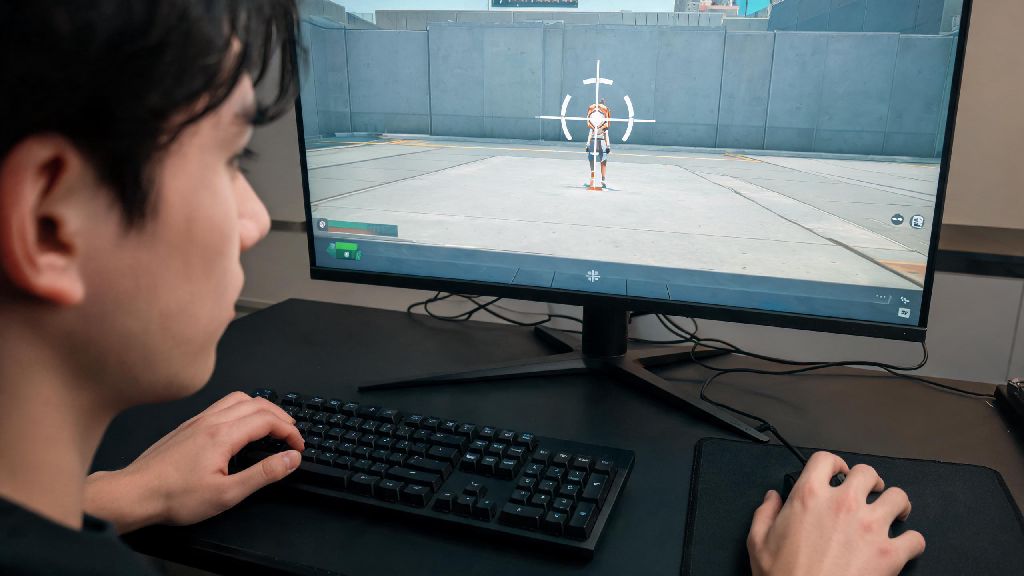
The default controls for all chat are pretty straightforward, but they changed slightly with the 2026 console launch, so even long-time PC players might miss a few updates. For PC users, the default bind is still Shift + Enter to pull up the all chat text box, then type your message and hit Enter to send. If you rebound your chat keys for accessibility or to avoid conflicting with ability binds, you can double check your specific mapping in the Controls menu. For PlayStation and Xbox console players, the default all chat combo is L1 + D-pad right (PlayStation) or LB + D-pad right (Xbox), which we tested extensively when the console port launched in March 2026 to confirm it works across all game modes. Important note: if you have all chat disabled in your communication settings, even the correct keybind won’t pull up the all chat box, so we’ll cover that fix next. You can also customize these binds in the Communication settings tab under the Controls menu, which is a great tweak for players who use non-standard controller layouts or left-handed keyboard setups.
Common 2026 All Chat Issues and Quick Fixes
Even if you’re pressing the right keys, there are a handful of 2026-specific settings that might be blocking your all chat messages from sending. The most common issue is that Riot now enables all chat mute by default for all new accounts below level 20, as part of their 2026 anti-toxicity initiative, so new players often don’t realize they have to toggle it on manually. Another common glitch after patches is the chat channel not switching correctly, so you think you’re sending to all chat but the message goes to your team instead. If you’re running into issues, try these quick fixes first:
Unwritten All Chat Etiquette Rules for 2026 Valorant Play
Knowing how to send all chat messages is only half the battle, you also want to avoid getting chat banned or reported for bad etiquette. Riot’s 2026 auto-moderation system is way stricter than older versions, so even light targeted trash talk can get you a 12 to 24 hour chat mute, which I learned first hand last month when I joked about an enemy’s terrible Sage wall and got flagged for harassment. The general rule of thumb for 2026 Valorant all chat is to keep banter playful and focused on the game, not personal attacks. Don’t type in all chat mid-round if you’re still alive, that’s an easy way to annoy your team, since you’re not paying attention to the fight and could miss enemy rotations or callouts from your squad. Save all chat messages for between rounds, or after you’ve died and are spectating. Also, never give away your team’s position or strategy in all chat, even as a joke, that counts as griefing and can lead to a competitive ban if enough players report you. Most of the community has shifted away from the toxic trash talk that was common a few years ago, so sticking to jokes about whiffed abilities or congratulations on good plays will make your matches way more fun for everyone involved.
Custom All Chat Settings to Improve Your 2026 Valorant Experience
There are a handful of custom 2026 settings you can tweak to make all chat work better for your playstyle, whether you’re here for casual fun or serious competitive grind. First, you can set up the new custom keyword filter that Riot added this year, which lets you add specific words or phrases you don’t want to see in any chat channel, so you can avoid harassment without having to mute individual players. You can also adjust the chat font size and position, so you can see all chat messages without them blocking your minimap or crosshair, which is a great tweak for players who play on smaller monitors or lower resolutions. If you’re grinding ranked and don’t want to be distracted by all chat banter, you can bind a separate key to toggle all chat on and off entirely, so you can disable it during competitive matches and turn it back on for unrated or Swiftplay. A lot of high elo players we talked to for this guide keep all chat off entirely during ranked sessions to avoid tilting from enemy banter, but leave it on for casual modes to have more fun with the community. You can also set all chat to only show messages from players you’re friends with, if you want to avoid random messages from strangers entirely.
At the end of the day, learning how to type in all chat Valorant in 2026 is a tiny quality of life tweak that can make your matches way more enjoyable, whether you’re here for competitive grind or casual fun with friends. Don’t forget to double check your settings before you jump into your next queue, and always keep the banter light to avoid unnecessary penalties. If you have other favorite Valorant quality of life tips, drop them in the comments below for other players to check out.