If you’re new to Riot’s tactical first-person shooter, one of the first questions you’ll probably ask is what can you play Valorant on without wasting money on hardware that can’t keep up. I’ve been playing Valorant since its closed beta, and I’ve tested the game on everything from a beat-up 2017 laptop to a high-end custom gaming rig, so I know exactly what works and what doesn’t for both casual play and ranked grind. Whether you want to play quick unrated matches with friends or climb to Radiant, this guide will break down every supported option, plus the pros and cons of each setup.
What Can You Play Valorant On? Full Breakdown of Official Supported Platforms
As of now, the only official natively supported platform for Valorant is Windows PC. Riot Games has repeatedly stated that it prioritizes the PC experience first, given Valorant’s core focus on competitive integrity and low input lag. That doesn’t mean other options don’t exist, but native support for consoles, mobile, or other operating systems like MacOS hasn’t launched yet, and there’s no confirmed release date for any of those ports.
A lot of players ask about Mac support specifically, and the short answer is you can’t run Valorant natively on MacOS right now. Riot’s Vanguard anti-cheat system is built specifically for Windows, and it doesn’t work with Boot Camp or most virtual machines, so trying to run it on a Mac will either fail or get your account banned. If you only have a Mac, you’ll need to use a cloud gaming service, which we’ll cover later in this guide.
Console players have been waiting for a Valorant port for years, and while Riot has teased that it’s testing versions for PS5 and Xbox Series X/S, there’s no public timeline for release. Any listings you see for console Valorant on retail sites are either fake or placeholders, so don’t pre-order anything until Riot makes an official announcement.
Minimum and Recommended PC Specs for Lag-Free Valorant Play
One of the biggest perks of Valorant is that it’s optimized to run on even very low-end hardware, so you don’t need a $2000 gaming PC to enjoy it. Riot publishes official spec requirements for different frame rate targets, so you can easily check if your current setup is good enough:
- Minimum specs (30 FPS at low settings, 1080p): Intel Core 2 Duo E8400 / AMD Athlon 200GE processor, 4GB RAM, Intel HD 4000 / AMD Radeon R5 200 graphics, 30GB of free SSD storage, Windows 10 64-bit
- Recommended specs (60+ FPS at medium to high settings, 1080p): Intel i3-4150 / AMD Ryzen 3 1200 processor, 8GB RAM, NVIDIA GTX 1050 Ti / AMD Radeon RX 560 graphics, 30GB of free SSD storage, Windows 10 64-bit
- High-end competitive specs (144+ FPS at max settings, 1080p/1440p): Intel i5-9400F / AMD Ryzen 5 2600 processor, 16GB RAM, NVIDIA RTX 2060 / AMD RX 5600 XT graphics, 30GB of free NVMe SSD storage, Windows 10/11 64-bit
I tested the minimum spec setup a few years back when my main PC was in the shop, and it works perfectly for casual unrated or Spike Rush matches. You won’t get super smooth gameplay, and you’ll probably struggle to hit consistent flicks in ranked, but it’s more than enough to learn the game and have fun with friends. The recommended spec is the sweet spot for most players, and you can build a PC that hits those specs for less than $500 if you shop for used parts.
One thing most players overlook is storage. Never install Valorant on an HDD if you can avoid it. Load times on HDD are 3 to 4 times longer, and you’ll often get stuck loading into agent select long after everyone else, which can lead to automatic dodge penalties even if you’re at your computer the whole time.
Unofficial Ways to Play Valorant on Non-PC Devices
If you don’t have access to a Windows PC, you can still play Valorant via approved cloud gaming services, which run the game on a remote server and stream the feed to your device. These options are officially supported by Riot, so you won’t have to worry about getting banned for using them, as long as you stick to trusted providers.
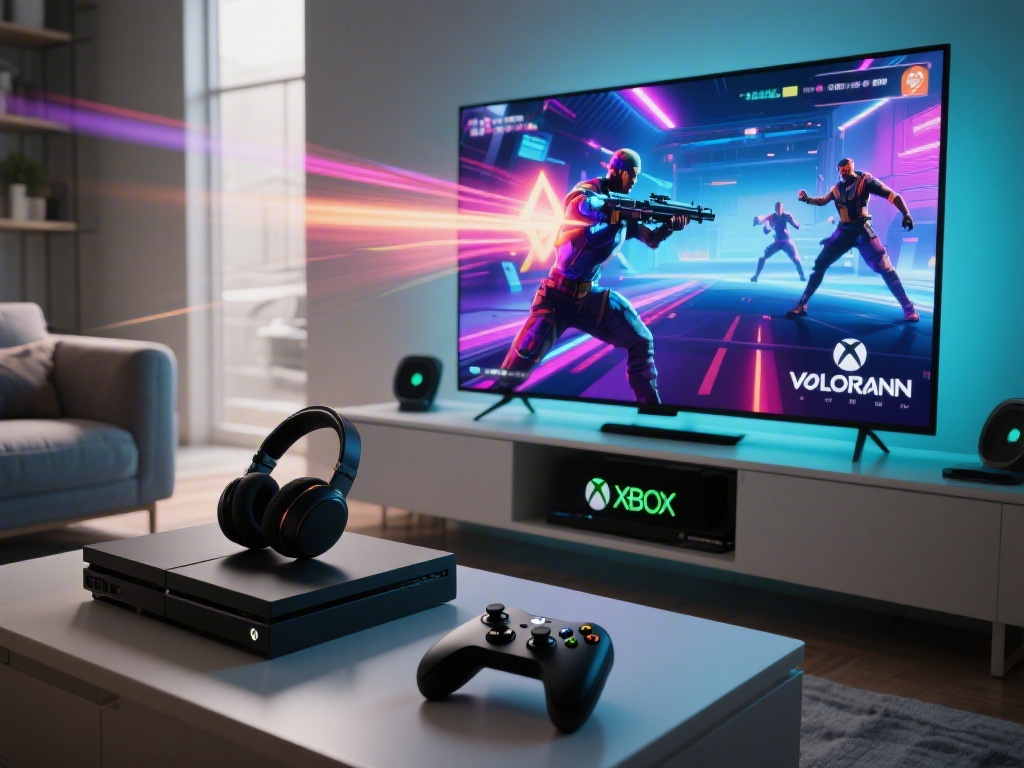
The two most reliable options right now are NVIDIA GeForce Now and Xbox Cloud Gaming. Both let you log into your Riot account, access all your existing skins and progress, and play full matches on a range of devices including Android phones, iPhones, iPads, smart TVs, and even Mac computers. You will need a stable 25Mbps internet connection with less than 20ms ping to make the experience playable, though. Any lag or connection drops will make it almost impossible to hit shots, especially in ranked play.
You can use either a controller or a keyboard and mouse with most cloud gaming setups, but controller support is limited. Valorant is built for keyboard and mouse play, so you’ll be at a significant disadvantage against other players if you use a controller, even if your connection is perfect. I’ve tried playing cloud Valorant on my phone with a controller while traveling, and it’s fine for casual matches, but I’d never try to climb ranked with it.
Stay away from unapproved emulators or third-party tools that claim to let you run Valorant natively on Mac, console, or mobile. These tools almost always bypass Vanguard anti-cheat, and Riot will issue a permanent ban to any account that uses them. It’s not worth losing all your skins and ranked progress just to avoid paying for a cloud gaming subscription.
Tips to Optimize Valorant Performance on Any Supported Device
No matter what setup you’re using, there are small tweaks you can make to get better frame rates and lower input lag, which will make your gameplay feel much smoother. I use these tweaks every time I set up Valorant on a new device, and they’ve helped me gain almost 40 FPS on my old laptop.
First, always keep your graphics drivers updated. GPU manufacturers release regular updates optimized for new game releases, and updating your drivers can give you an easy 10 to 15 FPS boost without any other changes. You should also close all background apps that use internet or processing power before you launch the game, especially browser tabs with video streams or Discord if you’re on a low-end PC.
Turn off VSync and limit your frame rate to your monitor’s refresh rate if you’re playing on PC. VSync adds extra input lag that can make your shots feel delayed, even if your frame rate is high. Limiting your frame rate to match your monitor prevents unnecessary GPU usage and reduces overheating, which is especially important for laptop players.
If you’re using cloud gaming, connect your device to ethernet if possible, instead of Wi-Fi. Wi-Fi connections are much more likely to have random lag spikes that will mess up your gameplay. You should also connect to the closest cloud server available, and don’t download any files or stream other content while you’re playing, as that will use up bandwidth and increase ping.
For low-end PC players, turn down shadow quality and anti-aliasing first. Those two settings use the most processing power, and turning them down barely changes how the game looks, but can give you a 20 to 30 FPS boost. Turn off in-game notifications too, as popups for friend requests or party invites can cause small frame drops at critical moments, like when you’re in the middle of a 1v1 clutch.
At the end of the day, the most reliable answer for what can you play Valorant on is still a Windows PC, but you have options if you don’t have access to one right now. Casual players can get away with cloud gaming on almost any modern device, but if you’re serious about climbing ranked or playing competitively, you’ll get the best experience from a dedicated PC that hits at least the recommended spec requirements. No matter what setup you use, the small optimization tips we covered will help you get the smoothest gameplay possible, so you can focus on winning matches instead of fixing lag.