If you’re a console FPS player making the jump to Valorant on PC, or you just prefer the feel of a gamepad over mouse and keyboard, you’ve probably asked: can you use controller on Valorant PC? I found myself asking the exact same question a few months back, when my go-to gaming mouse died right before a planned game night with friends. I grabbed my old Xbox Series X controller, plugged it in, and spent the rest of the night testing how well it works for everything from swiftplay matches to spike rushes. This guide breaks down everything you need to know, from official support status to setup steps and whether it’s worth using for ranked play.
Can You Use Controller on Valorant PC Officially?
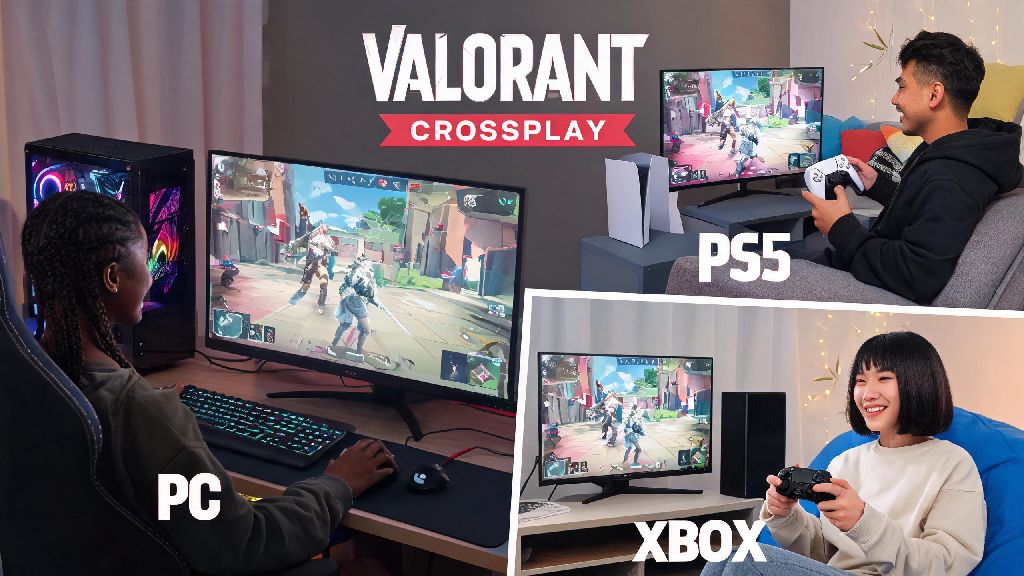
The short answer is yes, Riot Games has offered partial official controller support for Valorant PC since 2022, so you don’t need to download third-party software or mod your game to make a controller work. Support extends to all mainstream controller models, including Xbox One/Series X/S, PlayStation 4/5, and Nintendo Switch Pro controllers, as long as your PC recognizes the device first.
There is one very important catch you need to know upfront, though: Valorant PC has zero aim assist for controller users. Riot made this choice intentionally to preserve competitive fairness across input methods, so you won’t get the same target tracking help you’re used to from console FPS games like Call of Duty or Apex Legends. Riot has not announced any plans to add aim assist for PC controller users in the future, either, as part of its commitment to keeping ranked play balanced for mouse and keyboard players.
I learned this the hard way during my first controller match. I was used to Apex’s strong aim assist helping me track moving targets, so I spent my first three rounds missing almost every shot against enemies peaking corners. It took a full hour of practice in the range to get used to aiming without any help.
Step-by-Step Controller Setup for Valorant PC
Setting up a controller for Valorant PC takes less than five minutes in most cases, and you don’t need any special tools to get it working. Just follow these simple steps:
- Plug your controller into your PC via USB or connect it via Bluetooth, and confirm Windows recognizes the device in your system settings first.
- Launch Valorant, open the settings menu by clicking the gear icon in the top right corner, and navigate to the Controls tab.
- Scroll down to the dedicated Controller section near the bottom of the page, and toggle the "Enable Controller Input" option to on.
- Customize your button mapping to match your preferred layout, adjust sensitivity to your liking, then save your changes before exiting settings.
If your controller doesn’t register in Valorant after following these steps, try restarting the game first, or updating your controller’s drivers through Windows Device Manager. Bluetooth connections can sometimes be finicky, so if you’re having input lag or dropped inputs, switch to a wired USB connection for more reliable performance.
You will still need a mouse to navigate pre-game lobbies, agent select, and the in-game store, as controller support does not extend to most of Valorant’s UI menus right now. You can swap between controller and mouse and keyboard mid-match with no penalty, but I don’t recommend doing this in the middle of a fight for obvious reasons.
Pros and Cons of Using Controller for Valorant PC
Using a controller for Valorant PC makes sense for some players, but it’s not the right fit for everyone. Let’s break down the biggest advantages and disadvantages to help you decide if it’s worth trying.
First, the pros. Controller is far more comfortable for long play sessions if you have wrist pain or RSI from mouse use. I have mild carpal tunnel from years of writing and gaming, so switching to controller for a few hours a week takes a lot of pressure off my wrists, and I can play for longer without feeling sore. Controller is also much more familiar if you’ve spent most of your gaming time on console, so you’ll probably have better movement control at first than if you’re learning mouse and keyboard from scratch. It’s also the only way to play Valorant comfortably from your couch if you have your PC connected to a TV, which is perfect for casual game nights with friends.
Now the cons. As we mentioned earlier, there’s no aim assist, so precise flick shots and tracking fast-moving enemies are significantly harder than they are with a mouse. You will be at a clear disadvantage in high-rank competitive play, even if you’re a very skilled controller player. I tried climbing ranked with controller for a week earlier this year, and I hit a hard wall at Gold 1, because I just couldn’t keep up with mouse and keyboard players flicking to my head in less than a second when I peaked corners. Agent abilities that require precise placement, like Sova’s shock darts or Jett’s blade storm, are also much harder to aim accurately with a controller, so you’ll be limited in what agents you can play effectively.
Tips to Play Valorant Better With a Controller
If you decide to use a controller for Valorant PC, these tips will help you perform better and avoid common frustrations that new controller players run into.
First, stick to agents that don’t rely on high-precision aim to be effective. Agents like Sage, Brimstone, Omen, Gekko, or Killjoy work perfectly for controller users, because their utility does most of the heavy lifting, and you don’t need to hit constant flick headshots to contribute to your team. Save agents like Jett, Sova, or Reyna for when you’re using mouse and keyboard, since their kits rely too heavily on fast, precise aim to work well with a controller.
Next, adjust your deadzone settings to eliminate stick drift. Most controllers have a small amount of natural stick drift right out of the box, so go to the controller settings menu and raise the deadzone slightly until your crosshair stops moving on its own when you’re not touching the thumbstick. Too high of a deadzone will make your aim feel unresponsive, though, so test small adjustments until you find the right balance.
Don’t waste time trying to copy pro mouse and keyboard player sensitivities, because controller sensitivity works completely differently. Test sensitivity values between 0.3 and 0.7 until you find one that lets you turn around quickly without making your fine aim feel too jittery. I’ve found that 0.45 works best for me, but everyone’s preferences are different. Spend 10 minutes in the practice range before every play session to warm up your aim and get used to the sensitivity without the pressure of a real match.
Finally, stick to casual game modes like unrated, swiftplay, or spike rush for the first few weeks. Don’t jump straight into competitive play until you’re comfortable with how the controller feels in real game scenarios, or you’ll risk losing rank while you’re still learning. You can also turn off controller vibration in settings if you find it distracting when you get hit, as it can throw off your aim mid-fight.
So, can you use controller on Valorant PC? The short answer is yes, but it’s not the best choice for everyone. If you’re a casual player who just wants to have fun with friends, or you’re dealing with wrist pain that makes mouse use uncomfortable, it’s a totally valid option that works perfectly for low-stakes matches. If you’re trying to climb to Immortal or play competitive at a high level, though, you’re going to have a much easier time sticking to mouse and keyboard. At the end of the day, the best input method is the one that feels most fun for you, so don’t let anyone shame you for playing with a controller if that’s what you enjoy.