You’re queued up for a ranked Valorant match with three of your closest friends, and you’ve spent 10 minutes mapping out a Bind A-site execute that’s supposed to catch the enemy off guard. But as soon as you load into the agent select screen, you realize no one can hear you talk, and your carefully planned strategy goes out the window before the first round even starts. If you’ve ever run into this issue, figuring out how to talk in party chat Valorant is non-negotiable for consistent wins and less frustration while playing with friends. Most issues with party chat boil down to easy-to-fix settings, small etiquette mistakes, or rare in-game bugs, and you don’t need a fancy new headset to get it working right.
How to Talk in Party Chat Valorant: First-Time Setup and Basic Settings
If you’ve never adjusted your voice chat settings before, you can get party chat up and running in less than two minutes. By default, Valorant assigns team chat push-to-talk to the V key, but it doesn’t set a default bind for party chat, which is why many new players struggle to connect with their pre-made group. Head to your settings menu, navigate to the “Voice Chat” tab, and scroll down to find the party chat push-to-talk or open mic toggle. Set a dedicated push-to-talk bind for party chat that’s separate from your team chat bind to avoid mixing up the two mid-match. I use one of my mouse side buttons for party chat, so I don’t have to take my hand off my movement keys to talk to friends.
Next, confirm that your correct input device is selected at the top of the voice chat menu. If you use a USB headset and a built-in laptop mic, Valorant might default to the wrong input device if you plug your headset in after launching the game. You can test your mic volume right in the settings menu to make sure your voice is coming through clearly, and adjust the input sensitivity if your mic is picking up too much background noise. If you’re playing with a full 5-person party, party chat and team chat will automatically merge, so you don’t have to worry about switching channels to talk to everyone on your team.
Common Party Chat Issues and Quick Fixes
Even if you have your settings set up perfectly, you’ll probably run into a party chat glitch every few weeks. Most of these issues are not your fault, and they can be fixed in 30 seconds or less if you know what to look for. I once lost a diamond promotion match because I spent three rounds trying to fix my mic instead of focusing on callouts, so I’ve tested every possible fix for these common problems:
- Audio cutting out mid-match: This is almost always caused by a background app taking over your mic input. Close any other voice apps like Discord, Zoom, or Teams before launching Valorant, as Riot’s anti-cheat often blocks input sharing across programs to prevent exploits.
- Friends can hear you but random teammates can’t (or vice versa): Double check that you’re pressing the correct push-to-talk key for the channel you want to speak in. Many players mix up their party and team chat binds after updating their settings or switching to a new keyboard.
- No one can hear you at all: First confirm your mic works in other apps, then head to Valorant’s voice settings and make sure the “party voice chat” toggle is switched on. If it’s already on, toggle it off and back on again to reset the connection to Riot’s voice servers.
If none of these fixes work, restarting the game will solve 90% of remaining party chat issues. In very rare cases, Riot’s voice servers will go down in your region, so you can check the official Valorant server status page if multiple people in your party are having the same issue at the same time. Cross-region party groups sometimes run into minor audio lag, but that’s usually fixed by having the party leader switch to a region that all players have a ping under 100 in.
Party Chat Etiquette to Keep Queues Fun for Everyone
Getting your party chat working is only half the battle — you also need to follow basic etiquette to make sure your friends don’t get annoyed and leave the party mid-queue. I’ve queued with dozens of random party members over the years, and bad chat etiquette is the number one reason groups fall apart before they even finish a single match.
Avoid spamming your mic with background noise if you’re using open mic. If you’re eating, yelling at people in another room, or have a loud fan running next to your desk, switch to push to talk to avoid distracting your team during important rounds. Even small background noises can make it hard for other players to hear enemy footsteps or ability cues, which can cost you close rounds.
Don’t use party chat to talk trash about your random teammates while you’re in the same match. It’s rude, and if one of your party members accidentally broadcasts the comment to team chat, it can ruin the whole team’s morale and make your randoms stop giving callouts entirely. Save constructive feedback for after the match if you really think it’s necessary, or keep negative comments to yourself.
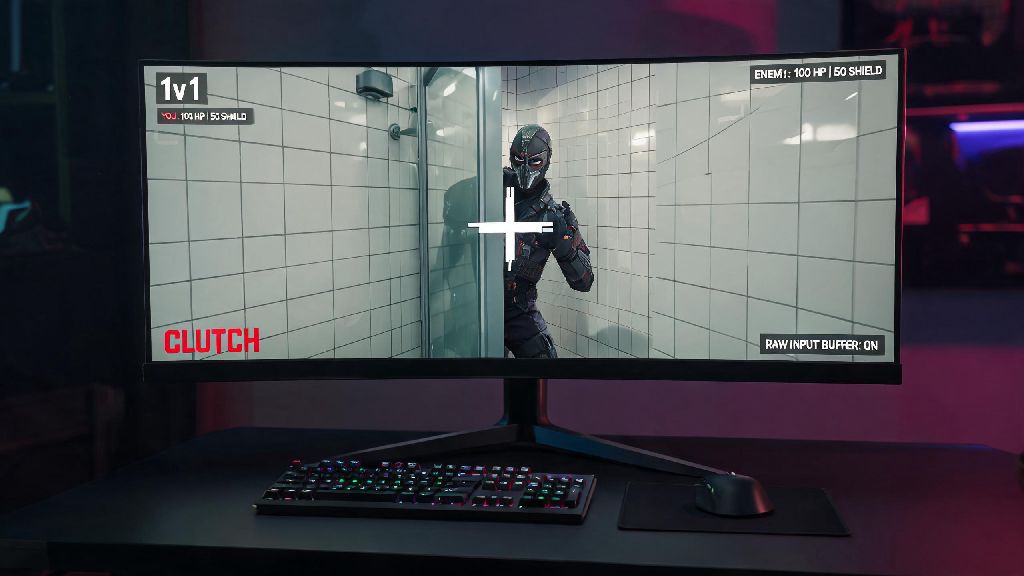
Don’t hog the mic during clutch rounds — if one of your party members is in a 1v3 situation, keep quiet so they can focus on audio cues and make the right plays. I’ve seen so many players lose easy clutches because their friend was yelling unrelated jokes in party chat while they were trying to listen for enemy movement. Save the casual banter for between rounds or after the match ends.
When to Use Party Chat vs Other Valorant Voice Channels
Party chat is a great tool, but it’s not the right channel for every situation. Knowing when to switch between party and team chat can make a huge difference in your win rate, especially if you’re queued with 2 or 3 friends and matched with random teammates.
Use party chat for pre-game strategy planning, talking about non-game stuff between rounds, or discussing plays you don’t want random teammates to overhear. For example, if you and your friend are planning to fake a B site push then rotate to A, saying that in party chat means the randoms on your team won’t accidentally spoil the plan by pushing B early. You can also use party chat to talk about things that don’t concern the whole team, like asking a friend if they want to grab food after the match.
Switch to team chat for in-round callouts if you’re playing with randoms — they can’t hear you in party chat, so you’re putting your team at a huge disadvantage if you only call out enemy positions to your pre-made group. I always switch to team chat as soon as the buy phase ends, so I don’t forget to give callouts to my whole team. You can switch back to party chat during the next buy phase if you want to talk to your friends privately.
All voice chat is almost never useful, so you can usually keep that disabled entirely to avoid toxicity from the enemy team. The only time you might need to use all chat is if you want to compliment an enemy on a good play, but most players stick to text all chat for those comments anyway.
At the end of the day, learning how to talk in party chat Valorant is just as important as mastering your agent’s abilities or learning lineups for your favorite map. It cuts down on miscommunication, makes playing with friends way more fun, and helps you win more matches without unnecessary frustration. Spend 5 minutes checking your settings and setting up a dedicated push to talk bind next time you launch the game, and you’ll never have to scramble to fix your mic mid-agent select again. Even small adjustments to how you use party chat can make a huge difference in how much you enjoy every match you play.